
Tip & Trick

Microsoft SharePoint can feel overwhelming for new users, but these eight beginner-friendly tips will help you master the platform’s core features quickly. From navigation hacks to collaboration shortcuts, these strategies turn SharePoint from a mystery into a productivity powerhouse.
Mastering the SharePoint Homepage Layout
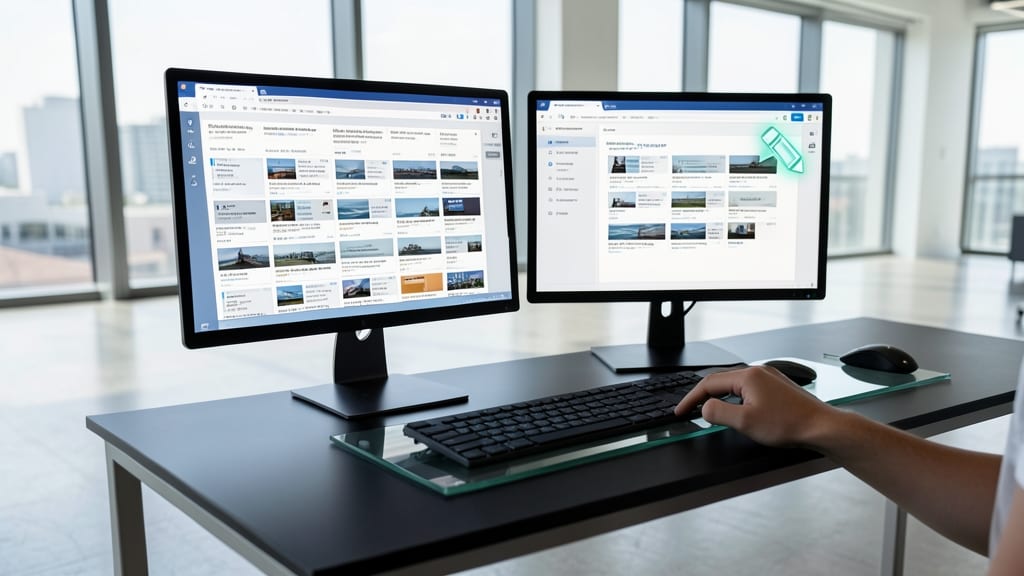
Drowning in a sea of SharePoint sites and news you’ll never use? The homepage layout customization feature lets you curate a dashboard that shows only what matters to you—no more wasted time scrolling past irrelevant updates.
Start by clicking the "Edit" button (pencil icon) on your homepage. Drag and drop tiles to prioritize frequently accessed sites, key lists, or , while hiding the rest. Use the "Add a web part" option to include quick links, search bars, or even Power BI visuals for data-driven teams. The "Pin to top" feature keeps your most-used items visible at all times, while the "Remove" option clears out the noise—no more cluttered workspace.
This is your first step toward a zero-distraction SharePoint experience, perfect for project managers, team leads, or anyone juggling multiple sites. Spend less time searching and more time getting things done. ✨
Quick File Sharing with OneDrive Integration
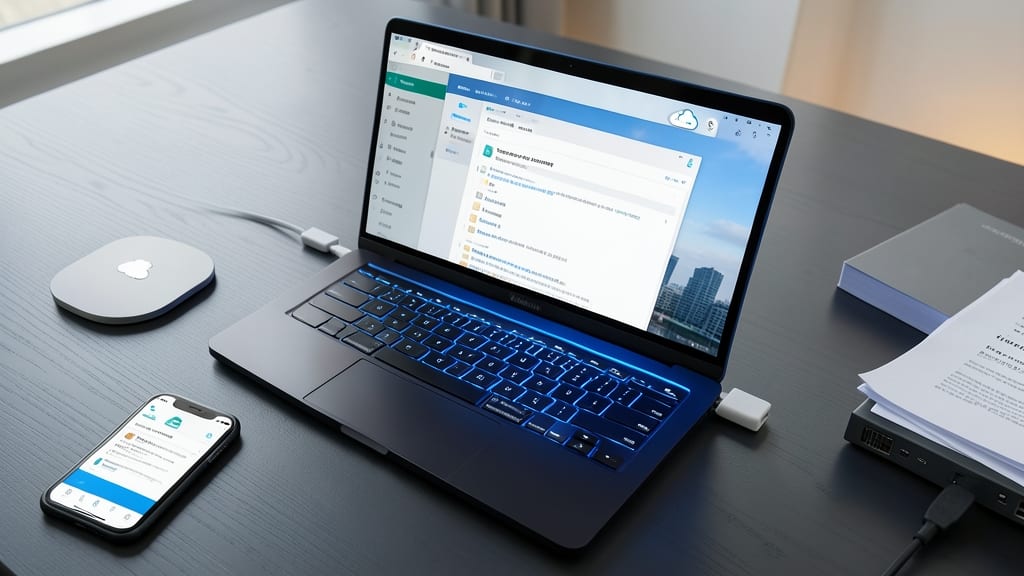
Need to access SharePoint files without an internet connection? The OneDrive integration bridges the gap by syncing your SharePoint libraries directly to your device, giving you real-time offline access and automatic version control. This means edits made offline sync back when you reconnect—no manual uploads required.
Start by opening your SharePoint library, clicking the Sync button in the top-right corner, and selecting OneDrive as your sync location. Files appear in your local OneDrive folder, where you can work on them like any other document. Version history is preserved automatically, so you’ll never lose progress. The best part? Changes sync back to SharePoint instantly when you’re back online.
This is a game-changer for remote workers, freelancers, or anyone who needs to edit files on the go. No more waiting for downloads or worrying about lost updates! ⚡
Creating and Managing SharePoint Lists
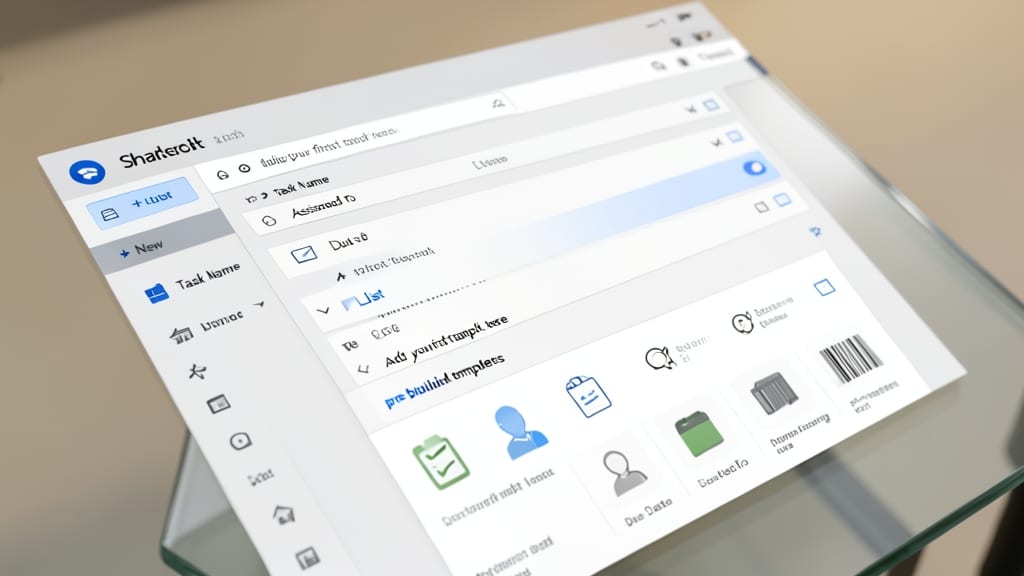
Need a simple way to track tasks, manage contacts, or organize inventory without diving into complex databases? SharePoint Lists let you create customizable, no-code databases in minutes—no IT skills required.
Start by clicking “+ New” > “List” in your SharePoint site, then choose from pre-built templates like Tasks, Contacts, or Issues, or build your own with columns for dates, yes/no fields, or even hyperlinks. Sort, filter, and view data in Grid, Calendar, or Gantt views—all without writing a single line of code. Need approval workflows? Add Power Automate to automate notifications when items are added or updated.
This is your go-to tool for small teams managing projects, client databases, or asset tracking—no expensive third-party software needed. ⚡
Using Modern Document Libraries Effectively
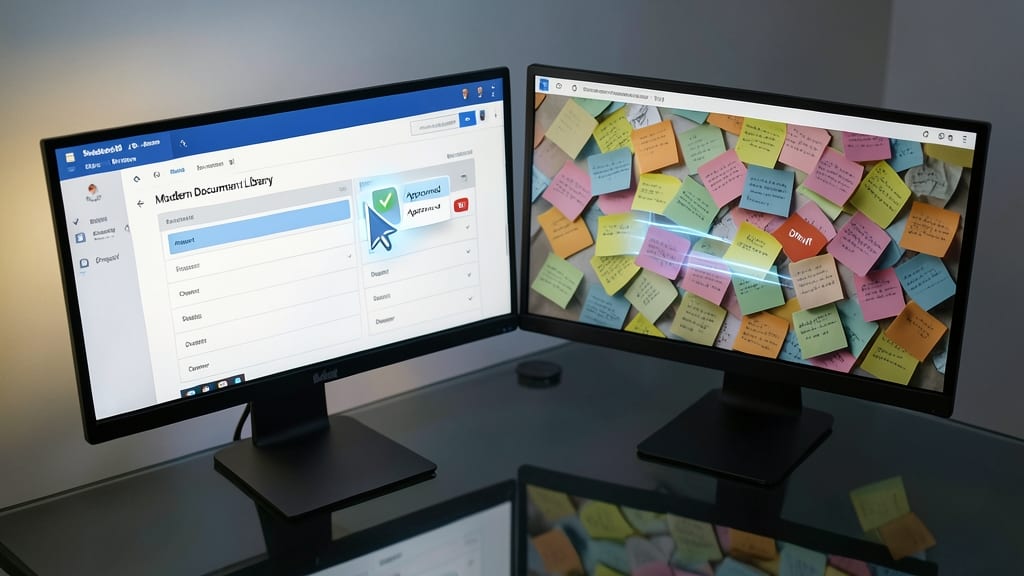
Tired of drowning in disorganized files? SharePoint’s Modern Document Libraries transform chaos into a structured workflow with metadata tagging, version control, and real-time co-authoring—all without leaving the browser.
Start by adding custom columns (like "Project," "Status," or "Owner") to filter files instantly. Enable versioning to track changes automatically, and use co-authoring to let multiple team members edit the same document simultaneously—no more emailing drafts back and forth. The check-in/check-out feature prevents conflicts, while alerts notify you when files are updated.
This is your secret weapon for marketing teams, project managers, or anyone juggling shared files. Say goodbye to version confusion and hello to seamless collaboration! ✨
Setting Up SharePoint Alerts for Key Updates
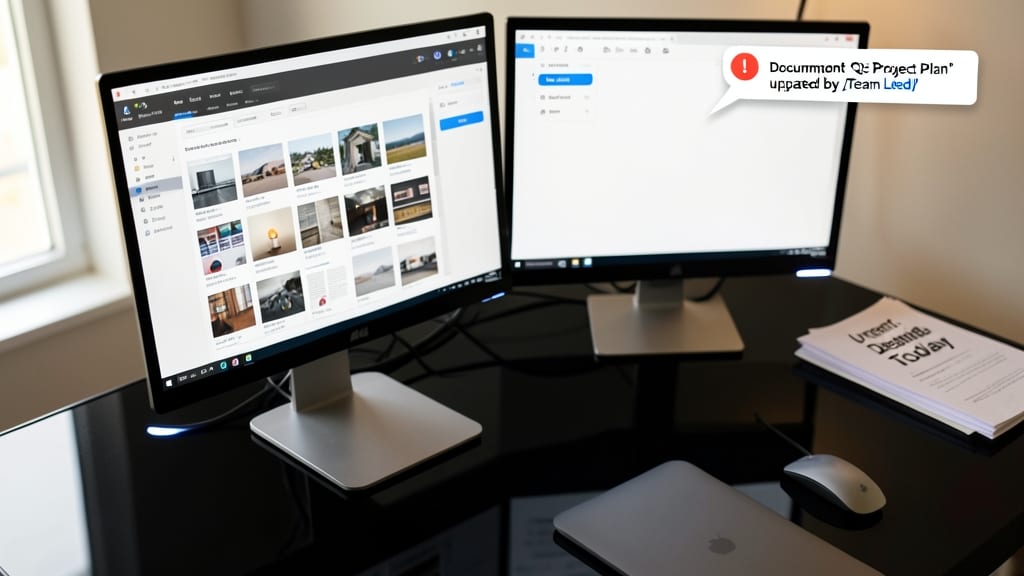
Tired of missing critical updates buried in SharePoint’s endless feeds? SharePoint Alerts send instant notifications when documents are edited, tasks are assigned, or lists are updated—so you never miss a deadline again.
Setting them up takes just minutes: Navigate to your library or list, click the three-dot menu, then select "Alert Me" and choose your notification preferences (email or mobile push). You can even customize alerts for specific files or entire folders, ensuring you only get updates that matter. The best part? No more manual checks—SharePoint handles the heavy lifting for you.
Perfect for project managers, freelancers tracking client files, or anyone juggling multiple tasks. Set up your first alert today and reclaim hours of wasted time chasing updates! ✨
Navigating SharePoint Permissions Like a Pro
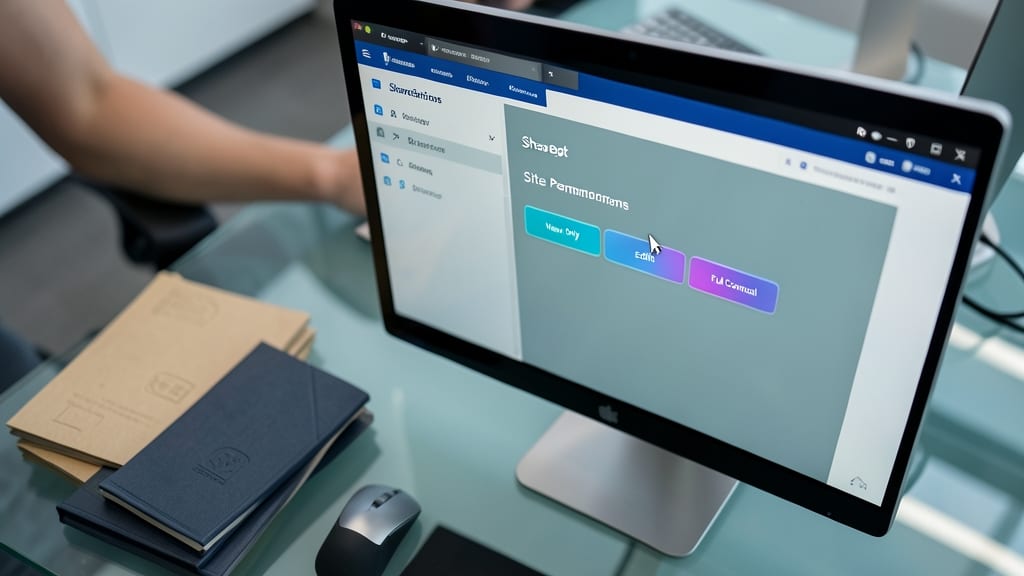
Tired of guessing who can access your sensitive SharePoint files? The Permission Levels tool lets you control access down to the individual folder or document—no more over-sharing by accident.
Start by selecting Site Settings > Site Permissions to assign roles like View Only, Edit, or Full Control to users or groups. For extra security, use unique permissions on specific libraries to override default settings. SharePoint also tracks permission inheritance, so you can easily break or restore it when needed—ideal for projects with shifting team members.
This is a game-changer for IT admins managing compliance or team leads protecting confidential proposals. With a few clicks, you’ll keep data secure without locking out the wrong people. 🔧
Leveraging SharePoint Mobile App Features

Field teams and executives no longer need to wait until they’re back at their desks to stay productive—SharePoint’s mobile app brings full functionality to your pocket. With offline access, real-time edits, and task approvals, you can manage projects, review documents, and collaborate from anywhere with an internet connection.
The app supports full document editing (Word, Excel, PowerPoint) via Microsoft Office integration, and task approval workflows let you sign off on requests instantly. Plus, the site navigation mirrors the desktop experience, so you’ll never feel lost. Sync your most-used sites for quick access, and receive push notifications for comments or updates—keeping you in the loop without constant checking. ⚡
Integrating SharePoint with Microsoft Teams

Tired of bouncing between SharePoint and Teams to find project files? The SharePoint integration in Teams lets you embed entire document libraries directly into channels—no more digging through separate tabs.
Simply click the "Files" tab in any Teams channel, then select "SharePoint" to link your library. Now, team members can view, edit, and discuss files without leaving the conversation. Version history and permissions sync automatically, so you never lose track of updates. Best of all, it works with Microsoft 365 Groups, ensuring everyone stays on the same page.
This is a game-changer for remote teams or project groups who spend too much time switching apps. Try it today and keep collaboration seamless! ✨