
Operating System

Cyber threats evolve daily, but these 10 proven tactics will fortify your digital defenses. Whether you're a home user or business owner, these strategies transform security from reactive to proactive—without requiring advanced technical skills.
Enable Multi-Factor Authentication Everywhere
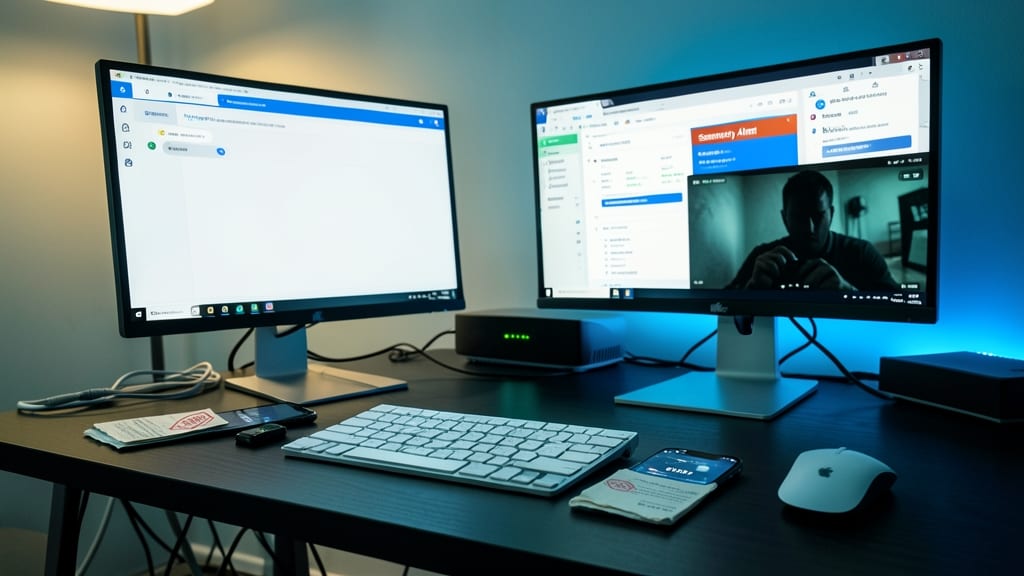
Your email, bank account, or cloud workspace isn’t just a target—it’s the #1 prize for hackers. Multi-Factor Authentication (MFA) slashes account takeover risks by 99.9%, turning stolen passwords into useless scraps. Most breaches exploit weak second factors, so enabling MFA on Google Workspace, Microsoft 365, or even personal accounts is the single most effective upgrade you can make today.
Modern MFA goes beyond SMS codes—authenticator apps (like Google Authenticator or Authy) or hardware keys (YubiKey) offer near-instant, phishing-resistant verification. Services like Duo Security integrate seamlessly with business tools, while Windows Hello and Face ID add frictionless security to devices. The best part? Most platforms enable MFA in under 2 minutes with zero config hassle.
This isn’t just for tech experts—families, freelancers, and small businesses all need MFA. Start with your most critical accounts (email, banking, cloud storage) and expand from there. Your future self will thank you when a breach hits and your accounts stay locked down. ✨
Use a Password Manager with Strong Generators
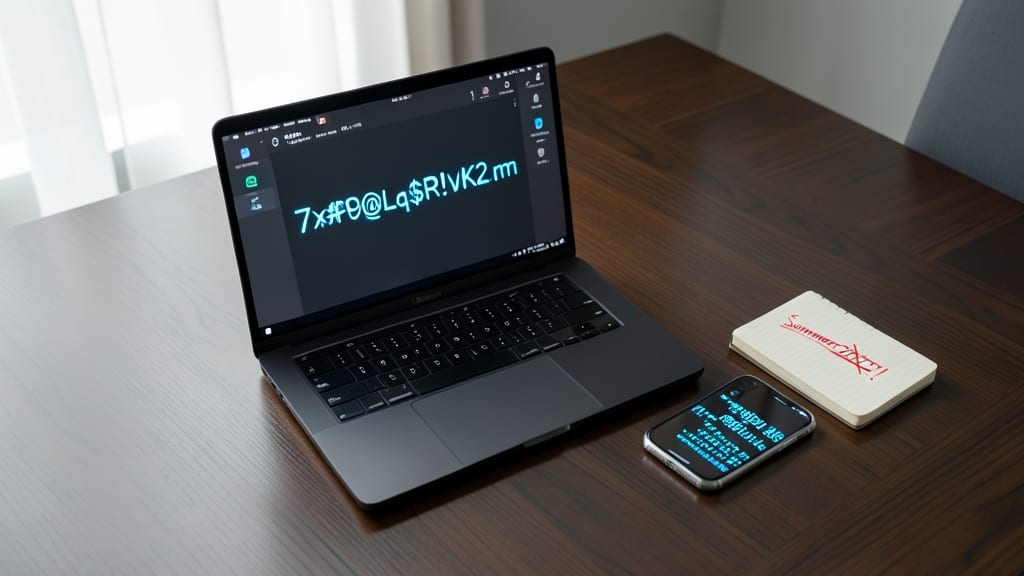
Tired of resetting passwords every other week? A password manager with built-in generators solves this by creating and storing 20+ character credentials (like 7x#P9@Lq$R!vK2$m) for every account—no memorization required.
Tools like Bitwarden (free) or 1Password (premium) auto-fill forms, sync across devices, and flag weak passwords in real-time. Their AES-256 encryption ensures even your master password stays secure. One-click sharing with family members or teams makes collaboration effortless.
Perfect for freelancers, remote workers, or anyone juggling 50+ accounts—this turns password management from a chore into a zero-effort security upgrade. ✨
Implement Zero-Trust Network Principles at Home
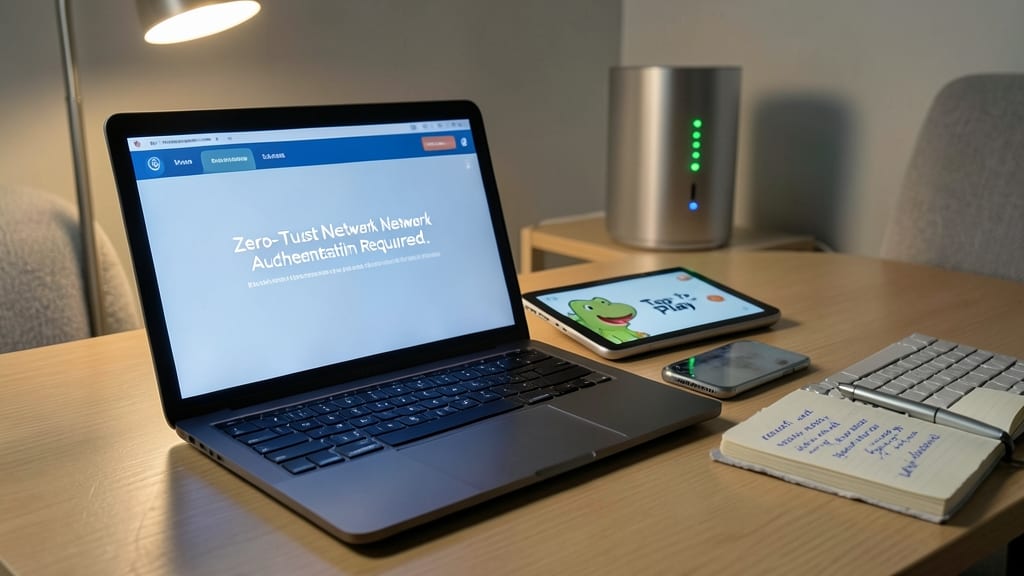
Tired of assuming your home Wi-Fi is safe just because it’s your network? Zero-trust networking flips the script—every device, even your laptop, must prove its identity before accessing sensitive data. This approach is especially critical for remote workers or families where shared devices (like kids’ tablets or smart TVs) could introduce risks.
Start by using router-based MAC address filtering to whitelist only trusted devices, then layer in guest network segmentation for IoT gadgets. Tools like Pi-hole (a DNS-based ad blocker) can also inspect traffic for suspicious activity. For deeper control, OpenZiti or Tailscale create encrypted "wires" between devices, ensuring even your own machines can’t snoop on each other’s traffic without verification.
This setup is ideal for remote workers who need secure access to work files or families where teens might accidentally (or intentionally) expose the network. With zero-trust, you’re not just locking the door—you’re verifying who walks through it. ✨
Automate Software Updates Immediately
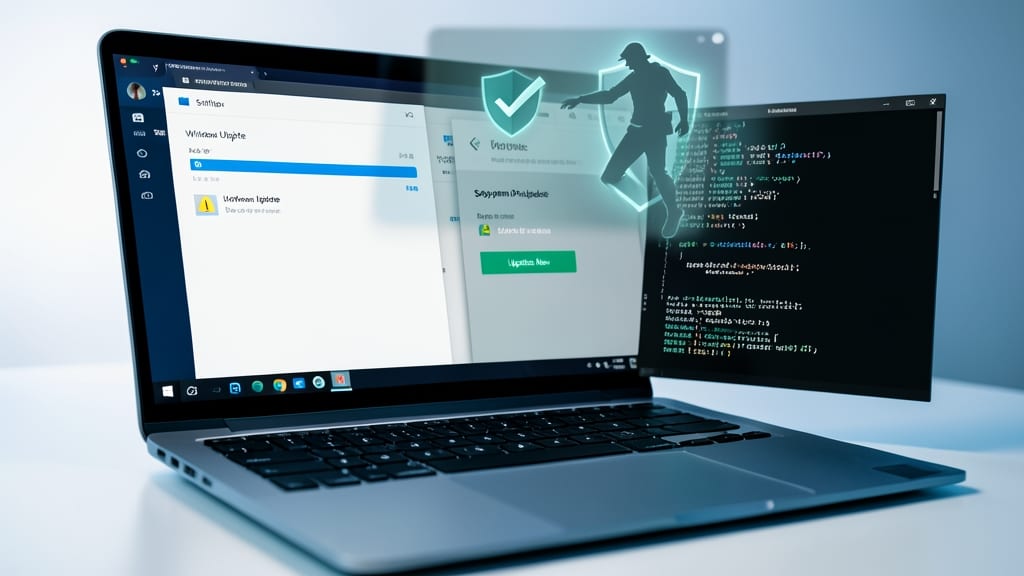
Worried about outdated software leaving your system exposed? Most users delay updates due to compatibility fears—but automating patches closes security gaps before hackers exploit them. Windows, macOS, and Linux all offer built-in tools to handle updates silently in the background.
On Windows, enable Windows Update with automatic downloads and installations (Settings > Windows Update > Advanced options). For macOS, turn on App Store and System Software Updates (System Preferences > Software Update). Linux users can leverage tools like Unattended-Upgrades (Debian/Ubuntu) or dnf-automatic (Fedora/RHEL) for hands-off security. These systems patch vulnerabilities like Log4j or BlueKeep within hours of release.
This is especially critical for small businesses, freelancers, or families sharing devices—where a single unpatched system can become a gateway for malware. Set it up once, and your devices stay protected without lifting a finger. ⚡
Deploy a Firewall with Intrusion Detection

Downloading game patches or handling business files? A firewall with intrusion detection (IDS) acts as your first line of defense against malware, DDoS attacks, and unauthorized scans—without slowing down your connection.
Solutions like pfSense (free) or Sophos Home (user-friendly) monitor network traffic in real-time, blocking suspicious activity while letting your downloads or work files through. For gamers, this stops port scanning before it disrupts your session, while small businesses avoid costly downtime from automated attacks. Most modern routers support IDS as an add-on, so setup takes just minutes.
This is the perfect upgrade for anyone who downloads frequently or runs a home office—no tech degree required. 💪
Encrypt All Sensitive Data Automatically
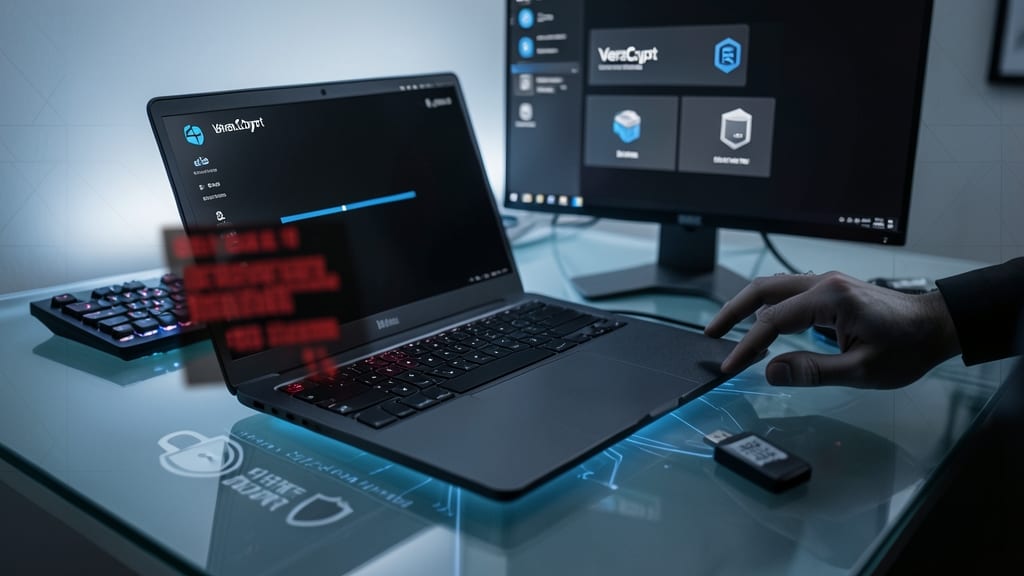
Worried about ransomware locking your files or losing a laptop with unprotected client data? BitLocker (Windows) or VeraCrypt (cross-platform) encrypts everything automatically—so even if your device falls into the wrong hands, your data stays locked tight.
BitLocker integrates seamlessly with Windows Pro/Enterprise, using AES-256 encryption with a zero-configuration setup (just enable it in Control Panel). VeraCrypt, meanwhile, offers pluggable encryption for external drives and supports hidden volumes—perfect for freelancers juggling sensitive contracts or travelers with confidential files. Both tools work silently in the background, requiring no extra effort from you.
Freelancers handling client data and remote workers with laptops should prioritize this—especially if you’ve ever misplaced a device or faced a ransomware scare. 💻
Train Employees or Family Members Regularly
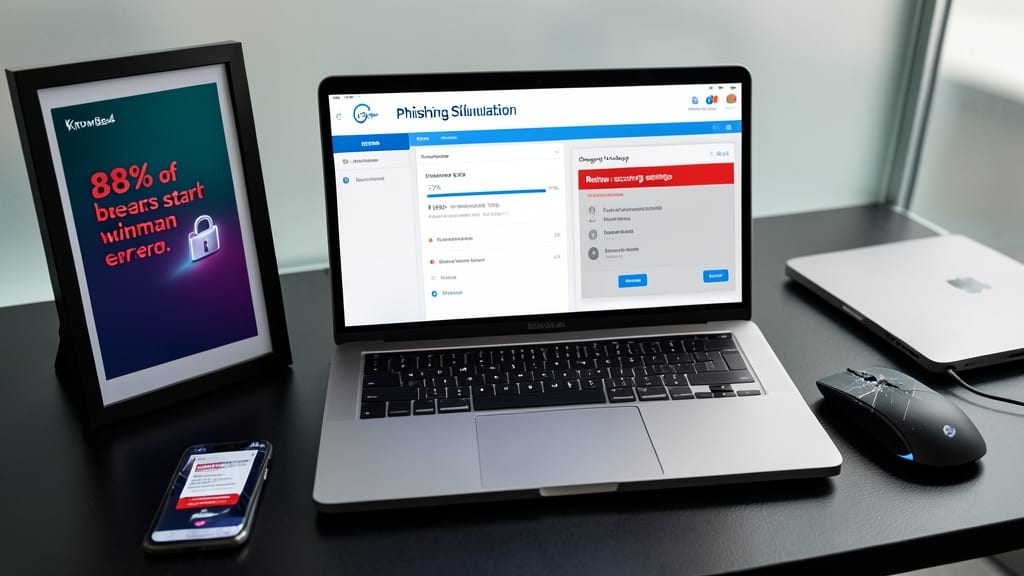
Did you know 88% of cyber breaches start with human error? That’s why regular training—like simulated phishing tests—is your secret weapon against scams, whether you’re managing a team or sharing devices with family.
Platforms like KnowBe4 or Google’s Security Checkup offer zero-cost phishing simulations that mimic real attacks, teaching employees or family members to spot suspicious links. For deeper training, tools like Microsoft Defender for Office 365 provide interactive modules on password hygiene and device security. These programs adapt to skill levels, making them perfect for both tech novices and seasoned pros.
Small businesses with remote teams or households with shared accounts will see the biggest payoff—reducing click-through rates on phishing emails by up to 70% after just a few sessions. Start with a monthly training session to keep everyone sharp. ✨
Monitor Dark Web Activity for Leaked Credentials
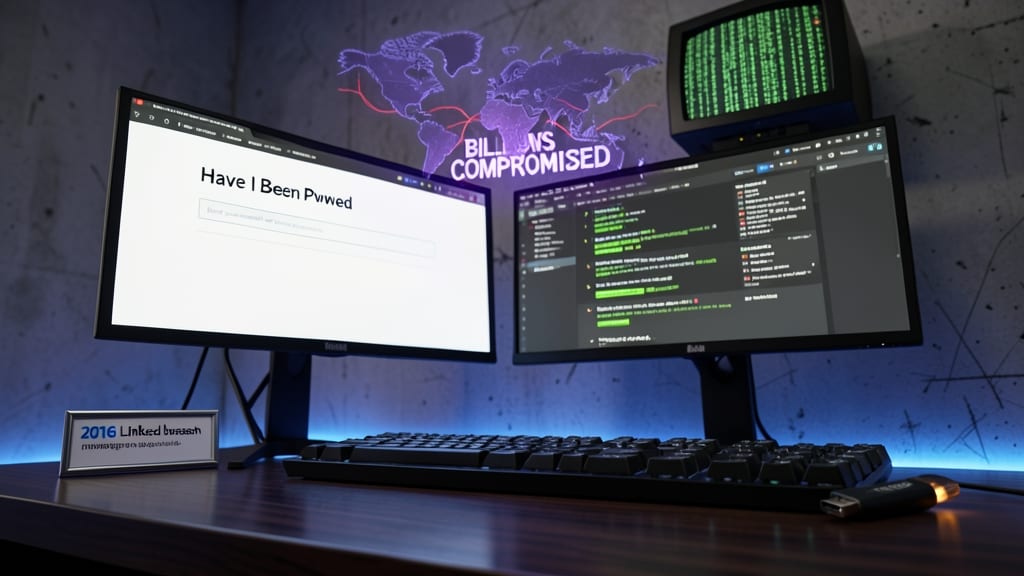
Ever wondered if your email or password from a 2016 LinkedIn breach is still floating around the dark web? Services like Have I Been Pwned and DeHashed scan for leaked credentials in real-time, giving you instant alerts when your data surfaces in new breaches.
These tools monitor billions of compromised records across thousands of databases, including major hacks like Equifax (2017) or Adobe (2013). You’ll get notifications via email or app when your email, username, or password appears, letting you act before fraudsters do. Most services offer free basic monitoring, with premium tiers adding features like credit monitoring or identity theft insurance.
This is a must for freelancers, small business owners, or anyone who’s ever reused passwords—because even if you’ve changed them since the breach, attackers often test old credentials first. 💻
Isolate Critical Devices on Separate Networks
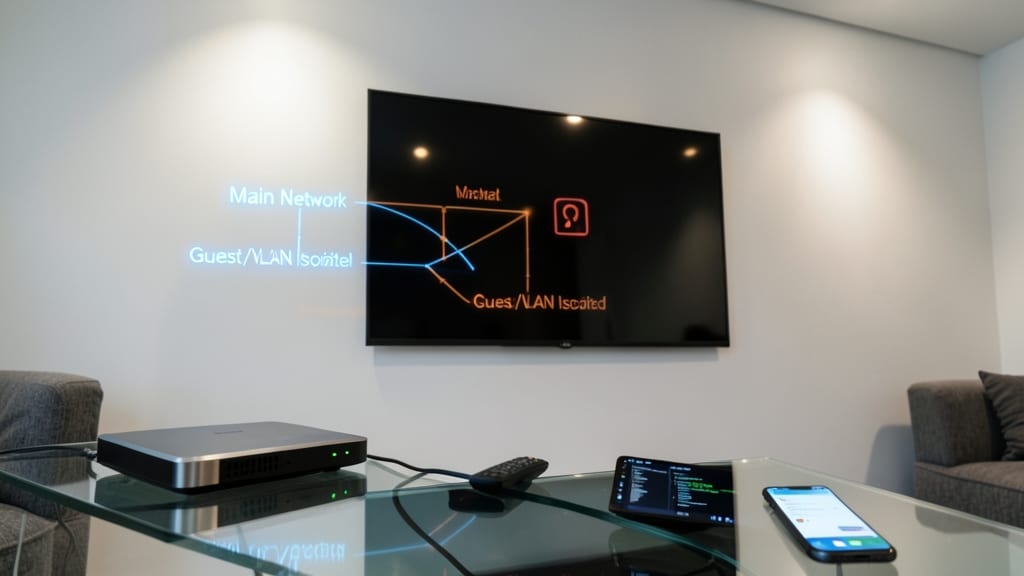
Ever wondered why your smart TV might be the weak link in your cybersecurity armor? Most routers support guest networks or VLAN segmentation, letting you isolate IoT devices like smart speakers, cameras, and TVs from your main network where work files or financial data live.
This simple setup stops lateral movement attacks—where hackers exploit one device (like a compromised smart fridge) to jump to your laptop. Modern routers like the Google Nest Wi-Fi Pro or Asus RT-AX88U make this easy with built-in network segmentation tools. Even budget routers can do this with third-party firmware like DD-WRT or OpenWRT.
Tech-savvy users and parents with mixed-device households will love this—it’s like putting a digital moat around your most sensitive devices. 💪
Prepare a Cybersecurity Incident Response Plan

Even the best defenses can fail—so knowing exactly what to do when they do is just as critical. A cybersecurity incident response plan turns panic into action, whether you're dealing with a ransomware attack, lost device, or suspicious login. This isn't just for IT teams; individuals can adapt it for personal use, like backing up critical files or revoking access to compromised accounts.
Start with a predefined checklist covering containment (disconnect infected devices), recovery (restore from clean backups), and communication (notify affected parties). Tools like Microsoft's Security Compliance Toolkit or NIST's SP 800-61 provide templates for businesses, while individuals can simplify it with a personal "emergency contacts" doc (IT support, bank fraud teams). Document steps like disabling cloud backups during ransomware attacks to prevent further spread.
Small businesses should test their plan annually, while individuals might review it after major life changes (new job, travel plans). The goal? Reduce downtime from hours to minutes when the worst happens. ✨