
Tip & Trick
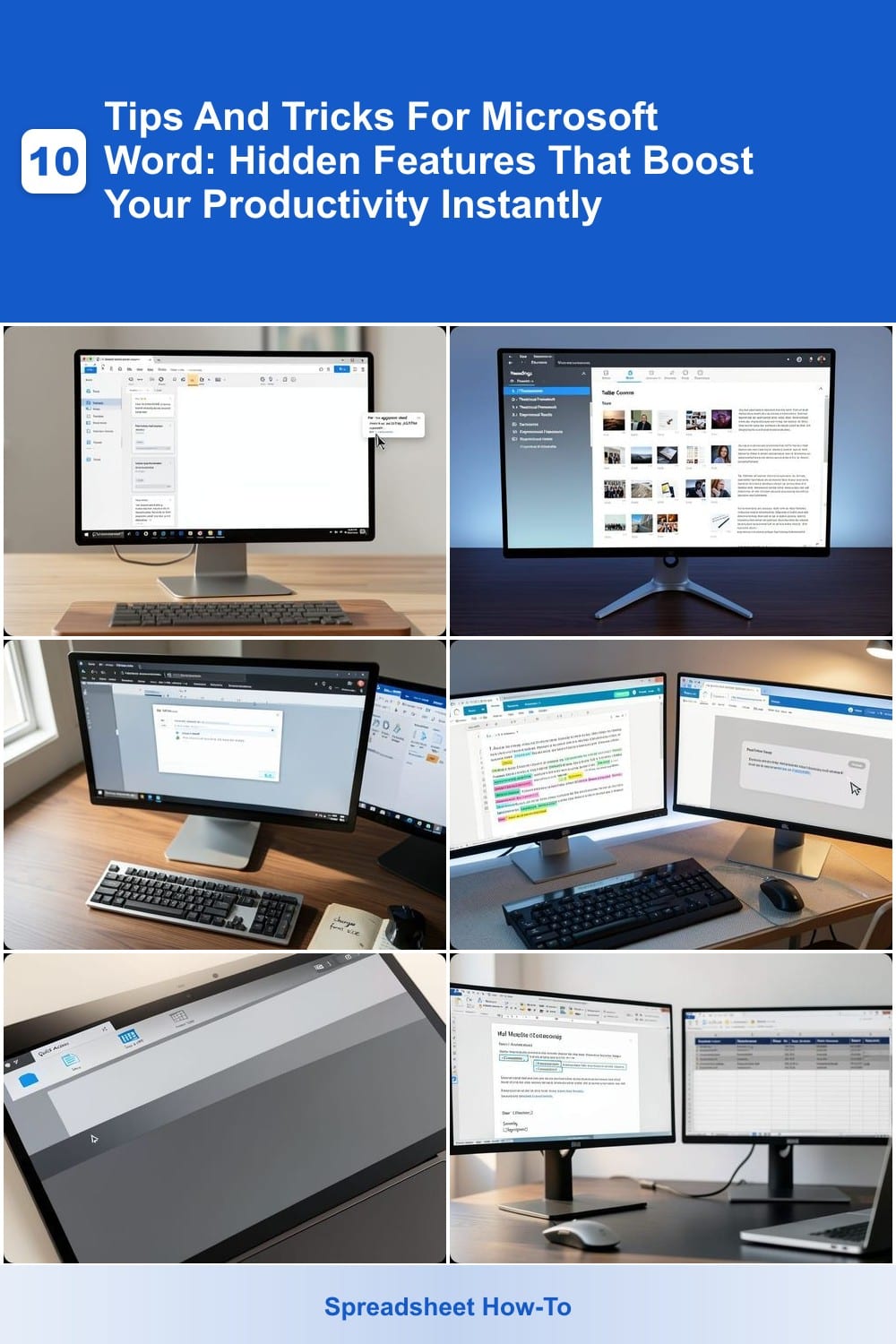
Microsoft Word is packed with hidden features that can transform your workflow. These 10 lesser-known tips and tricks will save you time, reduce frustration, and unlock advanced capabilities you never knew existed—perfect for both beginners and power users.
Quick Parts Gallery for Reusable Text Blocks
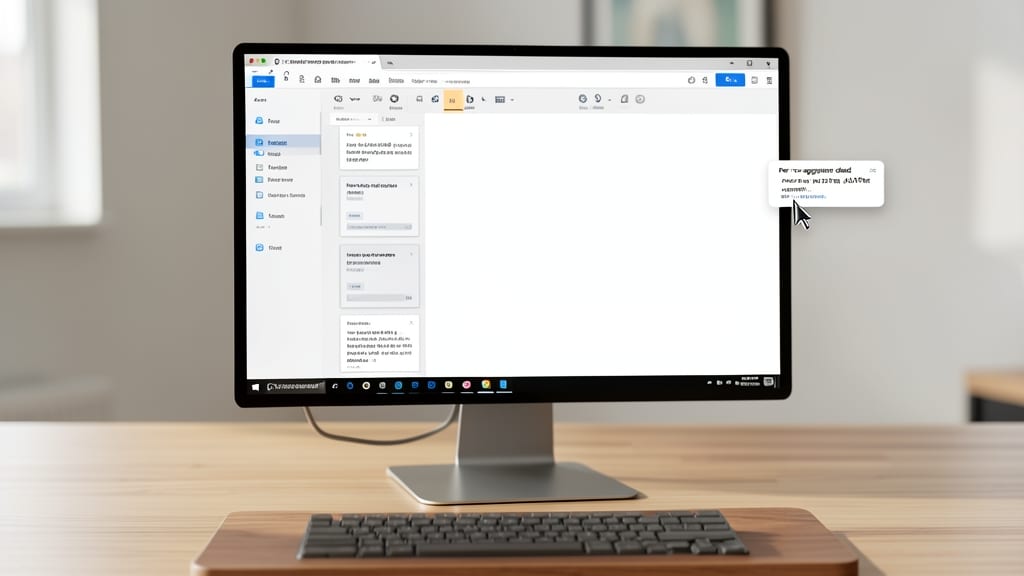
Tired of retyping the same boilerplate text over and over? The Quick Parts Gallery in Microsoft Word turns repetitive phrases, signatures, or entire templates into reusable blocks—cutting your typing time by 80%. Just type your standard text once, save it to the gallery, and insert it anywhere with a simple shortcut like Ctrl + F3.
You can even organize these snippets into custom categories (think "Legal Clauses" or "Email Signatures") and update them globally across documents. Need to change your company’s standard disclaimer? Edit it in one place, and Word updates every instance automatically. The feature works seamlessly with headers, footers, and tables, making it perfect for reports or forms.
This trick is a game-changer for lawyers drafting contracts, marketers sending bulk emails, or anyone drowning in repetitive tasks. Spend less time typing and more time focusing on what matters. ✨
Navigation Pane for Large Documents
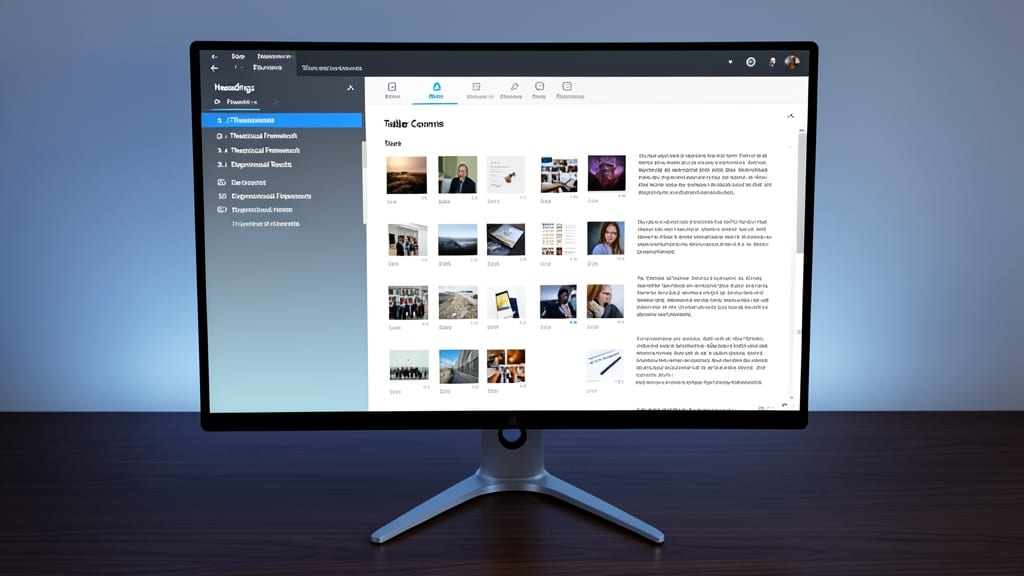
Tired of losing your place in a 50-page dissertation or manual? The Navigation Pane in Microsoft Word lets you skip straight to headings, pages, or even tables of contents—no endless scrolling required.
With just one click, access three views: Headings (for quick jumps), Pages (thumbnail previews), and Results (search within the document). It’s especially useful for large documents where finding Section 4.2 feels like a treasure hunt. Keyboard shortcut Ctrl+F (Windows) or Cmd+F (Mac) toggles it instantly.
Perfect for students, researchers, or technical writers juggling lengthy reports. Say goodbye to the "I swear I saved this section" frustration. ✨
Tell Me Feature for Instant Help
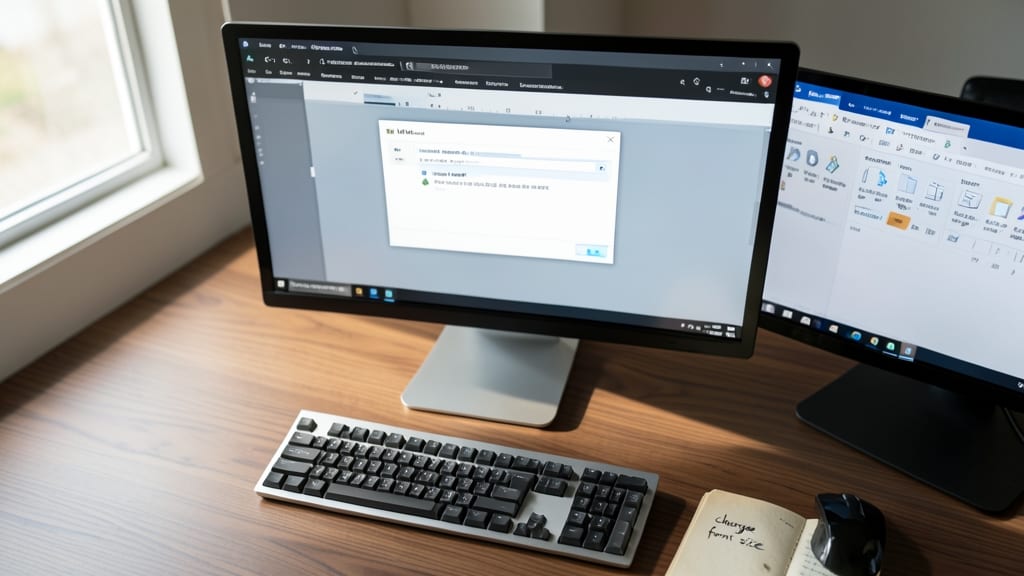
Tired of digging through endless menus to find basic commands in Word? The Tell Me feature turns frustration into instant action—just type what you want to do (like "insert page break" or "change font size"), and Word suggests the exact command. No more hunting through ribbons or guessing at shortcuts.
This AI-powered search tool understands natural language, so you can type "align center" or "create table of contents" for lightning-fast results. It even learns from your usage, surfacing your most common tasks first. Works seamlessly across Word for Windows, Mac, and online, making it a universal productivity booster.
Perfect for busy professionals, students, or anyone who prefers typing over clicking—especially when you’re juggling multiple tasks and need answers fast. ⚡
Track Changes with Comments and Highlights
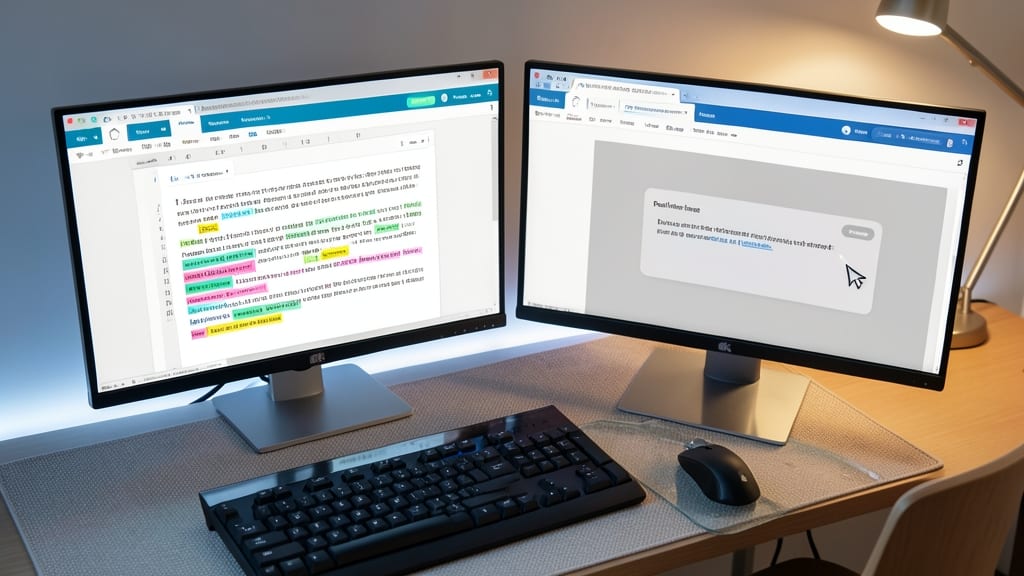
Tired of endless email chains just to clarify a single edit? Word’s Track Changes feature gets a major upgrade with inline comments and color-coded highlights—turning passive revisions into an active conversation.
Enable it via Review > Track Changes, then right-click any text to add a comment (like a sticky note) or highlight it in yellow, green, or blue. Need to mark a whole paragraph for discussion? Use the New Comment button—no more lost context. Pro tip: Assign different colors to team members for instant visual feedback.
This is a game-changer for legal teams, academic researchers, or anyone managing group edits. No more guessing—every change is labeled, timestamped, and tied to the original author. ✨
Customizable Quick Access Toolbar
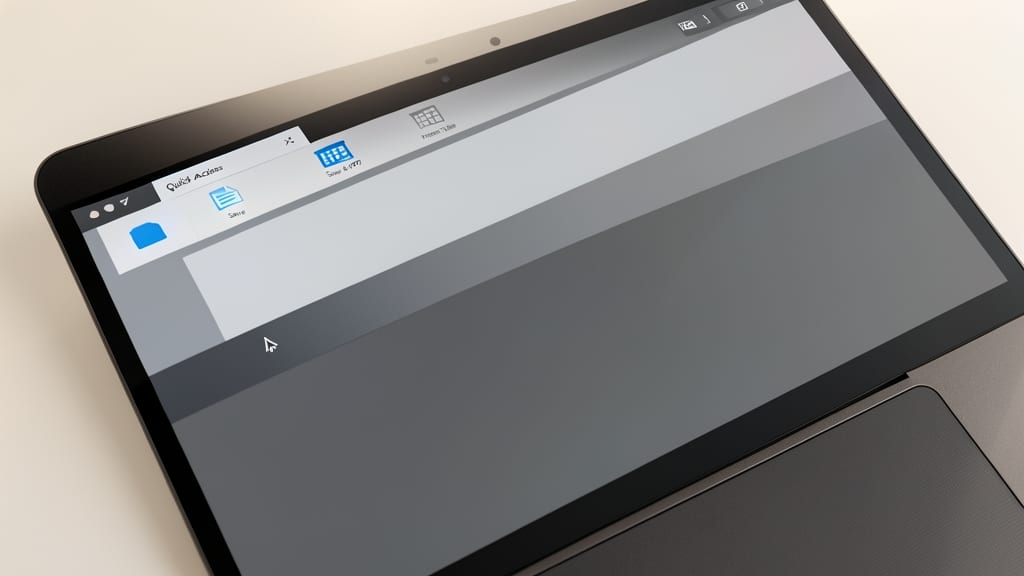
Tired of digging through menus to save your work as a PDF or insert tables? The Quick Access Toolbar lets you drag your most-used commands directly to the top of the screen—so you can access them in one click every time.
Right-click the toolbar to customize it with favorites like Save As PDF, Insert Table, or Undo/Redo. You can even add macros or keyboard shortcuts for instant access. The toolbar syncs across devices if you use OneDrive, so your setup follows you whether you're working from home or the office.
This trick is a game-changer for freelancers, students, and professionals who juggle multiple document types daily. Spend less time hunting for commands and more time getting your work done. ✨
Mail Merge for Personalized Letters
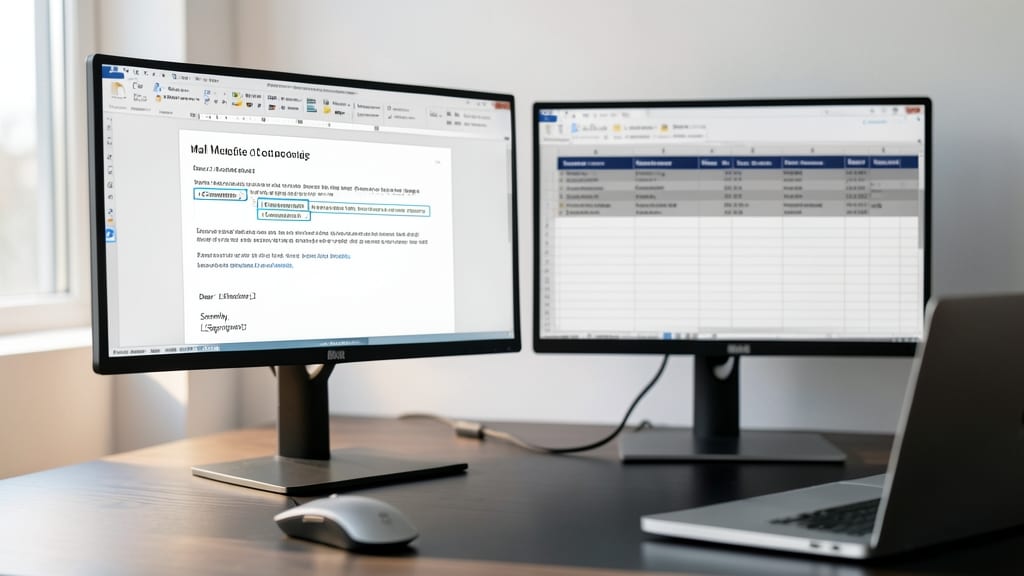
Tired of manually typing the same greeting, address, or signature for every email or certificate? Mail Merge in Word automates personalized bulk communication in minutes—no coding required.
Start by creating your base document with merge fields (like <<FirstName>>), then link it to an Excel spreadsheet or database containing recipient details. With a single click, Word generates hundreds of customized letters, labels, or emails—perfect for event invitations, holiday cards, or client correspondence. The preview pane lets you check each output before finalizing.
Small business owners, event planners, and educators will love this for batch processing, while nonprofits can use it to send tailored donation letters. It’s the secret weapon for turning repetitive tasks into a one-click operation. ✨
Zoom and Read Mode for Focused Editing
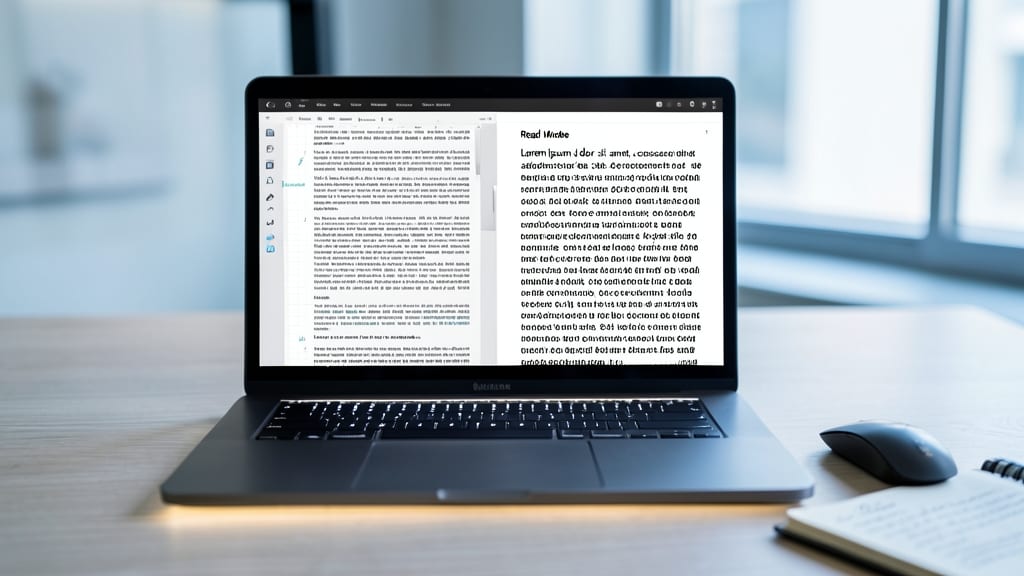
Tired of squinting at tiny text or getting distracted by formatting while proofreading? Zoom and Read Mode in Word turns your screen into a distraction-free, large-print editing zone—perfect for long documents or sensitive eyes.
With a single click, you can enlarge text up to 400% or toggle Read Mode to strip away headers, footers, and sidebars, leaving only the content. The dark or light themes further reduce eye strain, while the smooth scrolling makes it easy to navigate dense text. Best of all, it’s built right into Word—no plugins or extra steps needed.
This is your secret weapon for legal reviews, academic papers, or late-night editing sessions where focus matters most. ⚡
Equation Editor for Math and Symbols
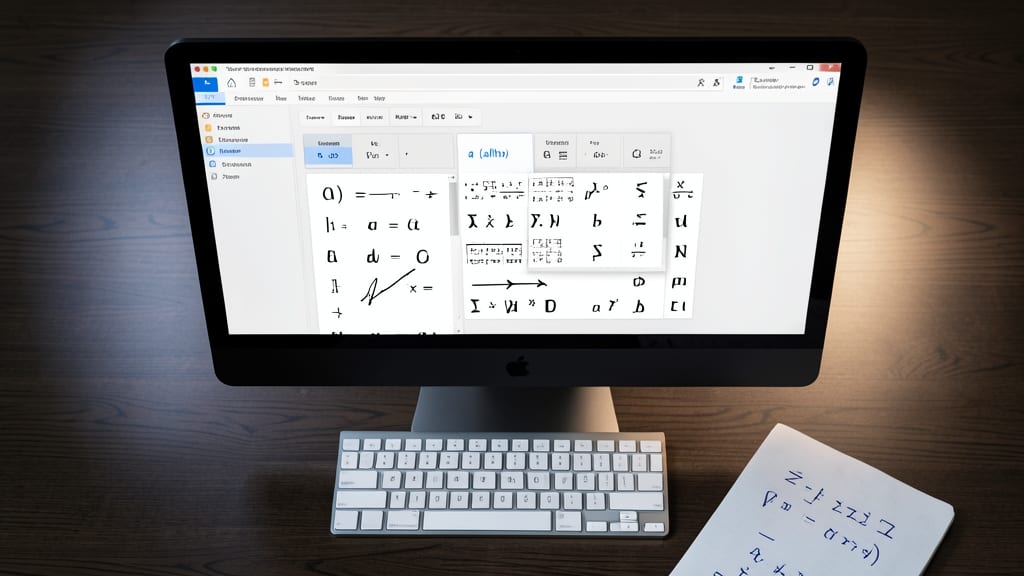
Struggling to type complex equations or insert Greek symbols in Word? The built-in Equation Editor lets you create professional-grade math notation directly in your documents—no external apps required.
Access it via the Insert tab, then Equation. Choose from pre-built templates (like integrals or matrices) or type manually using LaTeX-style syntax. The editor supports fraction formatting, superscripts, and special characters—ideal for students, engineers, or anyone working with technical content.
Perfect for academic papers, lab reports, or financial models, this tool integrates seamlessly with Word’s formatting tools. No more copying-pasting from third-party apps! ✨
Document Themes for Consistent Branding
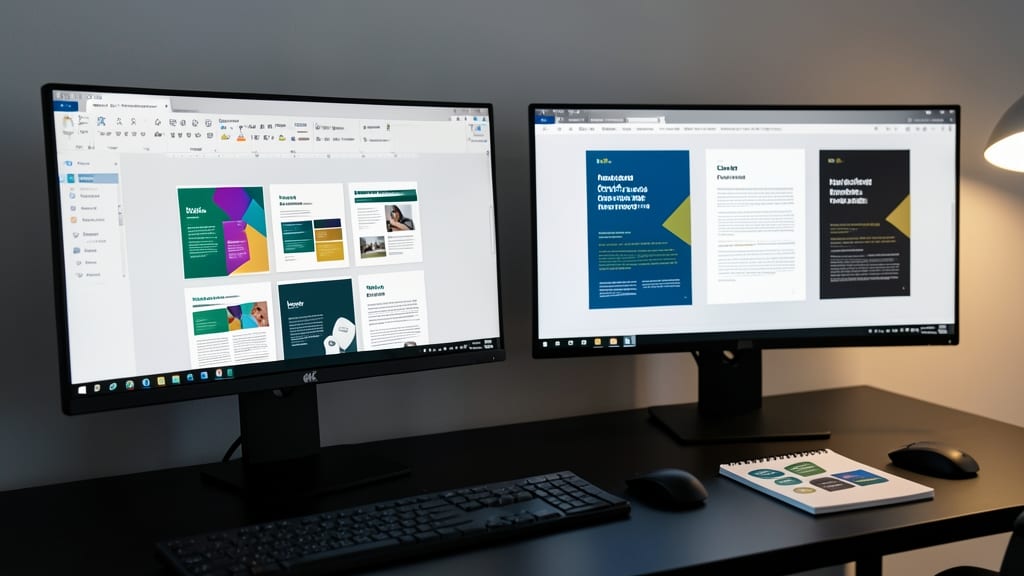
Struggling to keep your company’s marketing materials, reports, and presentations looking cohesive? Document Themes in Word are your secret weapon for instant brand consistency—no design degree required. With just a few clicks, you can apply pre-built color schemes, fonts, and effects that automatically update across your entire document.
Word offers 15 built-in themes (like "Elegant" or "Cerebral") that sync font pairings (e.g., Calibri + Cambria) and color palettes (e.g., corporate blues or vibrant greens). For extra customization, save your own theme by combining colors, fonts, and line styles—then reuse it across presentations, letters, or proposals. This feature also integrates with Office Themes, so your Word docs match Excel and PowerPoint seamlessly.
Perfect for small businesses, freelance designers, or anyone tired of manually adjusting colors, Document Themes ensure your brand stays polished—even when you’re not. ✨
Compare Documents for Edits and Changes
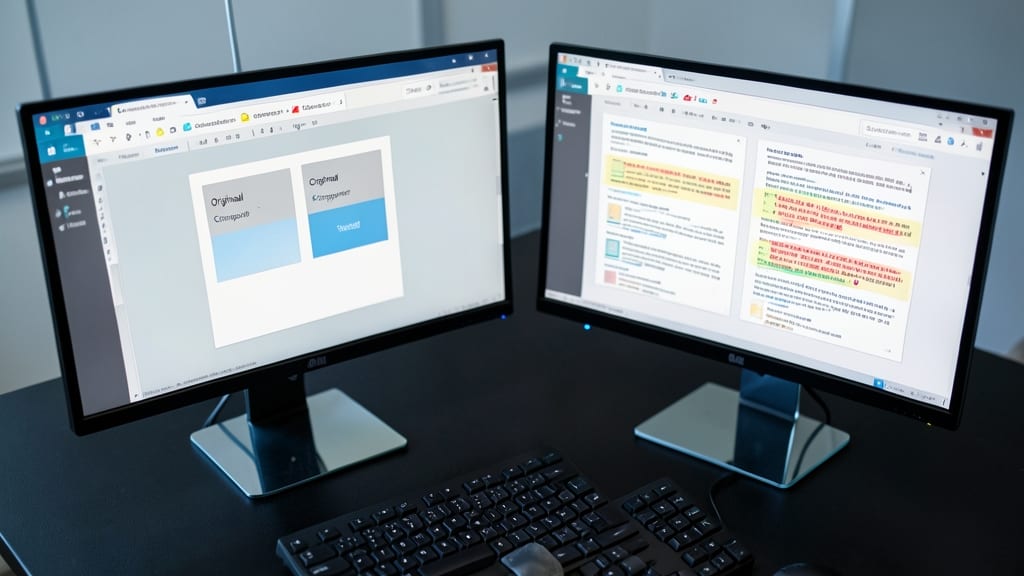
Ever wrestled with tracking changes across multiple document versions? Microsoft Word’s Compare Documents feature solves this by merging two files side-by-side, highlighting every insertion, deletion, and formatting change in real time.
To use it, go to Review > Compare > Compare and select your original and revised files. Word instantly generates a third document with color-coded bars showing edits—green for additions, red for deletions, and blue for formatting shifts. You can even accept or reject changes directly from this view, making revisions seamless.
Perfect for legal teams finalizing contracts, academic researchers refining papers, or collaborative writers aligning drafts—this tool turns chaotic revisions into a structured workflow. ✨