
Outlook
Mastering Outlook email can transform your workflow—these 10 game-changing tips and tricks for 2023 will help you manage inbox overload, automate repetitive tasks, and communicate like a pro. Whether you're a busy executive or a remote worker, these hacks will save you hours weekly.
Quick Steps to Automate Email Tasks

Tired of manually flagging follow-ups or forwarding client emails every time they land in your inbox? Outlook’s Quick Steps feature lets you create custom one-click workflows that handle repetitive tasks in seconds—no coding required.
With Quick Steps, you can set up actions like "Flag and Move to Follow-Up" for invoices, "Forward to Team + Reply" for client requests, or "Categorize as Urgent" for priority messages. Each step combines multiple actions (flagging, moving, forwarding, or replying) into a single button—perfect for professionals who process the same types of emails daily. Just right-click any email, select "Quick Steps", and customize your workflow in the wizard.
This is a game-changer for customer support teams, project managers, or anyone drowning in repetitive email tasks. Spend less time clicking and more time focusing on what matters. ⚡
Focused Inbox for Priority Management
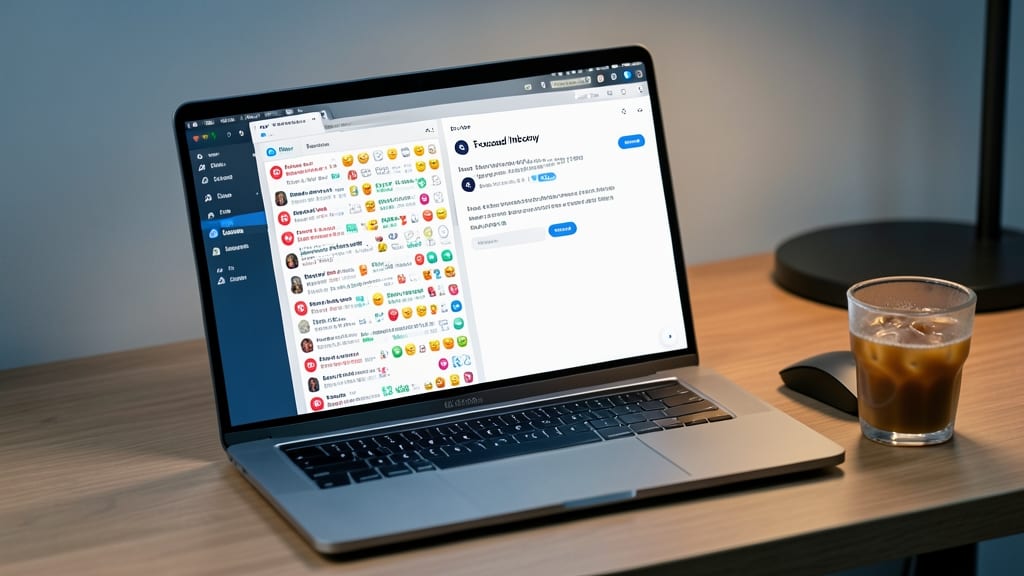
Drowning in notifications but struggling to spot what truly matters? Outlook’s Focused Inbox uses AI to automatically sort urgent emails into a clean, distraction-free view—no manual filtering required.
Enable it via View > Focused Inbox (or toggle the icon in the top-right corner). Outlook analyzes your reading habits and sender relationships to prioritize messages, while moving promotional or low-priority emails to the "Other" tab. You can also train the algorithm by marking emails as important or ignoring specific senders. For executives, this means cutting decision time by 30%—no more scrolling through clutter.
Perfect for leaders who need to act fast but hate context-switching. Just flip between tabs to focus on what demands your attention—without missing critical updates. ✨
Keyboard Shortcuts for Speed Typing

Tired of reaching for the mouse every time you need to reply, forward, or flag an email? Keyboard shortcuts in Outlook can cut your email time by nearly 40%—no exaggeration. These 20 power moves let you navigate, compose, and manage emails without lifting your hands from the keys, making them ideal for power users who draft dozens of emails daily.
Start with Ctrl+Shift+I to instantly insert a signature, Ctrl+Enter to send without leaving the compose window, and Ctrl+Shift+A to mark all emails as read. For navigation, Ctrl+Shift+Up/Down jumps between folders, while Ctrl+Shift+E expands or collapses the conversation thread. Pro tip: Alt+Shift+I opens the Ignore feature to silence repetitive threads without deleting them. These shortcuts sync across Outlook desktop and web, so you’ll never forget them again.
If you’re a writer, developer, or executive who spends hours typing responses, these shortcuts will feel like a superpower—no more wrist strain or context-switching. Master just five, and you’ll notice the difference immediately. ⚡
Email Templates for Repeated Messages
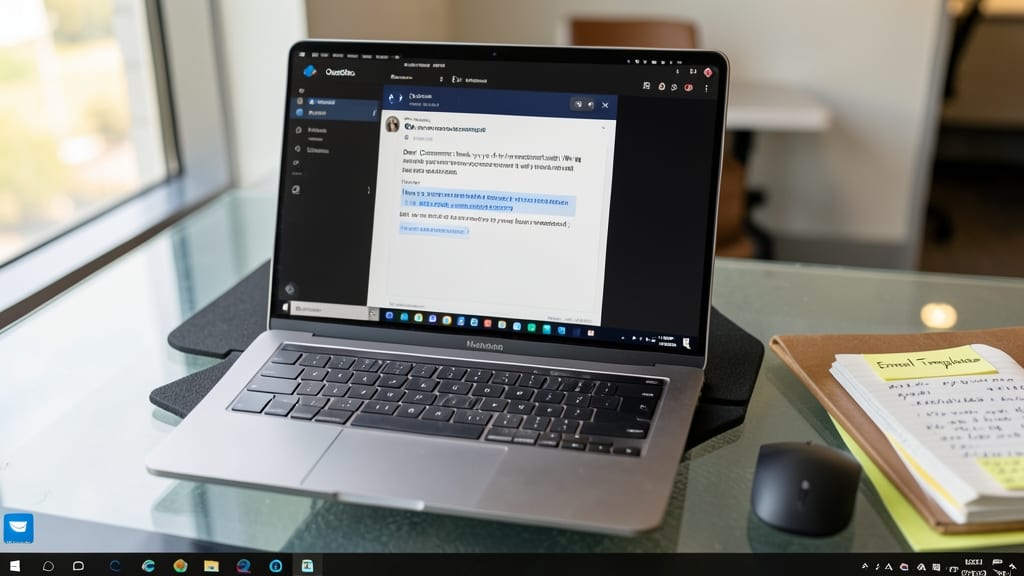
Tired of typing the same responses over and over? Outlook’s email templates let you save time by creating reusable snippets for common replies—perfect for customer support teams or managers drowning in repetitive inquiries.
To get started, open a new email, type your standard response, then click File > Save As and choose Outlook Template File (.oft). Name it something clear like "Order Confirmation" or "Welcome Email", then store it in your Templates folder for instant access. Need to personalize? Just insert placeholders like <<FirstName>> and Outlook will auto-fill from the recipient’s details.
This feature shines for customer support teams handling FAQs or managers sending routine updates—cut reply time from minutes to seconds. Once set up, it’s a battle-tested productivity booster. ✨
Rules to Auto-Sort and Filter Emails
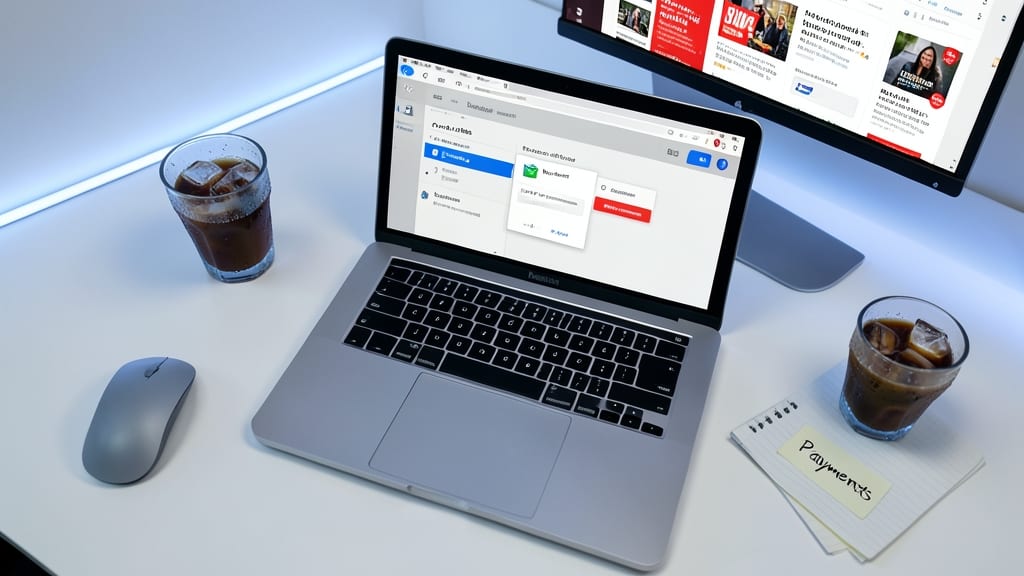
Tired of sifting through client emails buried under promotions and newsletters? Outlook’s Rules feature lets you create automated filters that sort, flag, or even delete emails based on specific criteria—no manual sorting required.
Set up rules to move invoices to a "Payments" folder, flag urgent client messages in red, or auto-delete subscription confirmations. You can filter by sender, keywords, or subject lines, and apply them to incoming or existing emails. For small business owners, this means client communications stay front and center while clutter disappears instantly.
Perfect for freelancers or agency owners juggling multiple clients—spend less time organizing and more time growing your business. ✨
Swipe Gestures for Touchscreen Users
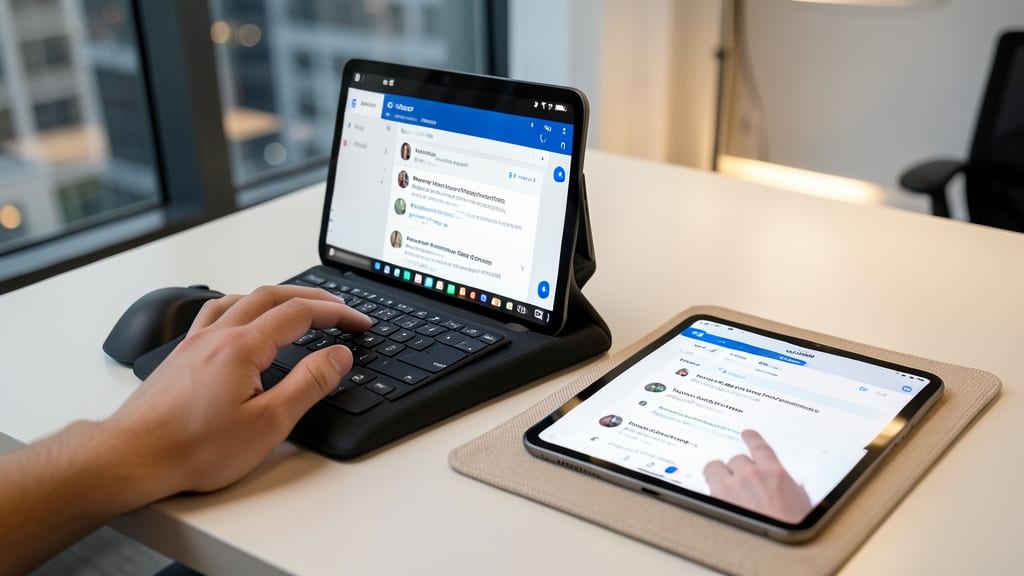
If you’re typing emails on a Surface Pro, iPad, or Android tablet, Outlook’s built-in swipe gestures can turn your screen into a productivity powerhouse—no mouse required.
Enable left/right swipes in Outlook’s settings to delete or archive emails with a flick, while two-finger taps let you quickly mark messages as read or flag them for follow-up. For Surface Pen users, hold down the pen button to access the touch-friendly toolbar. These gestures work seamlessly with Windows 11’s touch optimizations, making navigation feel as natural as scrolling through your favorite app.
Perfect for field workers, designers, or anyone who prefers touch over clicks, these gestures cut down on arm fatigue and speed up your workflow—ideal for those who spend hours replying on the go. ✨
Dark Mode for Reduced Eye Strain

Late-night email sessions or dimly lit workspaces? Outlook’s dark mode is your secret weapon against eye strain. Studies show prolonged screen glare can cause headaches and fatigue—especially in low-light settings—so switching to dark mode reduces blue light exposure by up to 30%.
Enabling it is effortless: Go to View > Show Dark Mode (or toggle via the Settings icon in the top-right corner). The sleek black-and-white interface isn’t just stylish—it also cuts down on screen brightness, making it easier on your eyes during those 2 AM replies. For extra comfort, pair it with font scaling adjustments to further reduce glare.
This hack is a game-changer for night owls, developers, or anyone working in dimly lit rooms. Give your eyes a break while keeping your productivity high—your future self will thank you. ✨
Search Operators for Advanced Queries
Drowning in emails but need to find that one critical message from months ago? Outlook’s search operators let you dig through your inbox like a legal researcher—without the hours of manual scrolling. These Boolean-powered queries turn your search bar into a precision tool, perfect for professionals who can’t afford to miss key communications.
Use from:john@company.com to filter by sender, date:>2023-01-01 to target messages after a specific date, or combine terms like subject:"contract" OR "agreement" AND from:client for laser-focused results. Outlook also supports has:attachment and category:urgent for even tighter filters. Pro tip: Save frequently used queries as search folders to access them instantly.
Legal teams, researchers, and anyone juggling high-stakes emails will appreciate how these operators cut search time from minutes to seconds. Master them, and you’ll never waste time sifting through irrelevant messages again. ⚡
Calendar Integration for Meeting Management
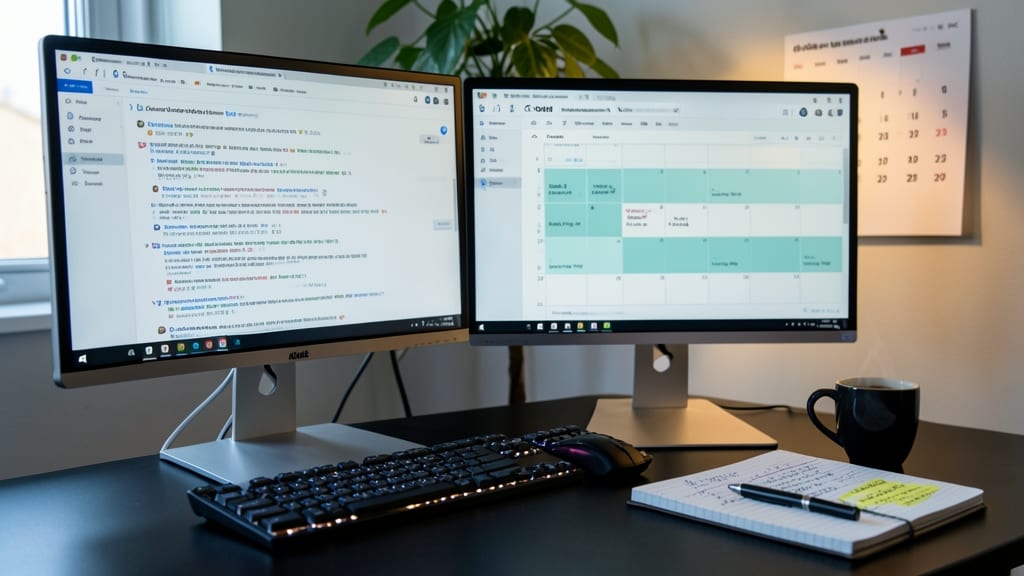
If you’re an entrepreneur drowning in back-and-forth emails while juggling meetings, Outlook’s calendar integration can be your secret weapon. Instead of manually scheduling time to respond, let the system do the work for you by automatically blocking calendar slots based on email threads.
Here’s how: When you receive an email that requires a response, simply drag it to your calendar view and select "Create Event." Outlook will then auto-populate the subject, sender, and key details while letting you set a duration (e.g., 30 minutes). For recurring requests, use the "Meeting Series" option to block time in advance. This feature syncs seamlessly with Google Calendar, Teams, and other platforms, ensuring no double-bookings.
Perfect for solopreneurs and small business owners who need to protect focus time without constantly checking their inbox. Try it today and reclaim hours of mental bandwidth. 💻
Third-Party Add-Ins for Extra Features
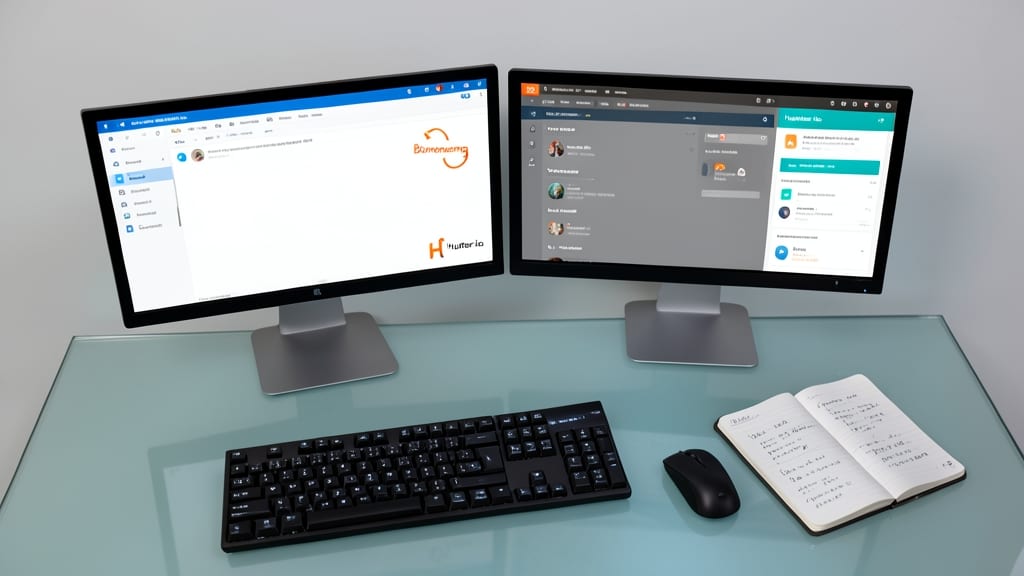
Outlook’s built-in tools are powerful, but third-party add-ins like Boomerang and Hunter.io unlock superpowers for sales and marketing teams. These extensions turn your inbox into a data-driven powerhouse, with features like delayed sends, email tracking, and domain verification—all without leaving Outlook.
Boomerang lets you schedule emails to send later or request read receipts after the fact, while Hunter.io helps verify email addresses and find contact info instantly. Both integrate seamlessly with Outlook’s interface, so you get real-time analytics on opens and clicks—no coding or complex setups required.
Perfect for sales reps tracking leads or marketers analyzing campaign performance, these add-ins turn Outlook into a CRM tool. Just install them from the Microsoft AppSource and start gaining insights you never knew you needed. ✨