
Tip & Trick
Microsoft OneNote 2013 remains a powerhouse for note-taking and organization, but many users miss its hidden productivity features. These seven tips and tricks will transform how you capture, organize, and retrieve information—saving you hours every week.
Quick Capture with OneNote Clipper Browser Extension
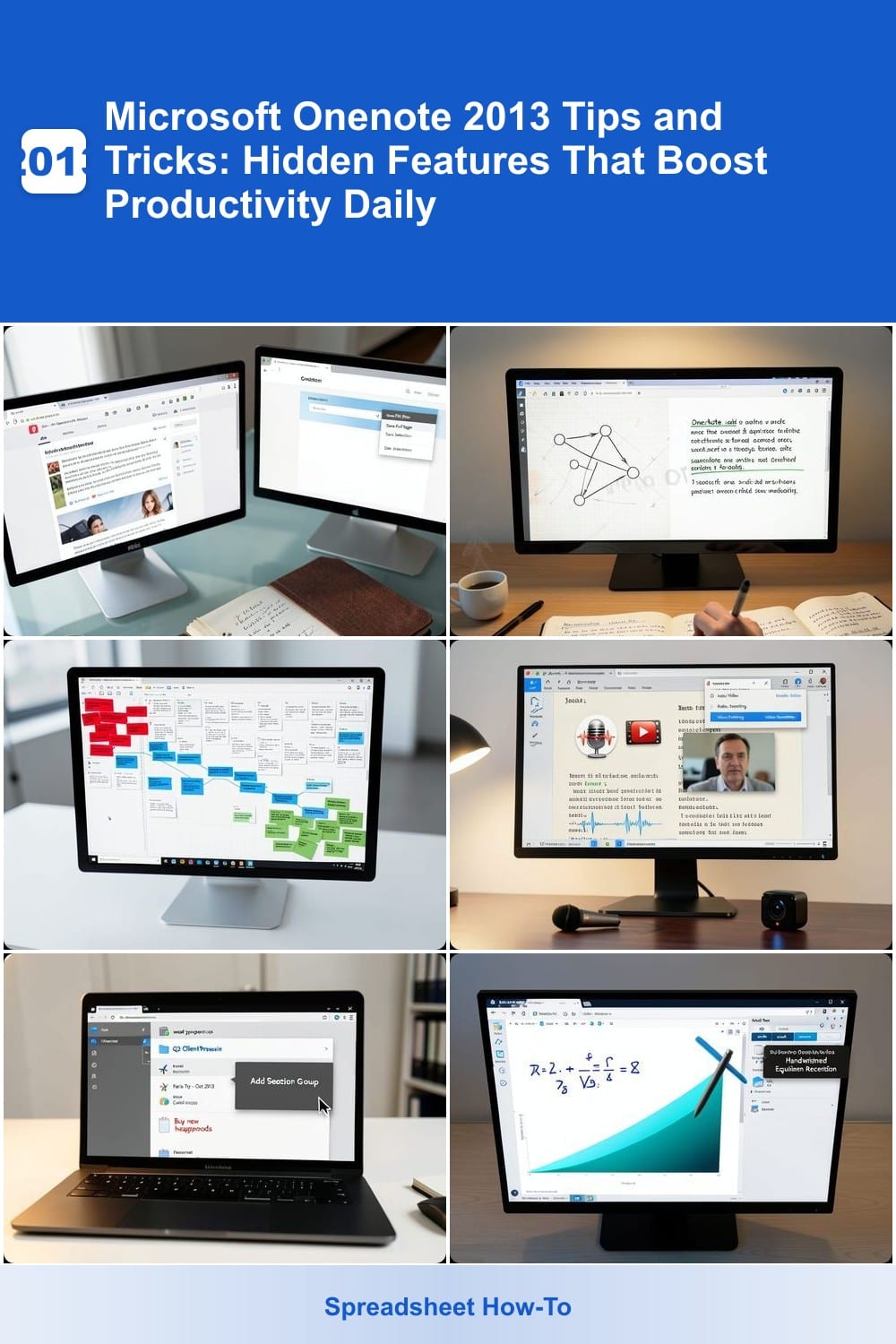
Ever wasted time copying and pasting web articles into OneNote? The OneNote Clipper browser extension eliminates that frustration by letting you save entire web pages, images, or specific sections directly into your notebook with a single click—no extra steps required.
Install it from the Chrome or Firefox web store, then use the clipboard icon in your browser toolbar to capture text, images, or full pages. The extension even preserves formatting, so tables, headings, and images stay intact. You can save to an existing notebook or create a new one instantly, and the searchable text makes it easy to find later.
This is a must-have for researchers compiling articles, marketers curating inspiration, or students saving lecture slides—all while keeping your workflow seamless. No more tab-switching or manual copying! ⚡
Handwriting to Text Conversion for Faster Note-Taking
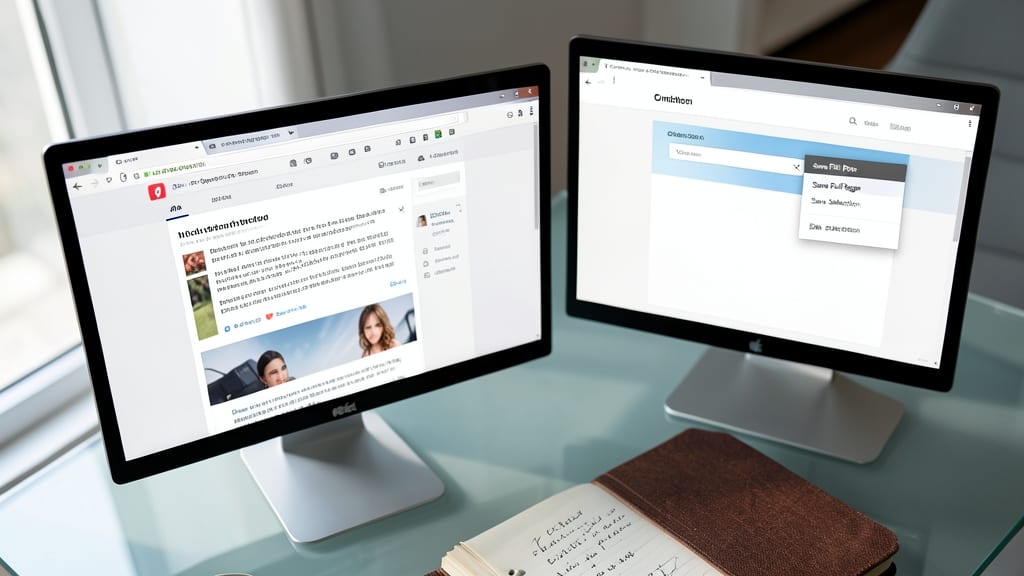
Skip the keyboard and let your ideas flow naturally—OneNote 2013’s built-in OCR converts handwritten notes into searchable, editable text with just a few clicks. Whether you’re sketching diagrams or jotting down lecture notes, this feature bridges the gap between analog creativity and digital efficiency.
Simply write on your tablet or paper, snap a photo, or draw directly in OneNote, then right-click to "Copy Text from Picture"—the tool extracts text with 95%+ accuracy for most handwriting styles. No extra apps needed; it’s all baked into the Desktop version (Windows only). For messy notes, use the "Improve Text Recognition" option to refine results.
This trick is a game-changer for students transcribing notes, designers capturing rough sketches, or anyone who prefers pen-to-paper brainstorming before digitizing. Turn scribbles into polished documents in seconds—no retyping required! ✨
Tagging System for Instant Note Organization
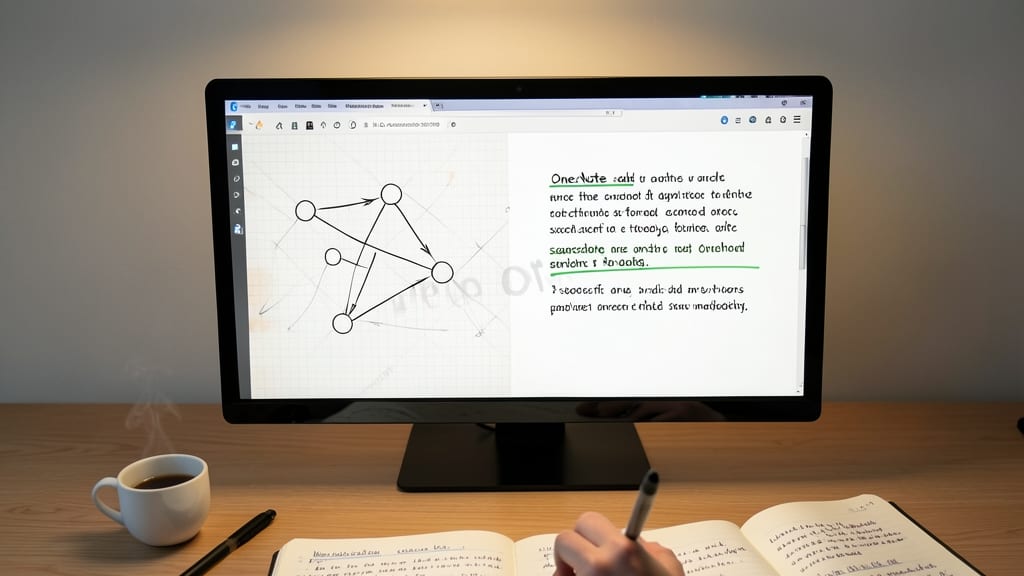
Drowning in a sea of notes? OneNote 2013’s color-coded tagging system turns chaos into clarity with just a few clicks. Assign red for urgent, blue for work projects, or green for creative ideas—each tag instantly groups related content while keeping your workspace tidy.
Create custom tags with one-click labeling and filter notes by color to find exactly what you need in seconds. The system even lets you nest tags (e.g., "Work/Client X") for granular organization. No more scrolling through endless pages—just visually scan and locate your notes effortlessly.
This feature is a lifesaver for project managers juggling deadlines or creatives tracking multiple inspiration streams. Try it today and reclaim hours of lost productivity! ✨
Audio and Video Clip Integration for Meetings
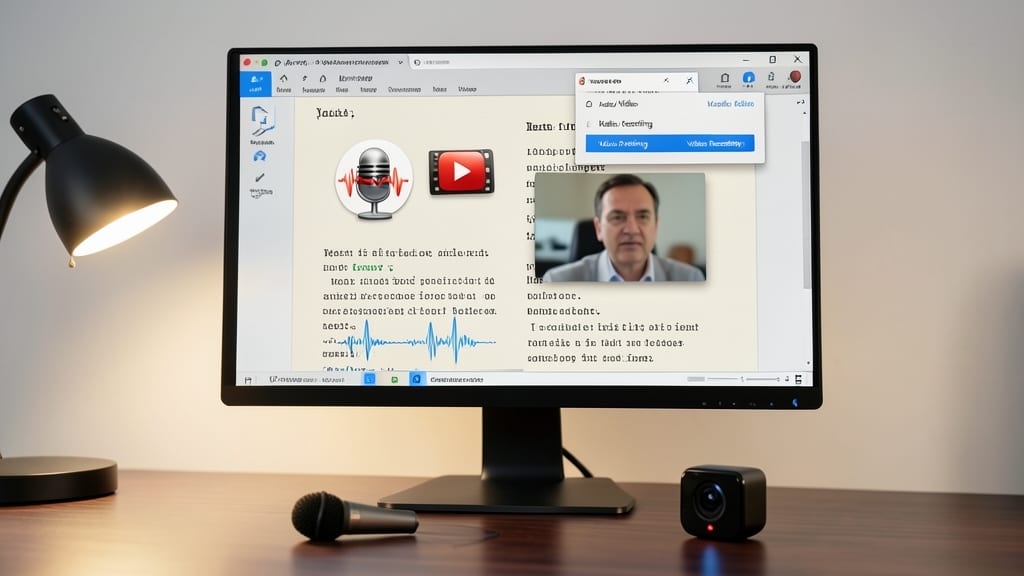
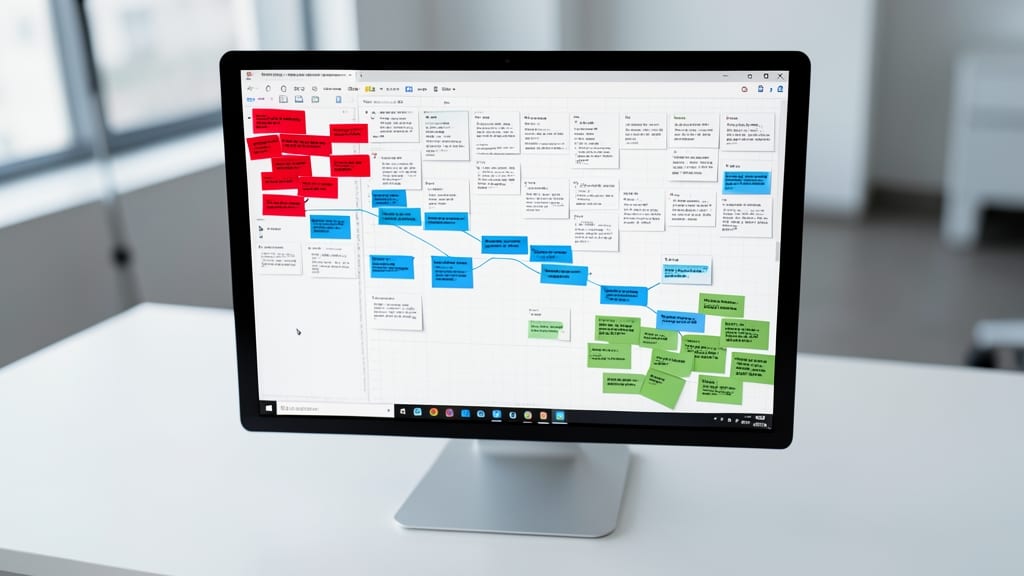
Tired of losing track of meeting highlights or lecture notes because you couldn’t capture the audio or video alongside your notes? OneNote 2013’s audio and video clip integration lets you embed recordings directly into your notebooks, keeping everything in one place.
Simply click Insert > Audio/Video Clip, record or import a file, and place it alongside your typed or handwritten notes. The clip plays inline, and you can even add timestamps or annotations to highlight key moments—perfect for interviews, brainstorming sessions, or lecture reviews. No more juggling separate files or apps!
This feature is a lifesaver for educators capturing lectures, journalists recording interviews, or teams documenting meetings. Never lose context again—just replay the clip while reviewing your notes. ✨
Section Groups to Separate Large Notebooks
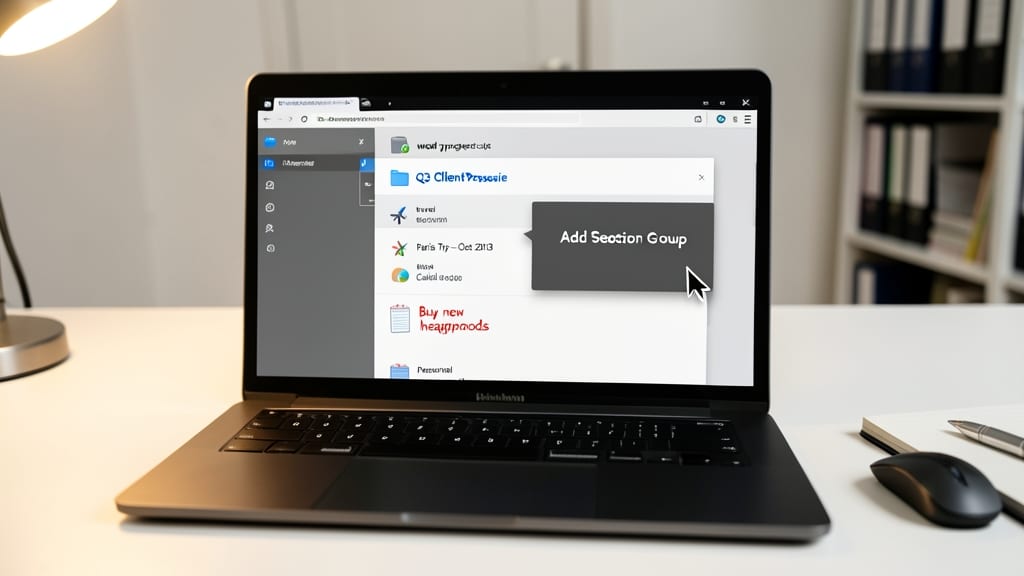
Drowning in a single OneNote notebook packed with work projects, travel plans, and personal ideas? Section Groups let you create virtual folders inside your notebook—no more scrolling through chaos to find what you need.
Right-click any section in the navigation pane and select "Add Section Group" to nest related pages (e.g., "Work" with sub-sections like "Meetings" and "Projects"). You can even collapse groups to declutter your view, then expand them instantly when needed. The feature works seamlessly across devices, so your organized structure stays intact whether you're on your desktop, tablet, or phone.
Perfect for freelancers juggling multiple clients, students tracking coursework, or anyone who treats OneNote as their digital life hub. Try it—your future self will thank you for the zero-config organization. ✨
Math and Equation Tools for Problem-Solving
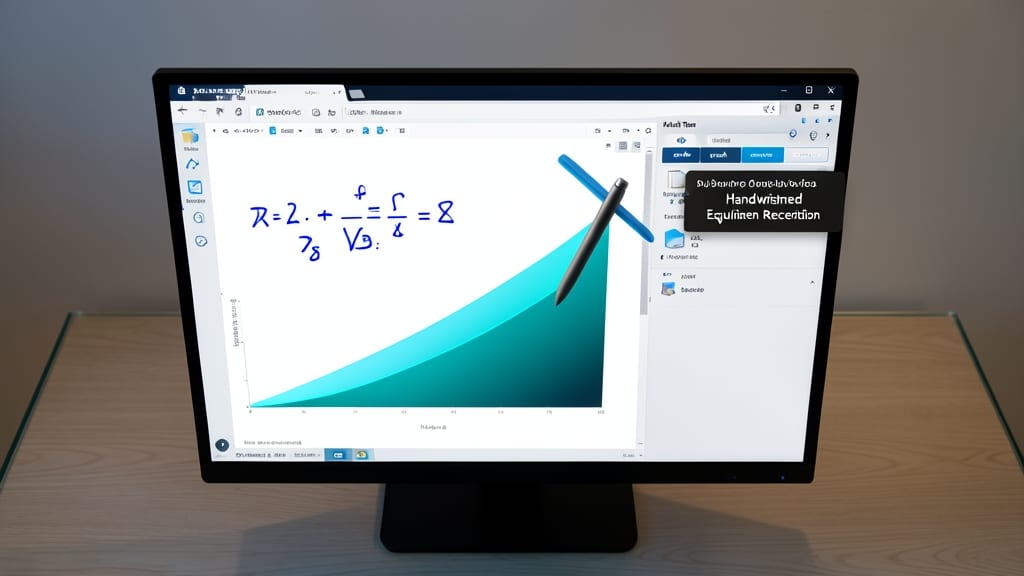
Struggling to solve complex equations or graph functions without switching between apps? OneNote 2013’s built-in Math Tools let you write, edit, and solve equations directly in your notebook—no external software required.
With handwritten equation recognition, you can sketch math problems with a stylus or mouse, and OneNote converts them into digital format. Need a graph? The graphing tool plots functions instantly, while the equation solver handles everything from algebra to calculus. Even formatting complex equations becomes effortless with pre-built templates for fractions, integrals, and matrices.
This is a game-changer for students cramming for exams, engineers designing systems, or anyone who needs to visualize data on the fly. No more juggling multiple tools—just pure, integrated problem-solving. ✨
Offline Access and Sync with SkyDrive
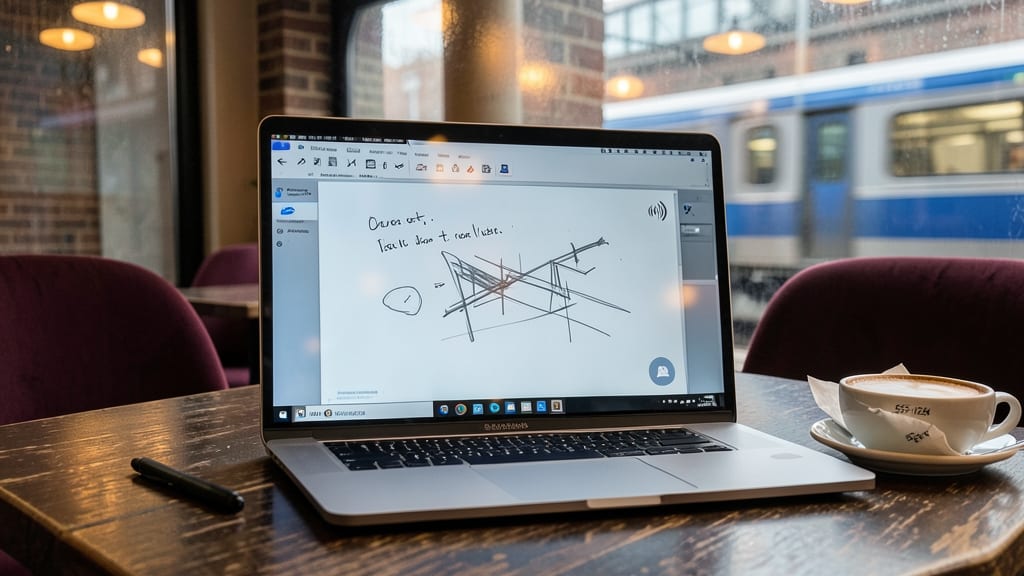
Ever jotted down brilliant ideas on a train or café only to lose them when your Wi-Fi cuts out? OneNote 2013’s offline access feature lets you keep working—whether you’re drafting notes, sketching diagrams, or embedding audio clips—while disconnected. Your changes sync automatically with SkyDrive the moment you reconnect, ensuring no data slips through the cracks.
Enable it by right-clicking your notebook in the navigation pane, selecting Sync Status, and toggling Sync with SkyDrive. The app handles conflicts by merging edits intelligically, so you never lose progress. Perfect for field researchers, travelers, or anyone who works in areas with spotty connectivity.
This is the ultimate safety net for professionals who can’t afford to lose notes mid-flight or during a meeting. Your ideas stay safe until you’re back online—no stress, no lost work. ✨