
Software
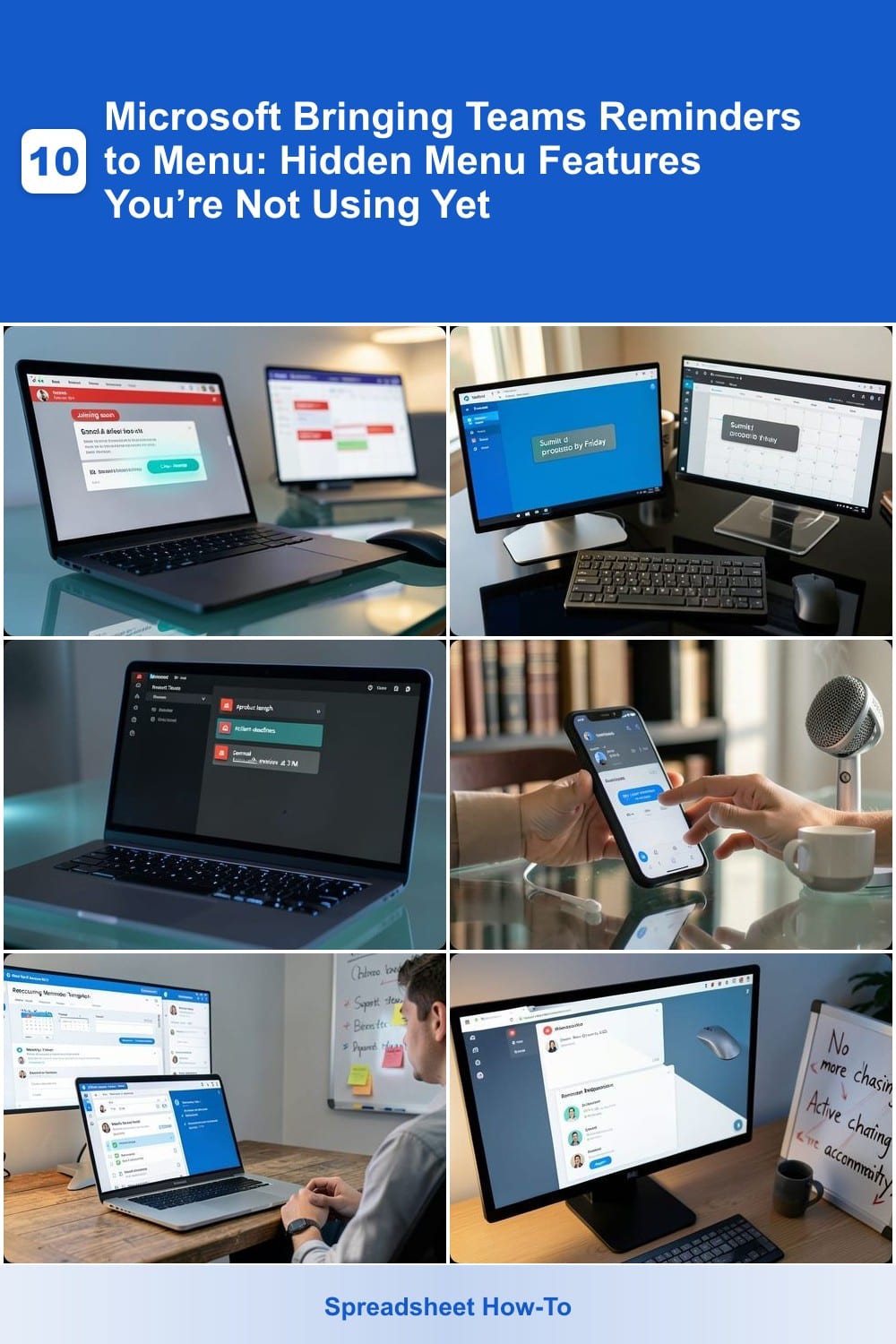
Microsoft is quietly transforming Microsoft Teams into a powerhouse productivity tool with hidden menu features—including reminders now built right into the interface. These underutilized functions can save you hours weekly, from scheduling meetings to tracking deadlines. Here are seven game-changing features you’re likely missing.
Meeting Reminders with Auto-Cancel Options
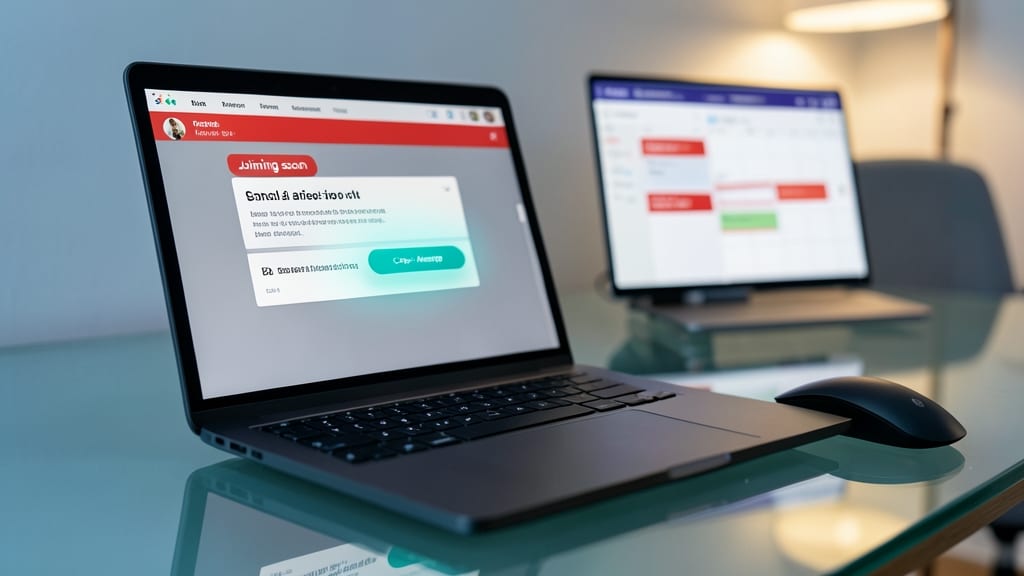
Tired of back-to-back meetings where half the attendees flake last-minute? Microsoft Teams now lets you send auto-cancel reminders directly from notifications—no extra apps or manual updates needed. This feature lets you set a reminder that includes a one-tap "Cancel Meeting" option, so attendees can reschedule or opt out without digging through emails.
The system works by integrating with your calendar, so when you create a meeting, you can enable a reminder with a cancel button—visible in both desktop and mobile notifications. It’s especially useful for time-sensitive or optional meetings, where last-minute changes happen often. You can even set up recurring reminders for standing meetings, ensuring everyone stays on the same page.
Perfect for team leads, project managers, or anyone juggling multiple meetings daily, this feature cuts down on no-shows and saves time by eliminating follow-up emails. ⚡
Task-Based Reminders Linked to Outlook
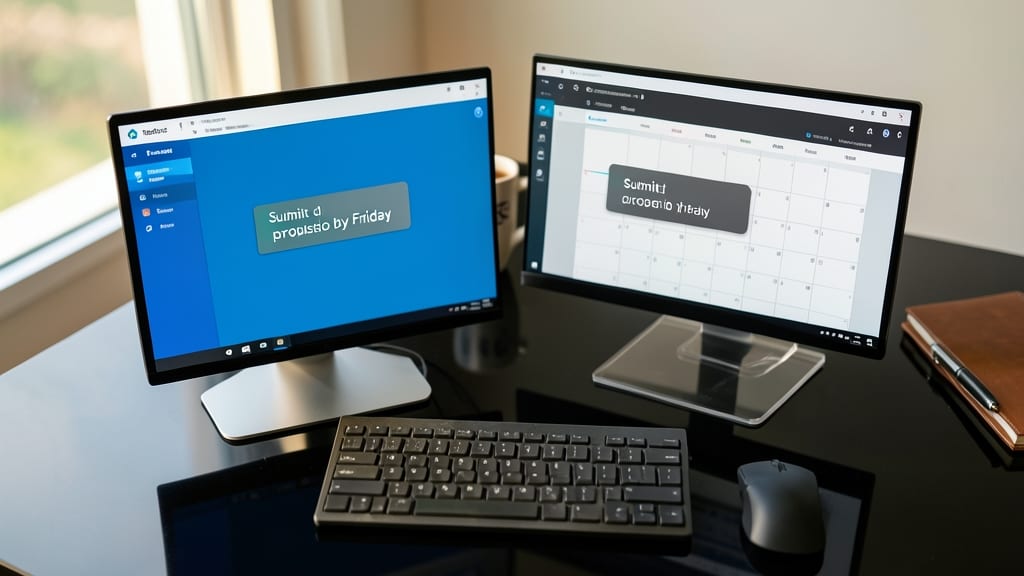
Tired of juggling reminders across Teams and Outlook? The task-based reminders feature bridges the gap by syncing deadlines between both apps automatically—no manual copy-pasting required.
Set a reminder in Teams (e.g., "Submit client proposal by Friday"), and it instantly appears in your Outlook calendar as a task or event. The integration works both ways: updates in Outlook reflect in Teams, keeping your workflow seamless. You can even add recurring deadlines or assign tasks to teammates directly from the reminder card.
Perfect for hybrid teams or professionals who split time between Teams chats and Outlook emails. Say goodbye to missed deadlines and hello to zero-config syncing. ✨
Customizable Channel-Specific Alerts
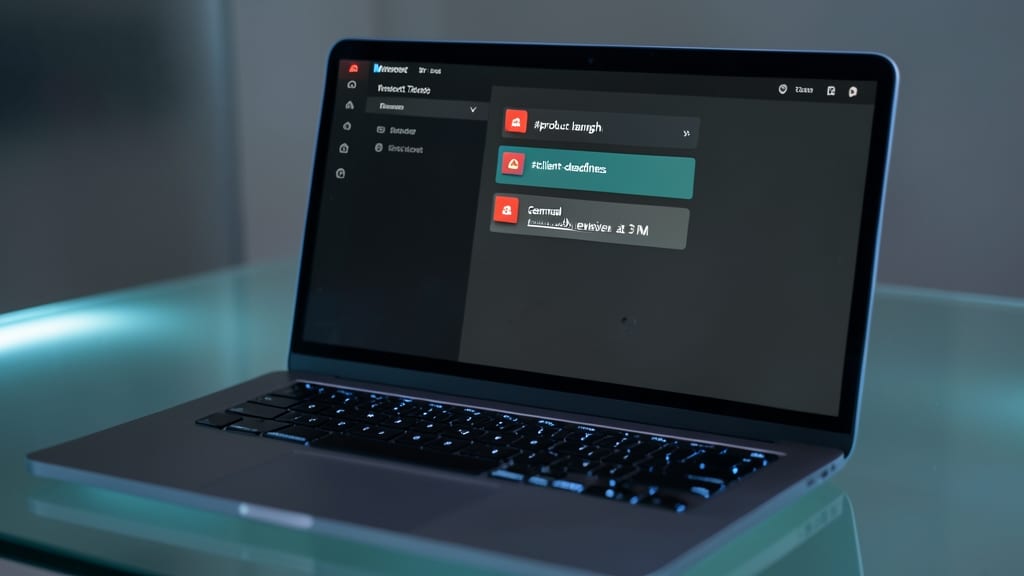
Tired of drowning in generic notifications that don’t matter to your workflow? Teams’ customizable channel-specific alerts let you pin reminders to exact channels like #product-launch or #client-deadlines, so alerts only pop up where they’re relevant.
Set a reminder tied to a specific channel (e.g., “Remind me to review Q4 metrics in #finance-updates”), and it’ll appear only in that channel’s feed, cutting through the noise. You can also customize notification frequency—daily, weekly, or one-time—and even add @mentions to loop in teammates. This keeps your main activity feed clutter-free while ensuring critical updates never slip through the cracks.
Perfect for teams managing multiple projects, this feature is a lifesaver for marketing teams tracking campaign deadlines or developers monitoring sprint milestones. No more sifting through irrelevant alerts! ✨
Voice-Activated Reminder Creation
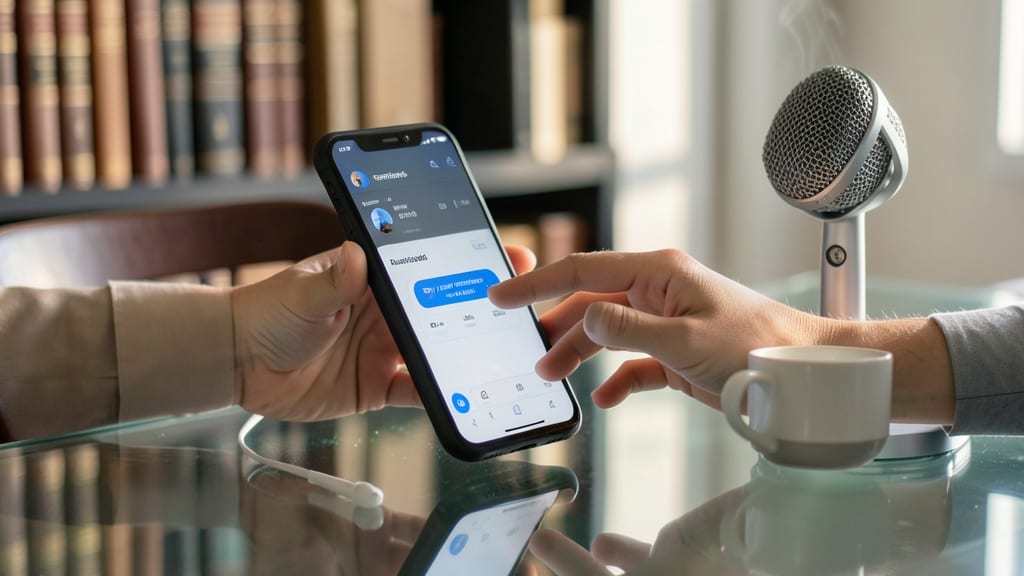
Tired of typing reminders when your hands are full? Microsoft Teams now supports voice-activated reminders, letting you set deadlines or tasks hands-free with simple commands like "Remind me to review Q3 reports at 3 PM tomorrow." This feature leverages your device’s microphone and integrates seamlessly with Teams’ existing reminder system.
The setup is zero-config—just enable voice commands in Teams’ accessibility settings, and you’re ready. Works across Windows, Mac, and mobile, making it ideal for multitaskers juggling calls, chats, and tasks. For accessibility, it’s a game-changer for users with motor impairments or those who prefer verbal input over typing.
Perfect for developers in standups, managers on calls, or anyone who hates switching between apps. Try it next time you’re driving, coding, or stuck in a meeting—no keyboard required! ✨
Recurring Reminder Templates for Teams
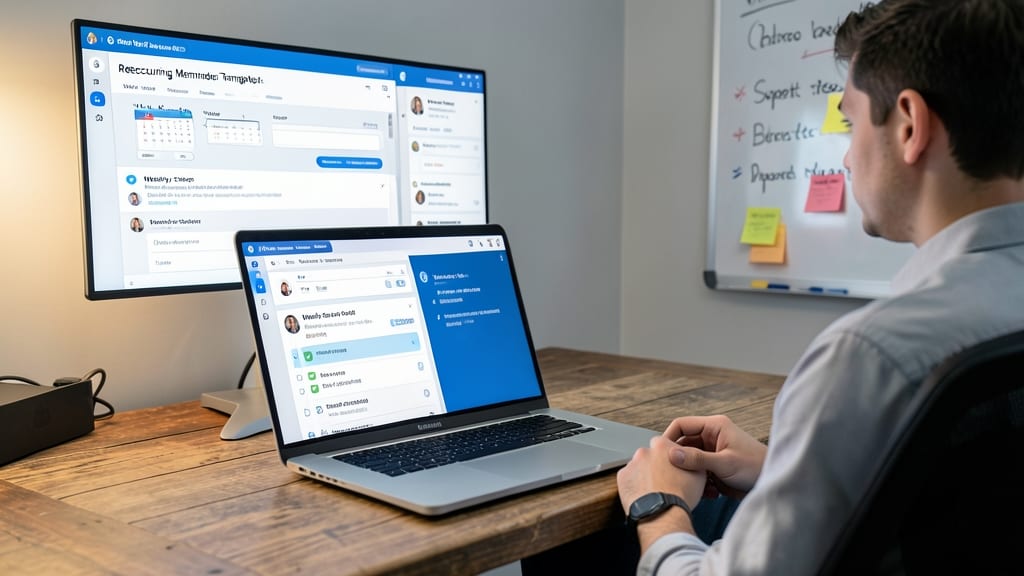
Tired of recreating the same reminders every sprint? Recurring Reminder Templates in Teams let you design once and deploy across projects—think of it as a "Weekly Standup Follow-Up" template that auto-fills for every team meeting.
Create custom templates with pre-set deadlines, assignees, and even recurring schedules (daily, weekly, or monthly). The drag-and-drop editor makes it easy to tweak details like priority levels or due dates, while auto-population ensures no task slips through the cracks. Perfect for agile teams juggling multiple projects.
Ideal for project managers and team leads who want to standardize workflows without manual setup. Say goodbye to repetitive tasks—your reminders now work as hard as you do. ✨
Reminder Delegation for Team Leads
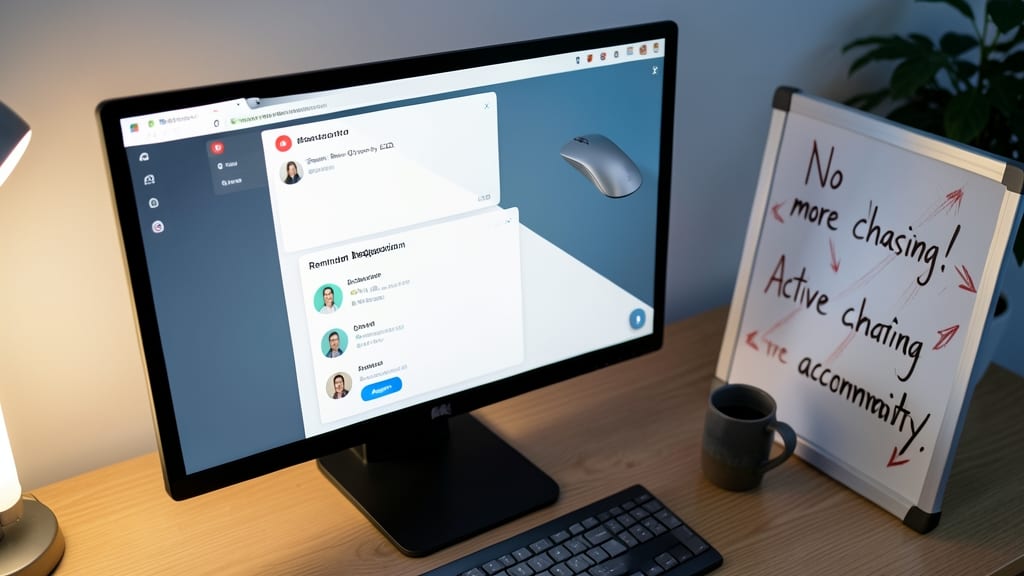
Tired of chasing team members down for updates? Reminder Delegation lets you assign tasks directly to specific colleagues within Teams—no more lost emails or forgotten follow-ups. This feature turns passive reminders into active accountability tools by tagging team members (@Sarah) and embedding deadlines in their workflow.
When you create a reminder, simply click the "Delegate" option to assign it to a teammate. They’ll receive the reminder in their Teams activity feed and Outlook calendar, ensuring visibility. You can even set recurring delegated reminders for ongoing tasks like client check-ins or project milestones, keeping everyone aligned without micromanaging.
Perfect for team leads, project managers, or anyone overseeing cross-functional work, this cuts through the noise of Slack or email chains. No more playing reminder roulette—just clear ownership and deadlines. 💪
Integrated Reminder Analytics Dashboard
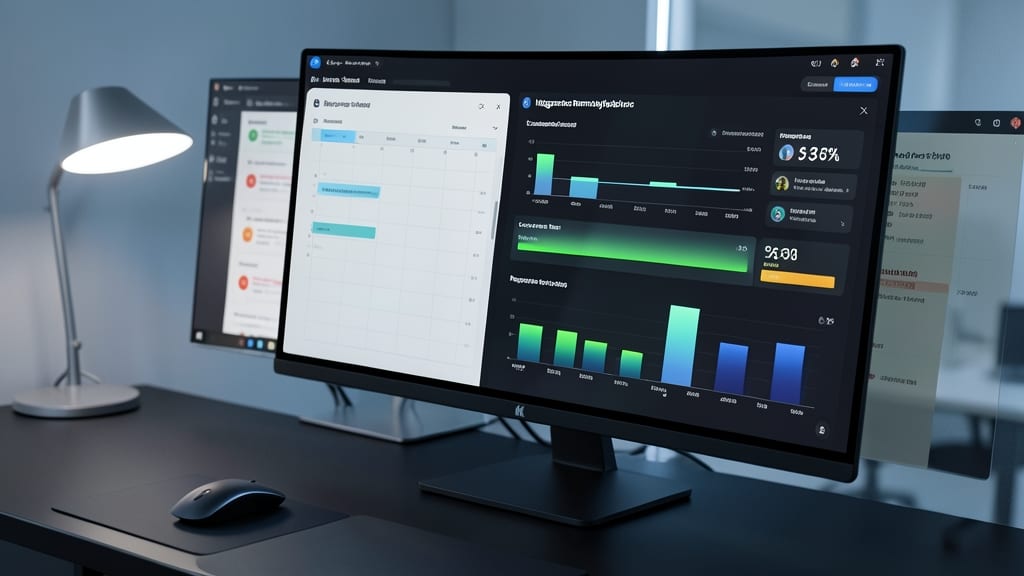
Tired of guessing why some team members consistently miss deadlines? The Integrated Reminder Analytics Dashboard in Teams gives you hard data on completion rates and response times—no more speculation.
This hidden feature tracks how often reminders are completed, average response times, and even highlights slow performers with visual heatmaps. You’ll spot workflow bottlenecks instantly, like if your sales team takes 3x longer to submit reports than marketing. Export reports to Power BI for deeper analysis or share insights directly in Teams chats to drive accountability.
Perfect for team leads and HR managers who need to optimize workflows without micromanaging. Use it to identify training gaps or process inefficiencies before they become bigger problems. ✨