
Tip & Trick
Mastering Microsoft 365 Word can save you hours weekly. These seven underused hacks—from hidden formatting tools to automation shortcuts—will transform how you create, edit, and collaborate in Word, whether you're drafting reports or designing documents.
Quick Parts Gallery for Reusable Content
Tired of retyping the same disclaimers, signatures, or legal clauses in every document? The Quick Parts Gallery in Microsoft Word is your secret weapon for eliminating repetitive text once and for all. With just a few clicks, you can save frequently used phrases—like email signatures, confidentiality statements, or project templates—as reusable blocks.
To get started, highlight the text you want to save, then navigate to Insert → Quick Parts → Save Selection to Quick Parts Gallery. Once saved, these snippets appear in the dropdown menu for instant insertion. You can even categorize them for better organization. For legal professionals, this means boilerplate clauses like NDAs or terms of service are always just a click away, while marketers can store brand-approved templates for proposals or reports.
This feature is a game-changer for anyone drowning in repetitive content—whether you're drafting contracts, client emails, or internal memos. Try it today and reclaim hours of typing time! ⚡
Track Changes with Custom Highlights
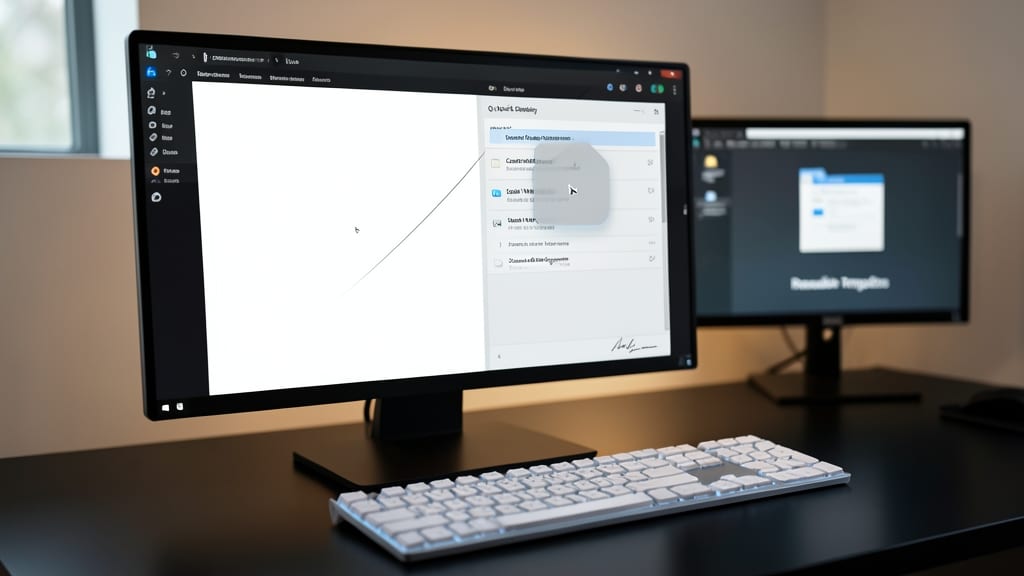
Tired of sifting through endless track changes in Word without knowing who made each suggestion? With custom highlight colors, you can instantly identify edits by reviewer—think red for legal teams, blue for editorial feedback, or green for client notes. This visual system cuts review time in half for documents with multiple stakeholders.
To set it up, open the Track Changes panel (Review tab), then click the dropdown arrow next to "Highlights" and assign colors to each reviewer’s name. The feature works seamlessly with Word Online and desktop versions, syncing across devices. For complex projects, combine this with comments to add context without cluttering the main document.
This trick is a game-changer for legal teams, publishing professionals, or anyone managing client feedback. No more guessing who suggested what—just scan for colors and focus on the edits that matter most. ✨
Mail Merge with Excel Data
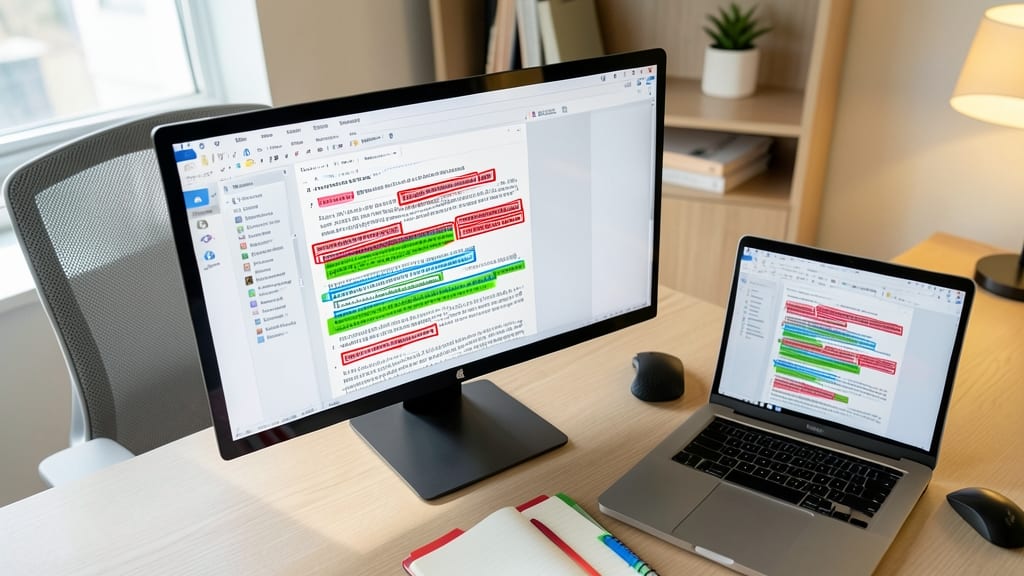
Tired of manually typing the same letter, label, or email to dozens of recipients? Mail Merge in Microsoft 365 Word turns your Excel spreadsheet into a personalized document generator—no coding required.
Start by creating a data source in Excel with columns for names, addresses, or custom placeholders. In Word, use Mailings → Select Recipients → Use Existing List to link your spreadsheet. The magic happens when you insert merge fields (like <
Small business owners, event planners, and nonprofits will love this for bulk invoices, event invitations, or thank-you notes—all without the tedium of copy-pasting. ⚡
Hidden Navigation Pane Shortcuts
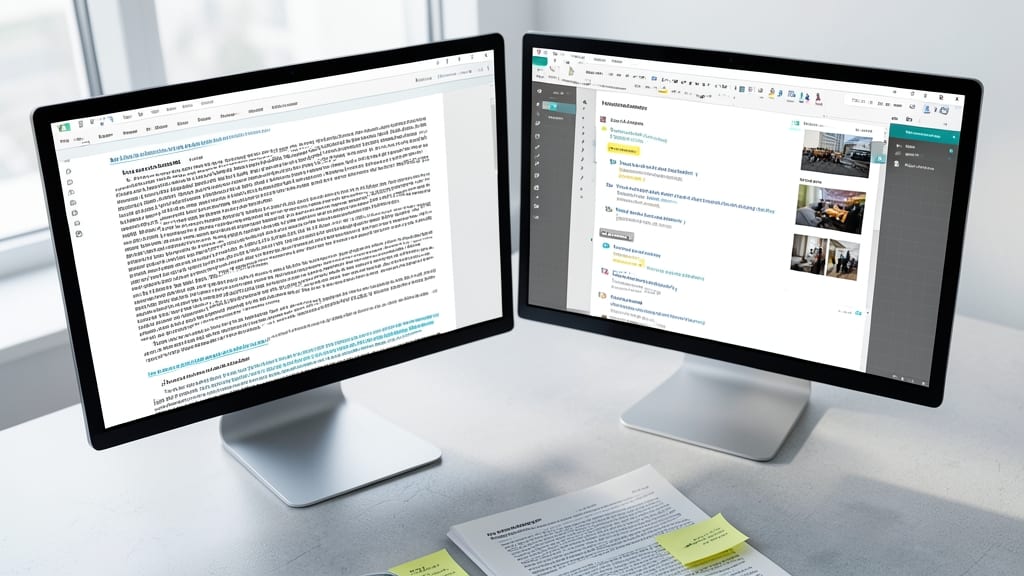
Drowning in a 100-page manual or research paper? The Navigation Pane in Word (View → Navigation Pane) is your secret weapon—think of it as a built-in table of contents that lets you jump to headings, comments, or images in seconds without scrolling.
Enable it with Ctrl+F (Windows) or Cmd+F (Mac) to instantly see all headings, images, and even comments in a sidebar. Click any heading to teleport to that section, or use the search bar to pinpoint specific terms. The preview pane lets you verify content before diving in—perfect for quick edits or fact-checking.
This is a game-changer for academics, technical writers, or anyone wrestling with dense documents. No more losing your place—just instant navigation to keep your workflow smooth. 💻
Convert Text to Speech for Editing
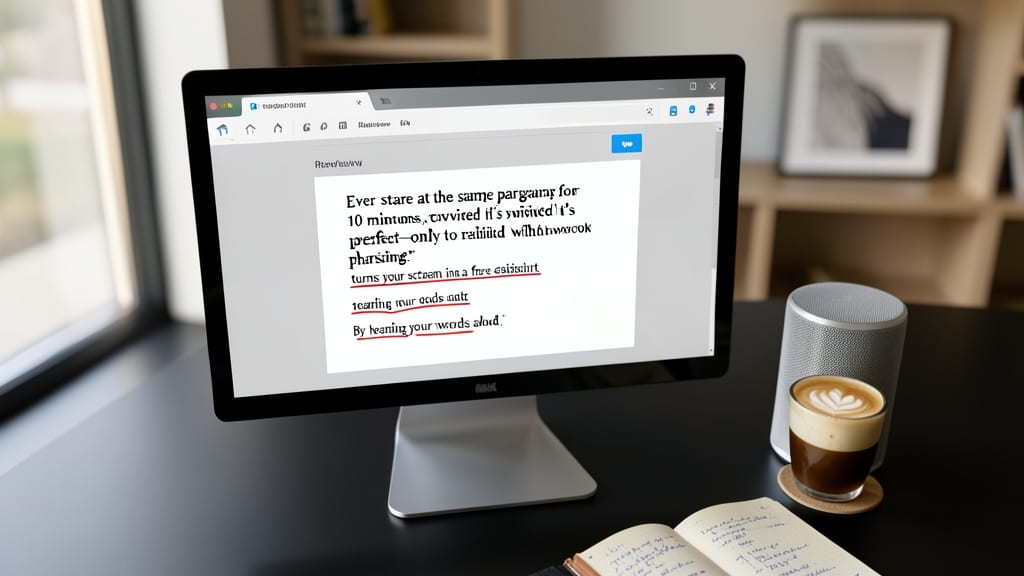
Ever stare at the same paragraph for 10 minutes, convinced it’s perfect—only to realize it’s riddled with awkward phrasing? Microsoft Word’s built-in text-to-speech (TTS) tool (found under Review → Read Aloud) turns your screen into a free editing assistant. By hearing your words aloud, you’ll catch awkward phrasing, missing words, or even misplaced commas that visual proofreading misses.
Simply click the Read Aloud button, and Word’s natural-sounding voice (with adjustable speed and narration settings) reads your document while highlighting text. Pause, rewind, or skip sections—no extra plugins needed. For non-native English speakers, this tool helps identify unnatural phrasing, while writers can use it to refine rhythm and tone before finalizing drafts.
Perfect for students polishing essays, writers refining manuscripts, or professionals ensuring polished reports—this zero-cost feature works across Windows and Mac versions of Word. Give your eyes a break and let tech do the heavy lifting. ✨
Custom Tab for Power Users
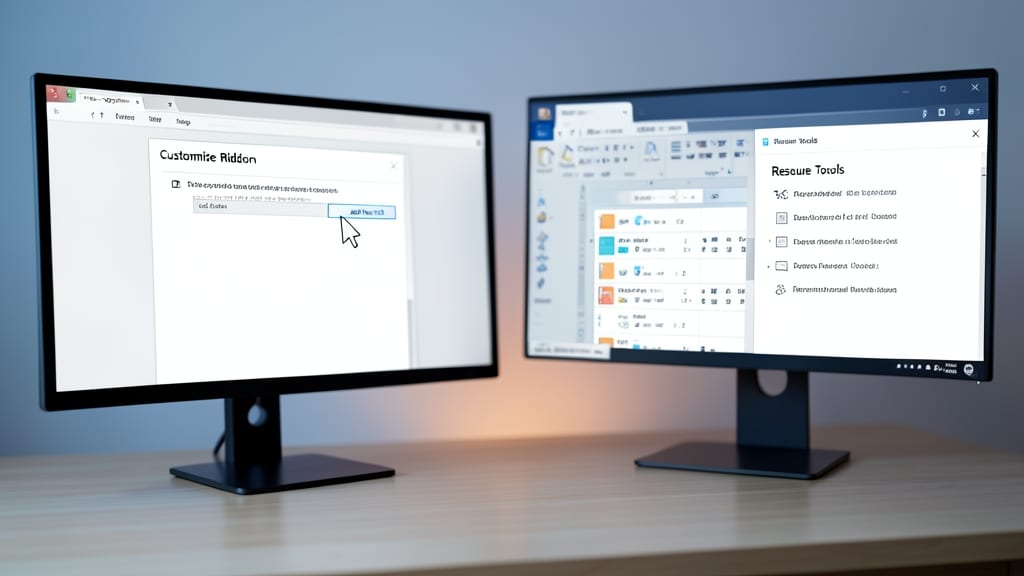
Tired of hunting through menus for the same commands every time you format a resume or report? A custom tab in the Word ribbon can turn your most-used tools into one-click access—no more digging through dropdowns or memorizing shortcuts.
Head to File → Options → Customize Ribbon, then add a new tab (like "My Tools") and populate it with macros, quick styles, or frequently used commands. For example, drag the "Insert Table" button or "Apply Quick Style" options directly onto your custom tab. This setup cuts repetitive tasks in half—perfect for freelancers, recruiters, or anyone drowning in templates.
Ideal for power users who spend hours formatting, this hack transforms Word into a personalized powerhouse. ⚡
Compare Documents Side by Side
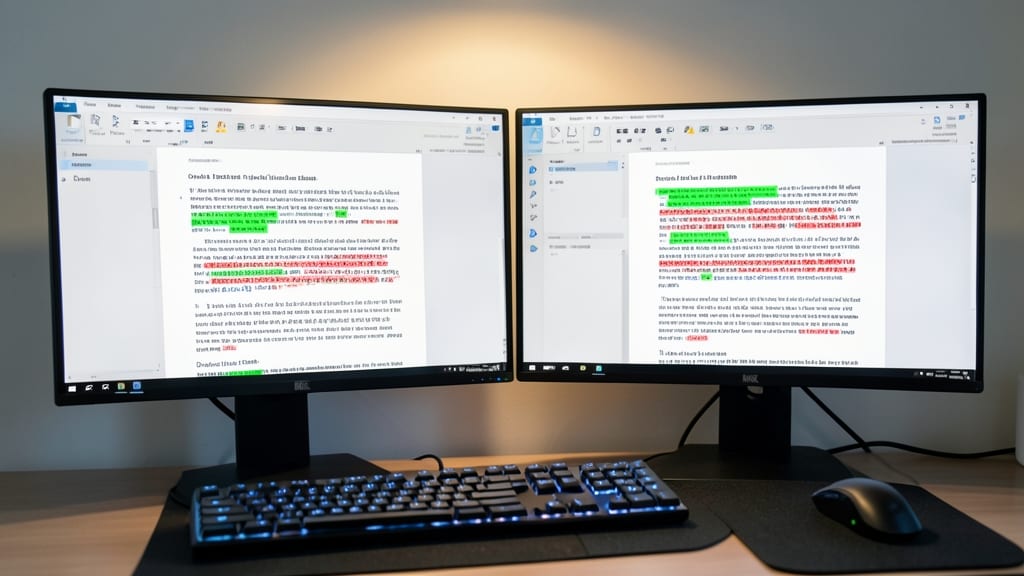
Ever stared at two versions of the same document, squinting to spot changes? Microsoft 365 Word’s side-by-side comparison feature (View → View Side by Side) solves this instantly—no third-party tools needed.
Simply open both documents, and Word highlights additions in green and deletions in red, with synchronized scrolling to track revisions line by line. This is a game-changer for legal teams reviewing contracts, grant writers comparing drafts, or editors merging feedback. The feature even supports PDFs when converted to Word format.
Perfect for professionals juggling multiple edits—no more toggling between tabs or printing duplicates. ⚡