
Software
Microsoft Teams isn’t just for businesses—it’s a game-changer for students balancing group projects, deadlines, and digital communication. These 10 benefits show how this free tool can simplify collaboration, improve grades, and reduce tech-related stress without requiring advanced skills.
Seamless Group Project Collaboration

Forget the endless email threads where updates get buried or lost—Microsoft Teams turns group projects into a streamlined, real-time experience. With shared document editing, every team member can contribute simultaneously, whether they're in the same room or across the country, ensuring everyone stays on the same page.
Create dedicated chat threads for each project, pin important files, and use @mentions to tag teammates—no more guessing if someone saw your last message. The integrated task boards let you assign deadlines and track progress visually, so you’ll never scramble to find out who’s responsible for what. Plus, the video call feature makes virtual check-ins feel as natural as meeting in person.
This is your secret weapon for group projects without the group panic. Perfect for students juggling multiple assignments or international teams coordinating across time zones. ✨
Free Integration With Microsoft 365
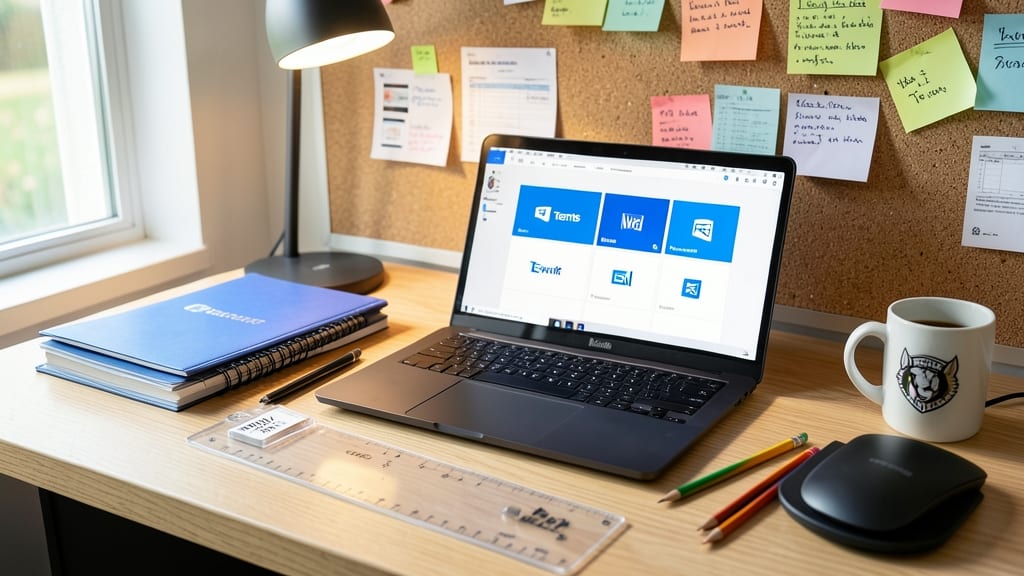
Your school email already unlocks a powerhouse suite—Microsoft 365—which includes Teams, Word, Excel, and PowerPoint at no extra cost. This means no need to juggle subscriptions for Google Workspace, Slack, or other tools that drain your budget (or your patience).
With your existing school credentials, you get instant access to real-time co-authoring in Word and PowerPoint, spreadsheet magic in Excel, and seamless file sharing—all within Teams. The integration is so smooth that switching between apps feels like second nature, saving you time and headaches during crunch time.
Perfect for students who want zero-config collaboration without hidden fees. 💻
Virtual Study Group Meetings
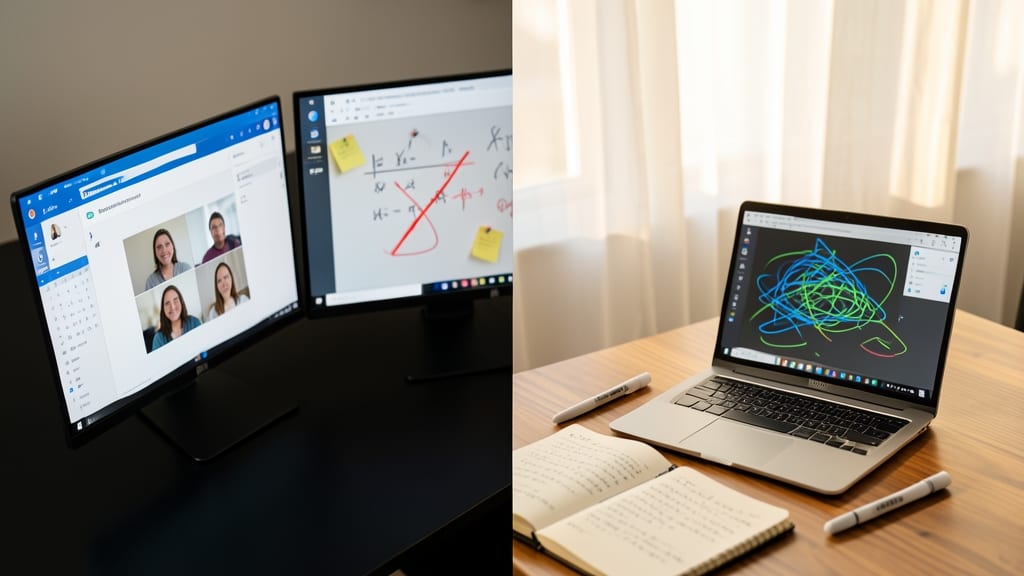
Forget the coffee shop cram sessions—Microsoft Teams turns your screen into a virtual study hall with tools designed for focus. Schedule recurring study meetings with just a few clicks, then dive into shared whiteboards for brainstorming or screen-sharing to walk through assignments together.
The breakout rooms feature lets you split into smaller groups for targeted discussions, while the whiteboard tool replaces physical notes with digital collaboration. No more juggling Zoom links or losing track of who’s where—Teams keeps everyone in one organized space with real-time updates and file sharing built right in.
Perfect for remote students, international teams, or anyone with a packed schedule, this tool turns study sessions into structured, productive meetings—no matter where you are. ✨
Organized Assignment Tracking
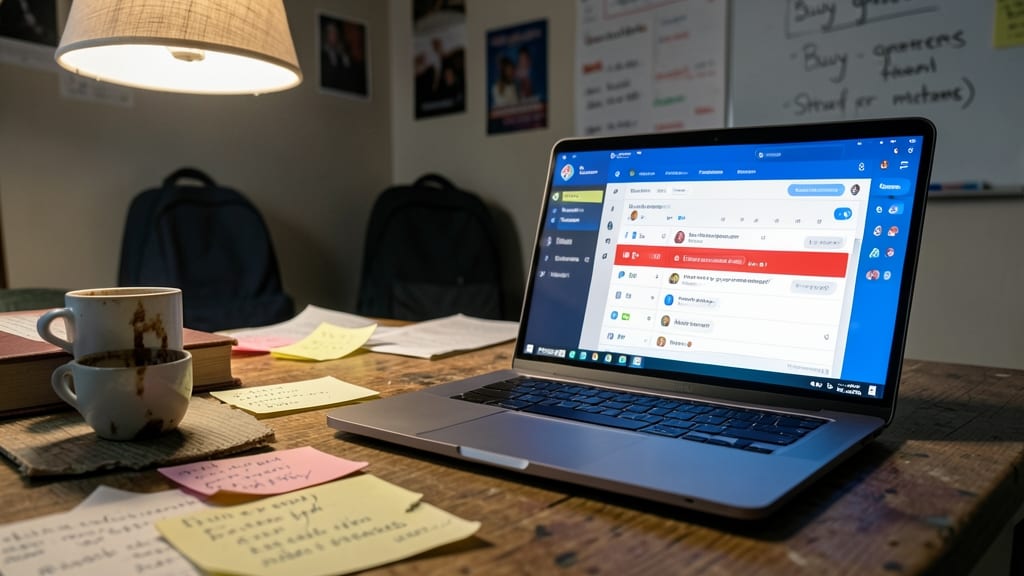
Drowning in a sea of scattered deadlines and forgotten assignments? Microsoft Teams turns the tide with dedicated class channels—your new digital planner for all coursework. Instead of juggling sticky notes and email chains, pin due dates directly to channels, upload files with a single click, and let the app send automated reminders so nothing slips through the cracks.
Each channel acts as a searchable hub for your class, with tabs for assignments, syllabi, and shared notes. The reminder system syncs across devices, so you’ll never miss a submission again. Plus, color-coded deadlines make prioritizing tasks effortless—no more last-minute panic when you realize a paper is due tomorrow.
This feature is a lifesaver for busy students juggling multiple classes or those prone to forgetting deadlines. Whether you're in high school or grad school, Teams keeps your academic life organized—without the stress. ✨
Secure File Sharing And Storage
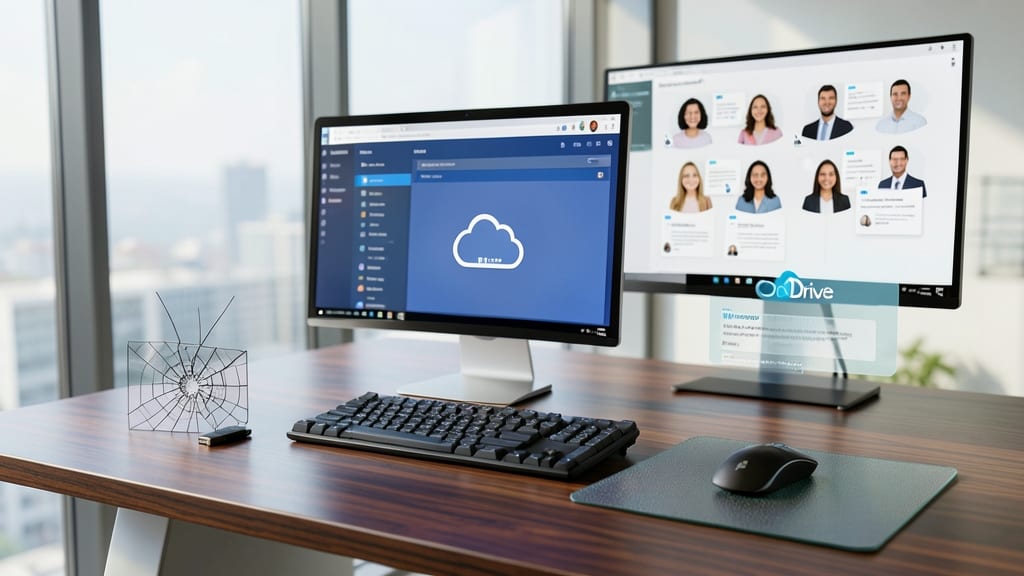
Forget the stress of lost USB drives or corrupted files—Microsoft Teams’ built-in OneDrive integration gives you 1TB of secure cloud storage right within the app. Whether it’s group projects, lecture notes, or research papers, every file stays safe, accessible, and backed up automatically.
With version history, you can recover accidental edits or deletions with just a few clicks. Need to share a large file? Teams handles it seamlessly, even with 2GB upload limits (larger files go straight to OneDrive). Plus, permissions let you control who sees or edits your work—no more sending files to the wrong person.
Perfect for students juggling multiple classes or group projects, this feature turns file chaos into a stress-free, organized system. ✨
Built-In Polls And Quizzes

Ever wondered if your classmates actually understood the lecture? Microsoft Teams’ built-in polls and quizzes turn passive listening into active engagement—no extra apps required. Create real-time multiple-choice questions, word clouds, or quick true/false checks to spark discussions, test comprehension, or even break the ice in virtual classes.
With anonymous response options, shy students can participate without fear of judgment, while live results appear instantly on your screen. The Quiz feature lets you set time limits, shuffle answers, and even assign points—ideal for pop quizzes or exit tickets. Best of all, these tools integrate seamlessly with your existing Teams chats and channels, so no context gets lost.
Perfect for professors, study groups, or even solo learners tracking progress—this is the digital equivalent of raising your hand, but for the whole class. 🌟
Accessibility Features For All Learners
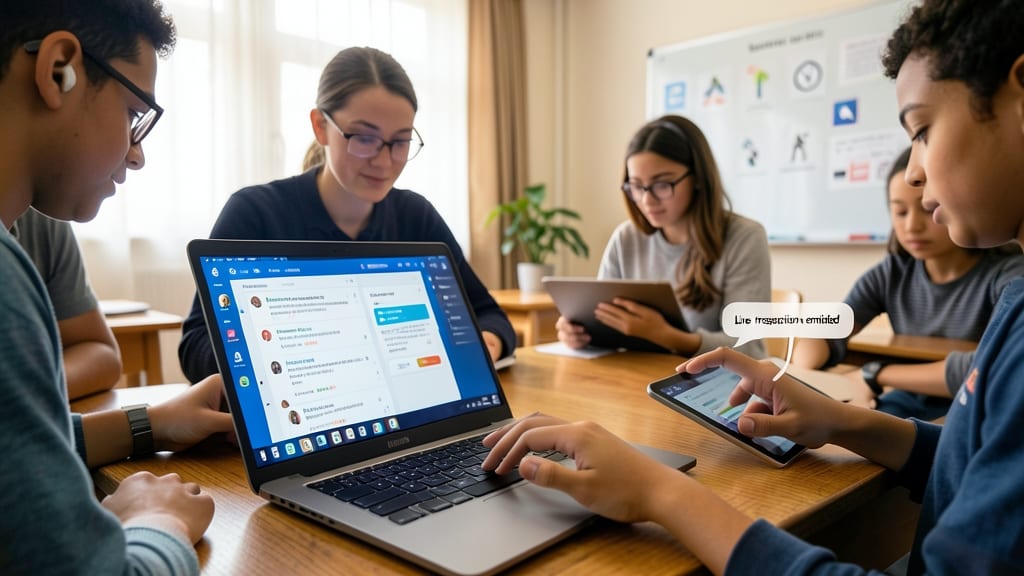
Every student deserves tools that adapt to their needs—not the other way around. Microsoft Teams removes barriers with built-in accessibility features that ensure no one gets left behind, whether you’re navigating a lecture with hearing loss or processing visual information differently.
Enable live captions in real time during video calls or meetings, so you never miss a word—even in noisy environments. The screen reader support (compatible with Windows Narrator and JAWS) reads aloud chat messages, file names, and meeting details, while customizable text sizes (up to 200%) help reduce eye strain. For those who learn best with visual aids, high-contrast themes and keyboard shortcuts streamline navigation without relying on a mouse.
Perfect for students with ADHD, dyslexia, or sensory sensitivities, these features turn Teams into a truly inclusive space. No extra apps or workarounds needed—just toggle settings in seconds. ✨
Parental And Teacher Approval
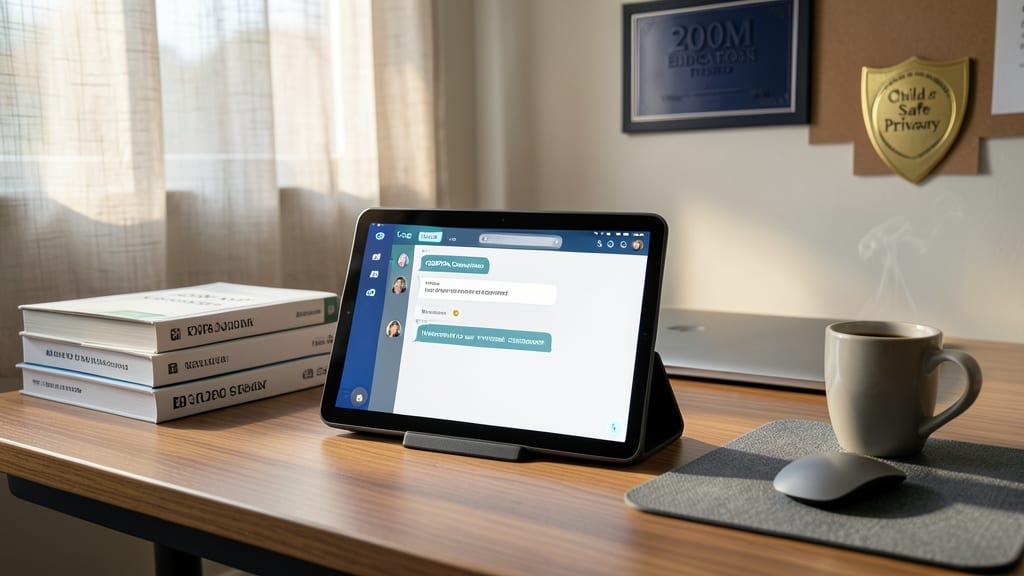
Worried about digital distractions or unsafe platforms? Microsoft Teams offers COPPA-compliant security—meaning it meets strict child privacy laws while being trusted by over 200 million educators worldwide. Unlike social media, it’s designed for structured learning, not endless scrolling.
Schools from kindergarten to college rely on Teams for its built-in moderation tools, including message approval settings and activity reports. Parents can even receive notification summaries of their child’s online interactions, ensuring transparency without invading privacy. The platform’s enterprise-grade encryption keeps files and conversations secure from unauthorized access.
Perfect for parents who want peace of mind and students who need a focused, distraction-free workspace. 🌟
Mobile-Friendly For On-The-Go Students

Forget juggling multiple devices—Microsoft Teams keeps your conversations flowing seamlessly across your phone, tablet, and laptop. Start a group chat about your history project while waiting for the bus, then switch to your laptop later to upload research files without missing a beat.
The cross-device sync ensures your messages, files, and notifications appear instantly everywhere. With the mobile app’s offline mode, you can draft responses or review assignments even without Wi-Fi, and everything syncs once you reconnect. Plus, the intuitive interface adapts to screen size, so you’re never stuck squinting at tiny text or fumbling with clunky transitions.
This is your lifeline for commuting students, part-time workers, or anyone with a packed schedule. Whether you’re between classes, stuck in traffic, or studying in a café, Teams keeps you connected without the hassle. ✨
Reduced Email Overload
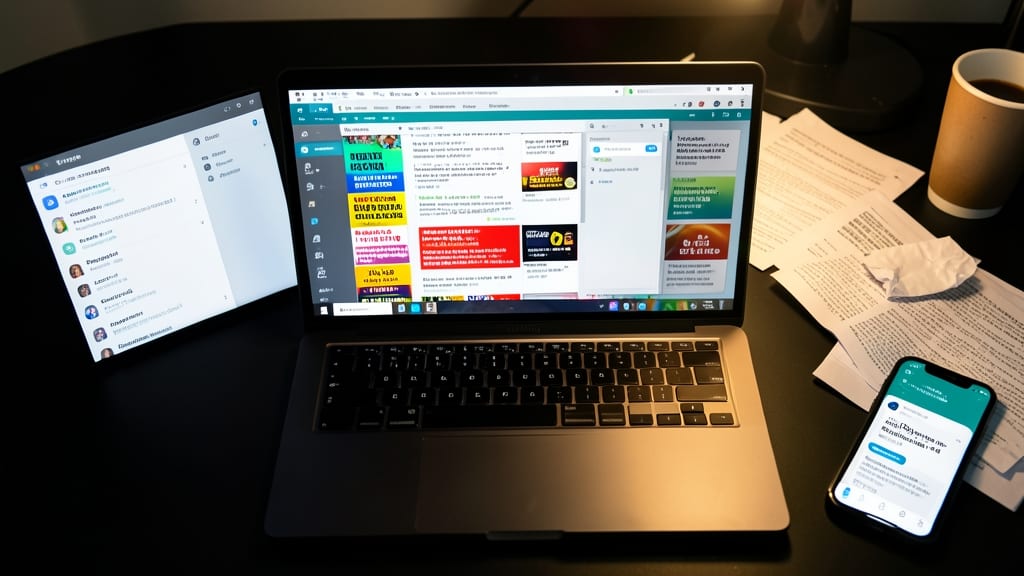
Drowning in a sea of promotional emails, spam, and lost messages from professors? Microsoft Teams acts as your digital inbox triage center, replacing the chaos with a single, searchable hub for all class-related communication. No more digging through 500 unread emails—just one app where every announcement, assignment, and discussion lives in organized channels.
The @mentions feature ensures you never miss a reply, while threaded conversations keep discussions focused. With end-to-end encryption, sensitive messages stay secure, and the search function finds past chats in seconds—no more "I swear I replied to that!" moments. Plus, custom notifications let you mute non-urgent alerts while keeping critical updates front and center.
This is your lifeline for students juggling multiple classes, clubs, and part-time jobs. Say goodbye to email overload and hello to focused, stress-free communication. ✨