
Software

Mastering Microsoft Word 2010 starts with understanding its ribbon interface. These 10 essential tools in the Word 2010 window will transform how you create, edit, and format documents with precision and efficiency.
Quick Access Toolbar Customization Options
Tired of digging through menus to access your most-used commands? The Quick Access Toolbar in Microsoft Word 2010 is your shortcut to efficiency—letting you pin commands like Save, Undo, Redo, or Font for instant one-click access. Located above the ribbon, this customizable bar adapts to your workflow, reducing repetitive clicks and speeding up document creation.
To customize it, simply right-click any command in the ribbon and select "Add to Quick Access Toolbar." You can also use the dropdown menu on the toolbar itself to choose from common commands, groups, or even macros. The toolbar stays visible across all documents, so your favorite tools follow you—whether you're drafting emails, editing reports, or formatting presentations.
Perfect for busy professionals, students, or anyone who hates wasted motion, this feature turns Word into a truly personalized workspace. ⚡
Home Tab File Formatting Tools
If you’ve ever spent minutes hunting for the right font or alignment tool in Word, the Home tab is your lifesaver. This is the most frequently used ribbon tab, packed with basic formatting tools that let you adjust fonts, styles, and paragraph alignment in seconds—no extra clicks required.
From the Font dropdown (where you can pick from hundreds of typefaces) to the Bold/Italic/Underline buttons, this tab handles all your core text adjustments. Need to align text left, center, or justify? The Paragraph group has you covered. For quick lists, the Bullets and Numbering options let you create structured content instantly. Even text direction (for multilingual documents) and clear formatting (to reset styles) live here.
Perfect for beginners, students, or anyone drafting quick documents, the Home tab ensures your text looks polished without the complexity. ⚡
Insert Tab Media and Object Options
Transform plain text into engaging visuals with the Insert tab—your gateway to embedding images, charts, shapes, and multimedia directly into documents. Whether you're designing a presentation, crafting a report, or working on a creative project, this tab simplifies adding visual elements without leaving Word.
Click the Insert tab to access tools like Pictures (for photos or graphics), Charts (to insert Excel data visualizations), and Shapes (flowcharts, callouts, or geometric designs). The Online Pictures option even lets you search and insert stock images directly. For dynamic content, use Video or Audio to embed multimedia files, making your documents interactive.
Ideal for educators, marketers, or anyone who needs to enhance readability and impact with visuals, this tab ensures your documents stand out. ✨
Page Layout Tab Margins and Orientation
Need to make your academic paper or newsletter look polished and professional? The Page Layout tab in Word 2010 gives you full control over document structure with just a few clicks.
Adjust margins (Normal, Wide, Narrow) to optimize readability, switch between portrait and landscape orientation for data-heavy tables, and create multi-column layouts (like newspapers) with the Columns dropdown. The Page Color option even lets you add subtle backgrounds for presentations.
Perfect for students formatting research papers, designers creating brochures, or anyone needing precise document layouts. ✨
References Tab Citations and Bibliography
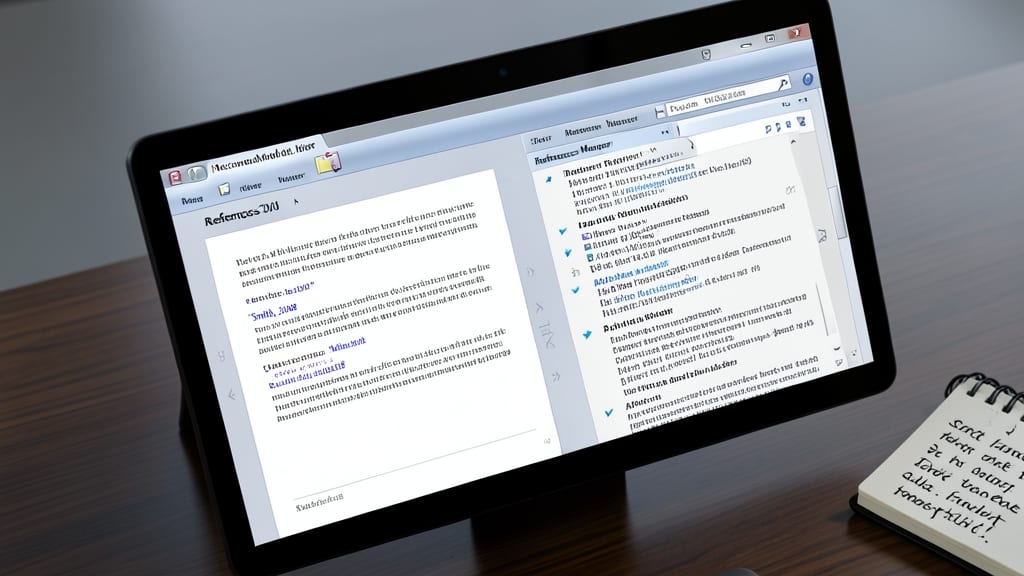
Struggling to keep track of sources in your research paper? The References tab in Microsoft Word 2010 is your secret weapon for managing citations, footnotes, and bibliographies with ease.
This tab lets you insert citations directly into your text, add footnotes for additional context, and auto-generate a bibliography in over 1,000 styles (APA, MLA, Chicago, etc.). The Manage Sources feature even lets you organize your references in a database, so you can reuse them across multiple documents.
Perfect for students, researchers, or professionals writing academic papers, theses, or reports, this tool saves hours of manual formatting. ✨
Mailings Tab for Envelopes and Labels
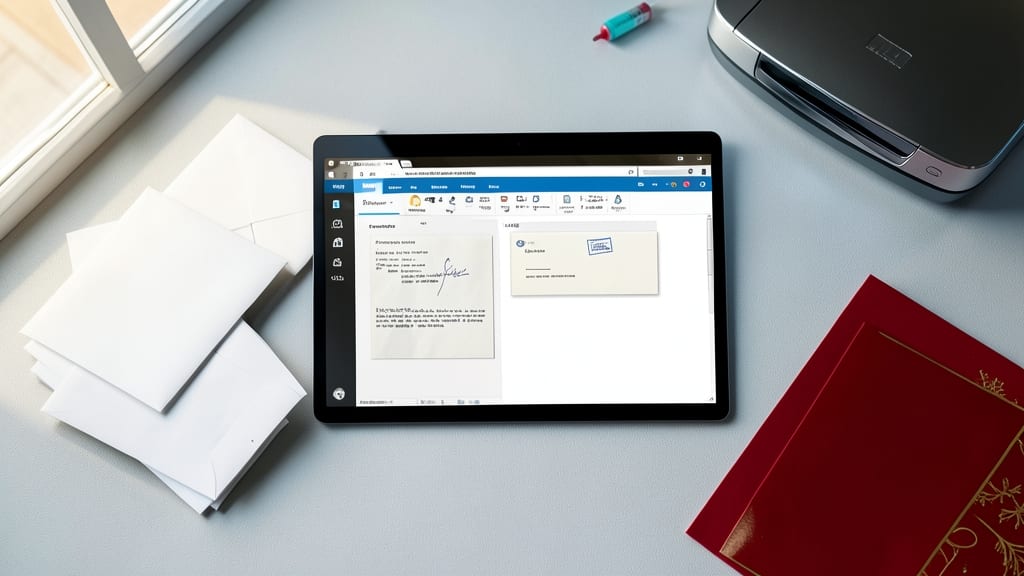
Tired of manually addressing envelopes or printing labels one by one? The Mailings tab in Word 2010 is your secret weapon for handling bulk correspondence with ease. Whether you're sending out invitations, billing statements, or holiday cards, this tab simplifies the process by integrating envelopes, labels, and mail merge into a single workflow.
Start by clicking Envelopes to design professional mailing pieces, or use Labels to print address stickers in bulk. The Start Mail Merge feature lets you merge a main document (like a letter) with a data source (like an Excel spreadsheet) to generate personalized letters for hundreds of recipients—all without lifting a finger. It even includes a Preview Results tool to double-check formatting before printing.
Event planners, small business owners, and nonprofits will find this tab indispensable for saving time and reducing errors. With just a few clicks, you can transform a tedious task into a streamlined operation. ✨
Review Tab Proofing and Tracking Changes
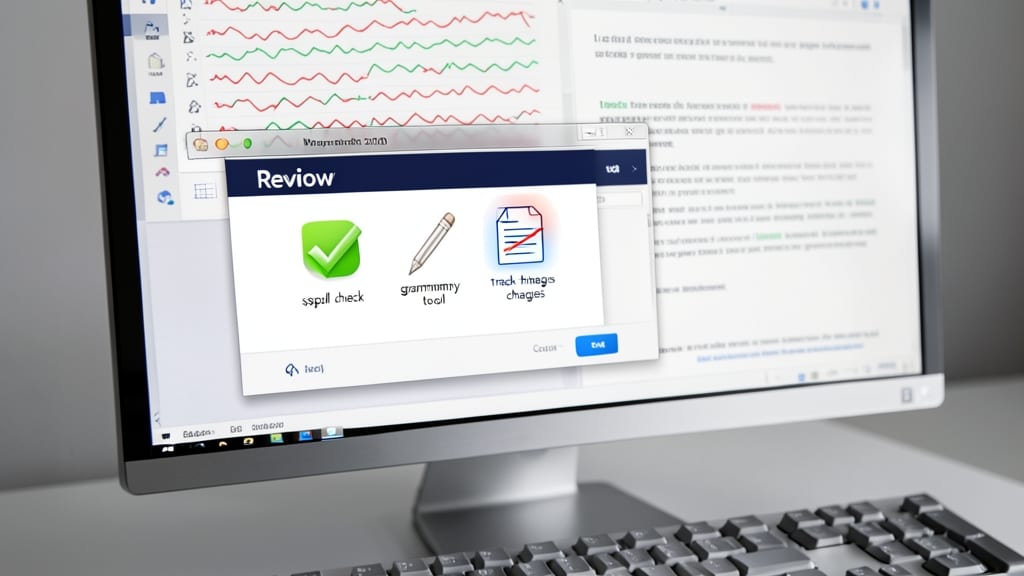
Need to ensure your documents are error-free and ready for collaboration? The Review tab in Microsoft Word 2010 is your secret weapon for polishing text and managing edits seamlessly. It combines spell check, grammar tools, and track changes—all in one place—to streamline workflows for team projects or legal documents.
With Track Changes, you can highlight edits, comments, and deletions in real time, while the Compare feature lets you merge multiple versions effortlessly. The built-in spell checker catches typos instantly, and the grammar checker suggests corrections for complex sentences. These tools work together to keep your documents professional and polished.
Perfect for legal teams, academic writers, or collaborative projects, this tab ensures every change is visible and traceable—no more lost revisions or unclear edits. ✨
View Tab Document Navigation Modes
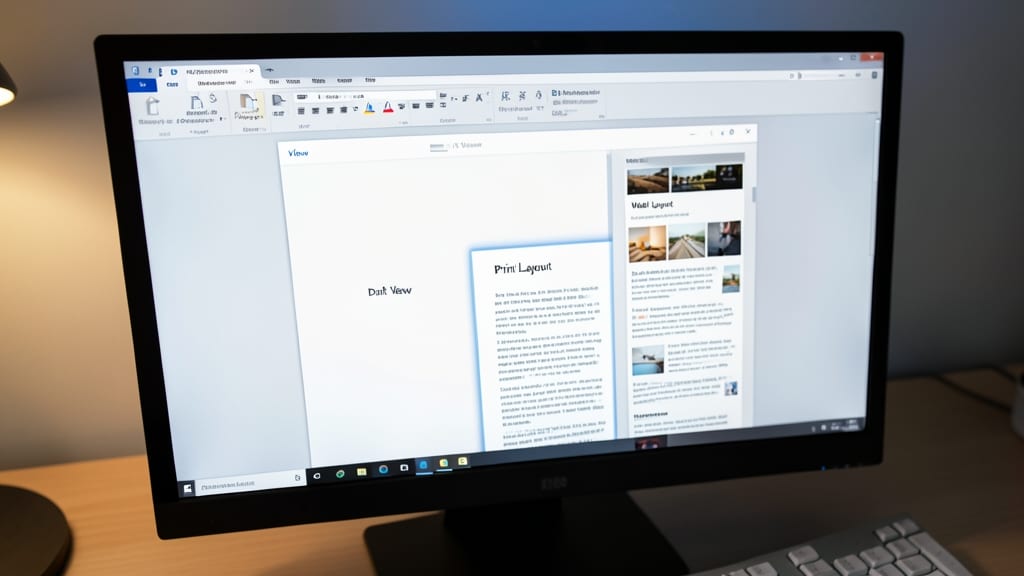
Struggling to visualize your document the way you want? The View tab in Microsoft Word 2010 offers three powerful navigation modes—Draft, Print Layout, and Web Layout—each designed for a specific workflow. Draft view simplifies editing by hiding page breaks and margins, while Print Layout shows your document exactly as it’ll print, complete with headers, footers, and margins.
For web designers or digital content creators, Web Layout displays text in a continuous flow without page breaks, making it perfect for previewing how content will appear online. You can also toggle Ruler and Gridlines or adjust zoom levels directly from this tab, ensuring precise formatting every time.
Writers, designers, and educators will love this flexibility—whether you're drafting a novel, designing a flyer, or teaching students about document structure. ⚡
Developer Tab for Custom XML and Macros
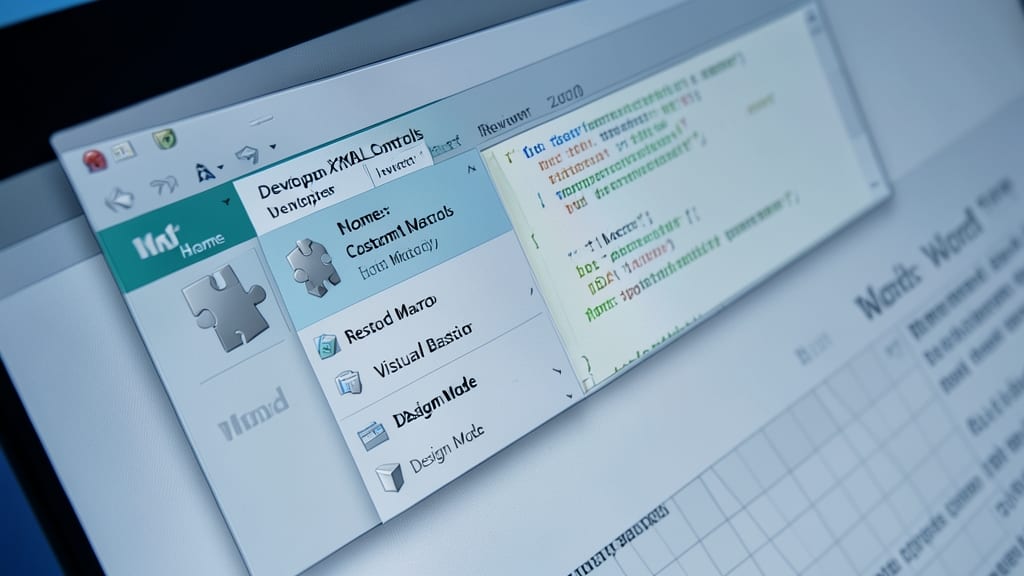
Tired of repetitive tasks slowing down your Word workflow? The Developer tab in Microsoft Word 2010 unlocks powerful tools like custom XML controls and VBA macros—perfect for automating complex processes or extending Word’s capabilities beyond standard features.
This hidden gem lets you enable Design Mode for XML-based documents, edit VBA macros directly in the editor, and even add custom controls to forms. With Visual Basic for Applications (VBA), you can automate everything from formatting to data extraction, saving hours on repetitive tasks. The tab also includes document properties and legacy tools for backward compatibility.
Ideal for developers, power users, or office professionals handling large-scale documents, this tab turns Word into a customizable powerhouse. ⚡
Status Bar Shortcut Controls
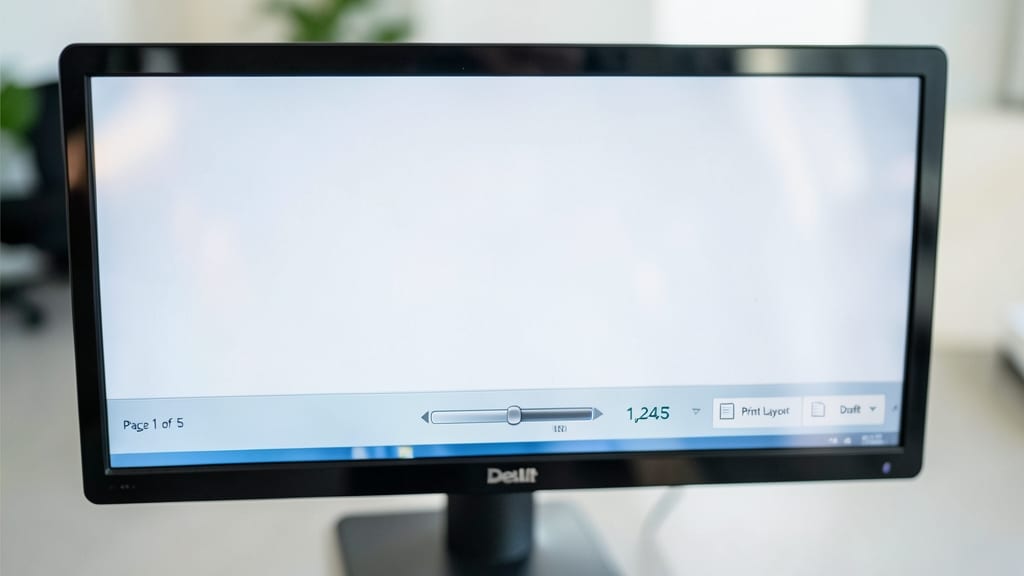
Tired of wasting time hunting through menus for basic document stats? The status bar in Microsoft Word 2010 is your secret weapon for instant access to essential controls—no extra clicks required.
Right at the bottom of your screen, you’ll find page numbers, word count, zoom controls, and view options all in one place. Need to check your progress mid-document? Just glance at the word count or page number without breaking your workflow. Adjust the zoom level (from 10% to 400%) with a simple slider, or toggle between Print Layout, Draft, or Web Layout views with a single click.
This feature is a game-changer for writers, editors, and data-heavy document creators who need quick feedback without navigating menus. ⚡