
Tip & Trick

Microsoft Teams is a powerhouse for collaboration—but most users only scratch the surface. These 10 underutilized tips and tricks for 2023 will transform how you communicate, organize, and automate workflows, saving you hours weekly.
Enable Focus Mode for Deep Work

Drowning in notifications while trying to write code or draft that report? Microsoft Teams’ Focus Mode lets you silence everything except direct messages—so you stay locked in without missing urgent chats. This hidden feature is a lifesaver for developers debugging late-night bugs or writers battling distractions.
To enable it, click your profile picture in the top-right corner, then select "Focus Mode" from the dropdown. You’ll see a "Do Not Disturb" status appear, muting all channel notifications, mentions, and calls—while still letting direct messages through. The best part? You can set a custom duration (15 minutes to 8 hours) or leave it on until you manually disable it. Perfect for when you need zero-config, uninterrupted focus.
Ideal for developers, writers, or anyone juggling deep work alongside team collaboration. Give it a try—your productivity (and sanity) will thank you. ⚡
Use PowerPoint Live Presentations Directly
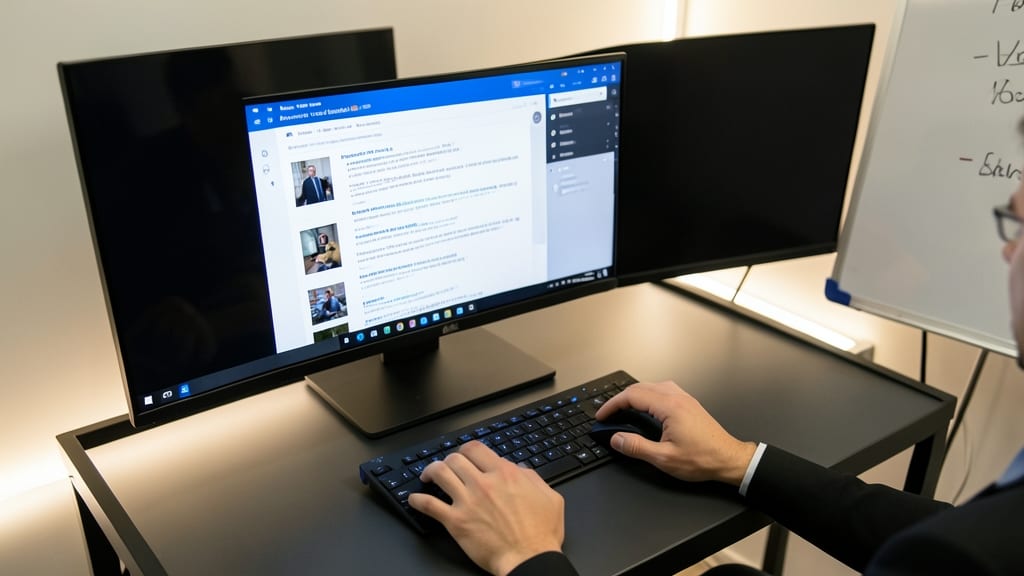
Say goodbye to awkwardly switching between PowerPoint and Teams during presentations. With PowerPoint Live, you can now present slides directly from Teams—no extra clicks or app-hopping required. This seamless integration lets you control your presentation from the Teams meeting window while keeping the audience engaged with real-time reactions in the chat.
To get started, open your PowerPoint file, click Slide Show, then select Present Online. Choose your Teams meeting from the list, and your slides will stream live to attendees. The best part? You can annotate slides in real-time, highlight key points, and even use the laser pointer tool—all while keeping the conversation flowing in Teams. This feature works with PowerPoint 2016 or later, so most users already have the tools they need.
This trick is a game-changer for trainers, educators, and sales teams delivering remote presentations. No more fumbling with screens or losing your audience’s attention—just smooth, professional delivery every time. ⚡
Create Custom Status Messages with Emojis
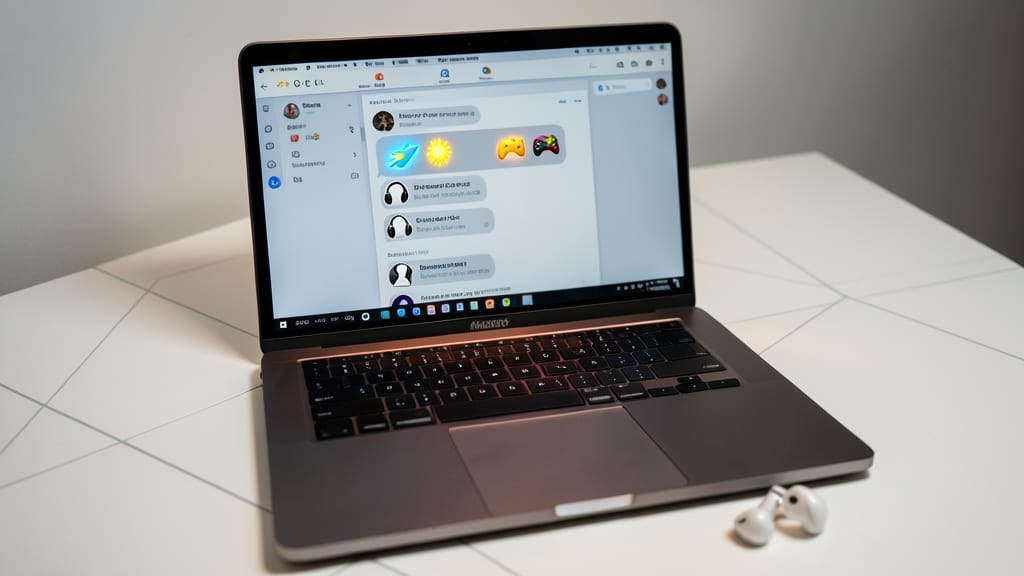
Tired of vague status messages like "busy" or "in a meeting"? Microsoft Teams lets you combine emojis to instantly convey your availability and context—no typing required. For example, pair 🚀 + 🎮 to signal "deep work but open to quick questions" or use 🎧 + ⏳ for "in a call but will reply soon."
Custom statuses work across chats, calls, and meetings, ensuring teammates understand your availability at a glance. The platform supports hundreds of emojis, and you can even combine them for nuanced signals. This feature is especially useful for remote teams with overlapping time zones or varied work styles.
Developers debugging late at night or customer support agents handling urgent tickets will love this—it eliminates guesswork about when to reach out. Give it a try next time you’re juggling multiple tasks! ✨
Schedule Meetings with One-Click Joining
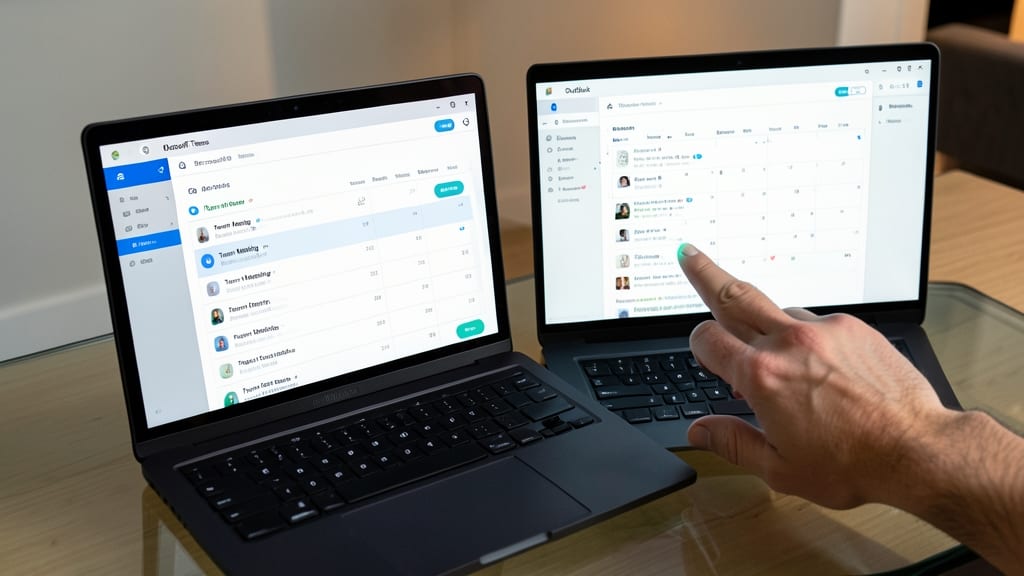
Tired of the endless email chain when scheduling recurring meetings? Microsoft Teams now lets you generate calendar invites with a single click directly from the Teams calendar view—no switching apps or manual copy-pasting required.
Open the Teams calendar, click the meeting you want to schedule, and select "Add to Outlook" (or your default calendar app). This instantly creates a polished invite with all details—time, agenda, and join link—pre-filled. For recurring meetings, set the frequency (weekly, monthly) and let Teams auto-generate invites for the entire series. The best part? Attendees receive the invite in their calendar app, so they can RSVP or add it to their schedule without ever opening Teams.
This trick is a lifesaver for project managers, HR teams, or anyone coordinating regular check-ins. Say goodbye to scheduling chaos and hello to seamless coordination. ⚡
Pin Important Channels to Top Bar
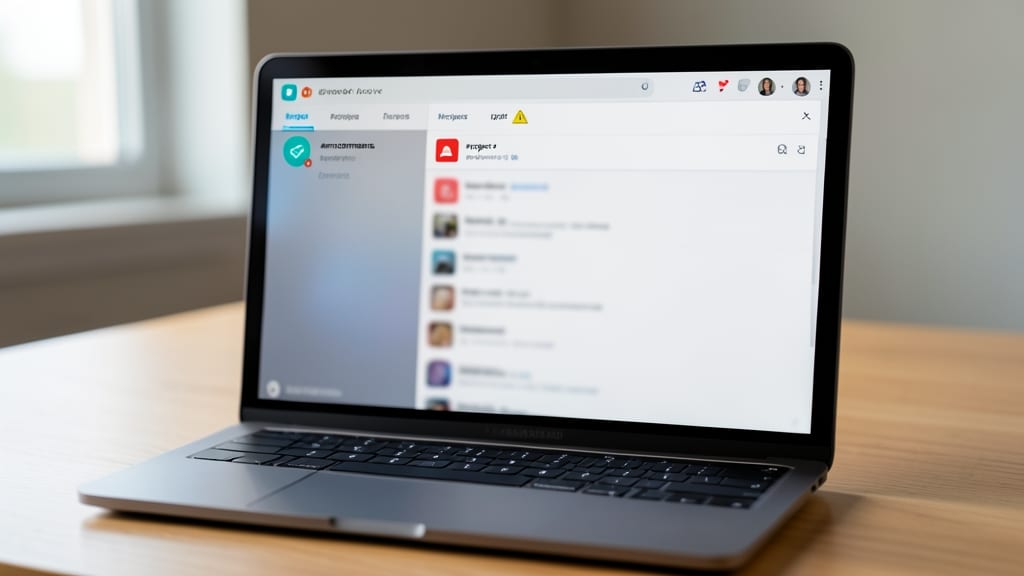
Juggling multiple projects in Teams? The pin channels to top bar feature lets you keep critical channels like #project-x or #announcements instantly accessible with one click, eliminating the need to scroll through long lists.
Right-click any channel in your sidebar, select Pin, and it moves to the top for permanent visibility. This is a game-changer for teams managing 5+ active projects—no more hunting for important updates. You can pin up to 10 channels per team, so prioritize what matters most.
Perfect for project managers or dev teams juggling sprints, client updates, and internal comms. ⚡
Use Spotlight for Virtual Backgrounds
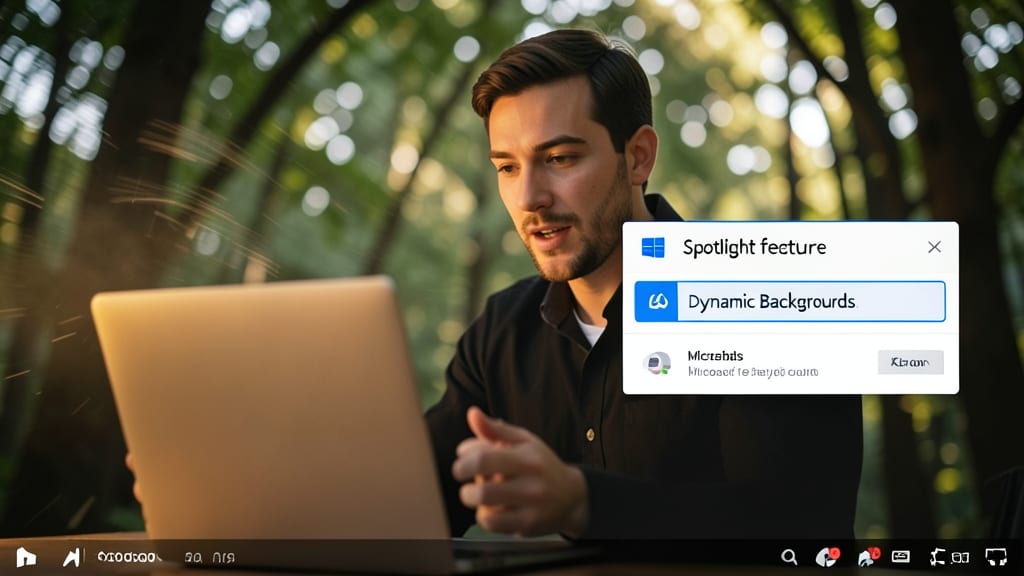
Tired of static virtual backgrounds that make you look like a wallpaper? Microsoft Teams’ Spotlight feature lets you apply dynamic, movement-reactive backgrounds that keep your meetings engaging—no green-screen skills required.
Here’s how it works: During a call, right-click your video thumbnail, select Apply virtual background, then choose Spotlight. Unlike standard backgrounds, Spotlight blurs everything except you, creating a cinematic effect that subtly follows your movements. Perfect for hybrid meetings where static images feel unprofessional, or when you want to avoid revealing your messy home office. 🖥️
This trick is a game-changer for presenters, trainers, and anyone who wants to look polished without sacrificing natural movement. Just enable it once, and your background adapts automatically. ✨
Automate Repeated Messages with Templates
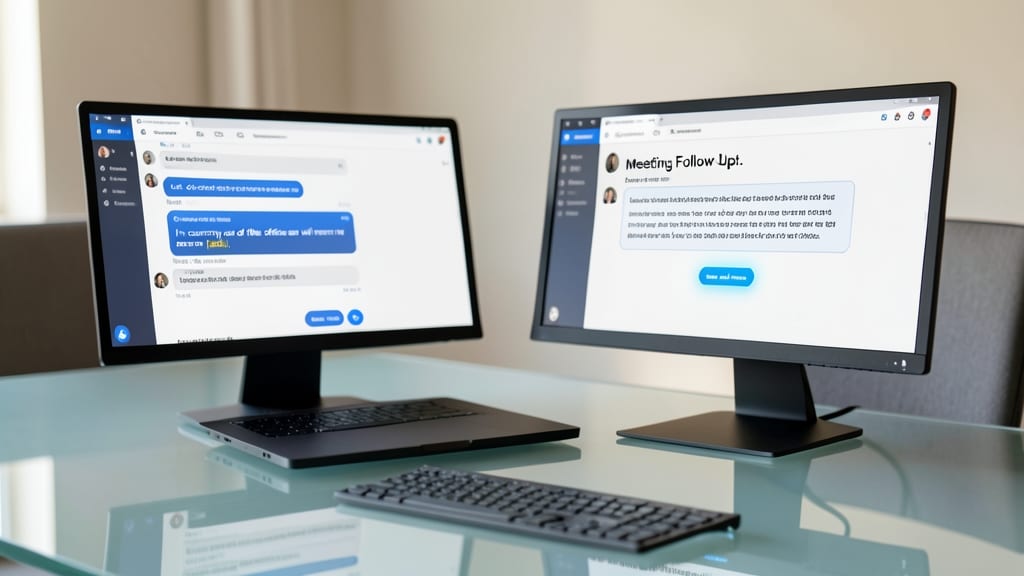
Tired of typing the same responses over and over? Microsoft Teams’ message templates let you save and reuse common replies—like out-of-office notices or meeting follow-ups—in just a few clicks. This hidden feature cuts down on repetitive typing and keeps your responses consistent.
To get started, compose your message in a chat, then click the three dots in the message box and select "Save as template." Name it (e.g., "Client Update" or "OOF Reply") and assign a keyboard shortcut (like Ctrl+Shift+T) for instant access. Templates work in 1:1 chats, group chats, and even emails sent via Teams, making them perfect for customer support teams or managers handling recurring inquiries.
Ideal for professionals who send the same responses daily, this trick saves time and reduces errors. Try it today and reclaim minutes every day! ⚡
Enable Live Captions for Accessibility
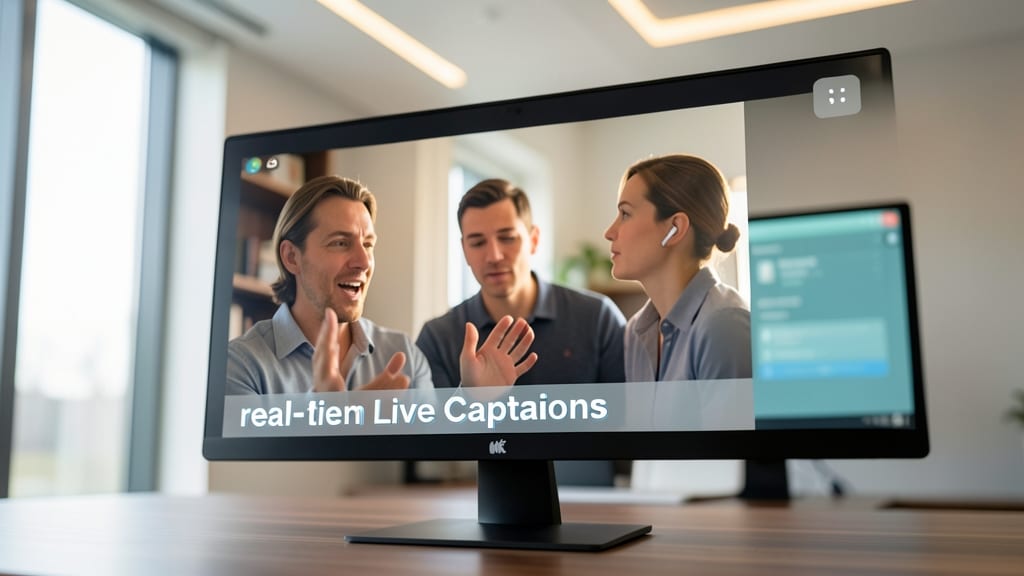
Struggling to follow fast-paced meetings or support team members with hearing challenges? Live Captions in Teams converts spoken words into real-time text, making conversations crystal clear for everyone—no extra hardware needed.
To enable it, start a call, click the three-dot menu, then select Turn on live captions. The system supports 10+ languages and works with background noise, though accuracy improves in quiet settings. You can also customize text size and font for better readability.
This feature is a game-changer for HR teams, global organizations, or anyone hosting inclusive meetings. Give it a try—your team’s accessibility just got a major upgrade! ✨
Use the 'Together Mode' for Immersive Meetings

Tired of staring at a grid of video tiles during meetings? Together Mode transforms your virtual gathering into a shared physical space—whether it’s a cozy classroom, sleek office, or even a café. This feature uses AI to place participants in a lifelike environment, making remote collaboration feel surprisingly human.
Simply start or join a meeting, then select Together Mode from the meeting controls. You’ll instantly join a customizable virtual room with natural lighting and spatial audio, letting you see reactions and gestures like in person. The classroom layout works perfectly for training sessions, while the office setup keeps teams aligned during brainstorming.
This is a game-changer for remote teams, educators, and client presentations where connection matters more than pixels. Give it a try—your next meeting might just feel like old times. ✨
Integrate Power Automate for Workflow Automation
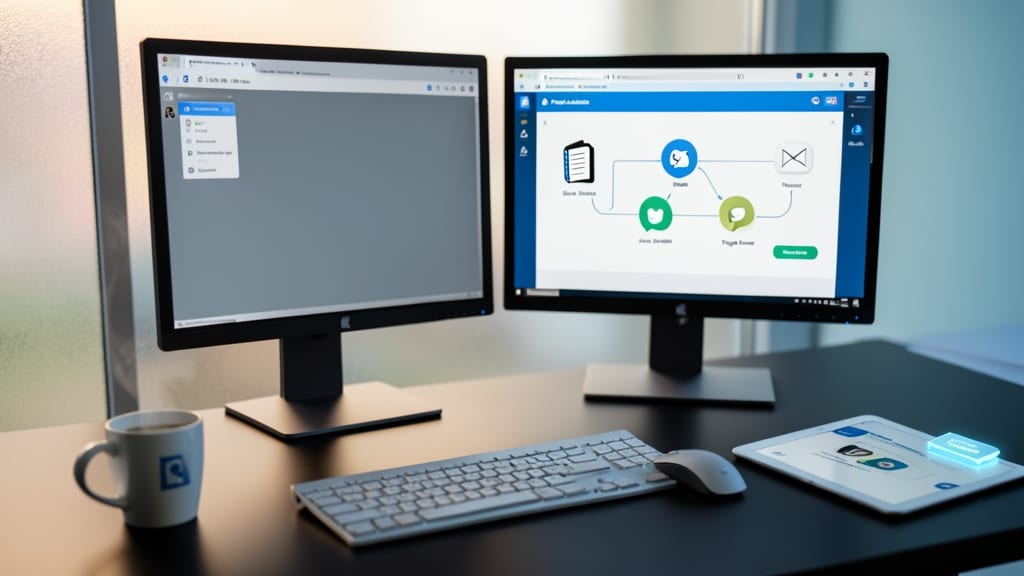
Tired of manually copying meeting notes or chasing approvals in Teams? Power Automate bridges the gap by turning repetitive tasks into automated workflows—all within Teams. With just a few clicks, you can create flows that auto-save chat messages to OneNote, post updates to Slack, or even trigger approval requests in SharePoint.
The integration is seamless: start from the Teams mobile app or desktop, select a message or file, and choose "Automate" to build flows without coding. Pre-built templates handle common tasks like saving emails to OneDrive or notifying teams about new files. For power users, the AI Builder adds smart document processing, like extracting key details from contracts.
This is your secret weapon for project managers juggling approvals or developers who need to log meeting decisions instantly. No more context-switching—just set it up once and let automation handle the rest. ✨