
Software

Microsoft Teams channels can become cluttered or disorganized if not managed properly. These 10 best practices will help you create a structured, efficient workspace that boosts productivity and reduces collaboration chaos for your team.
Standardize Channel Naming Conventions for Clarity
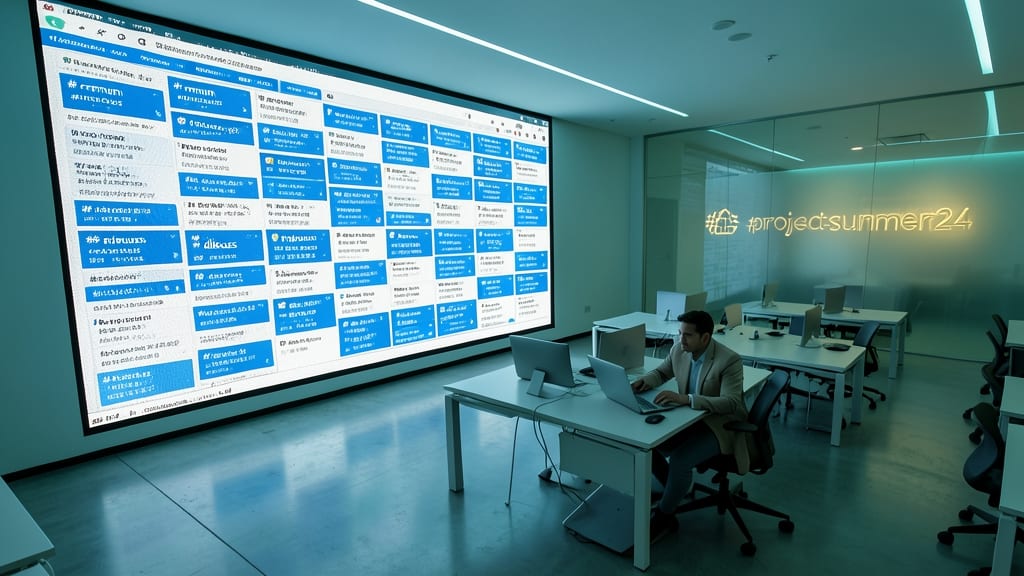
New hires drowning in a sea of channels they don’t understand? A consistent naming convention transforms chaos into clarity—like a GPS for your team’s workspace. Instead of vague names like "#random" or "#discuss," use prefixes like #dept-marketing or #project-summer24 to instantly signal purpose. This simple tweak cuts down on duplicate channels and helps everyone—especially remote workers—find what they need without asking.
Start by auditing your existing channels and adding prefixes to match your team’s structure. For example, #finance-invoices clearly separates it from #finance-reports. Microsoft Teams even lets you sort channels alphabetically, so organized names group related topics together. Pro tip: Use hyphens (-) instead of spaces or underscores to avoid formatting issues.
This works best for growing teams or departments with frequent onboarding. Remote workers and contractors will appreciate the instant clarity—no more guessing if they’ve joined the right channel. A standardized system saves time and frustration for everyone. ✨
Limit Active Channels to Essential Teams Only
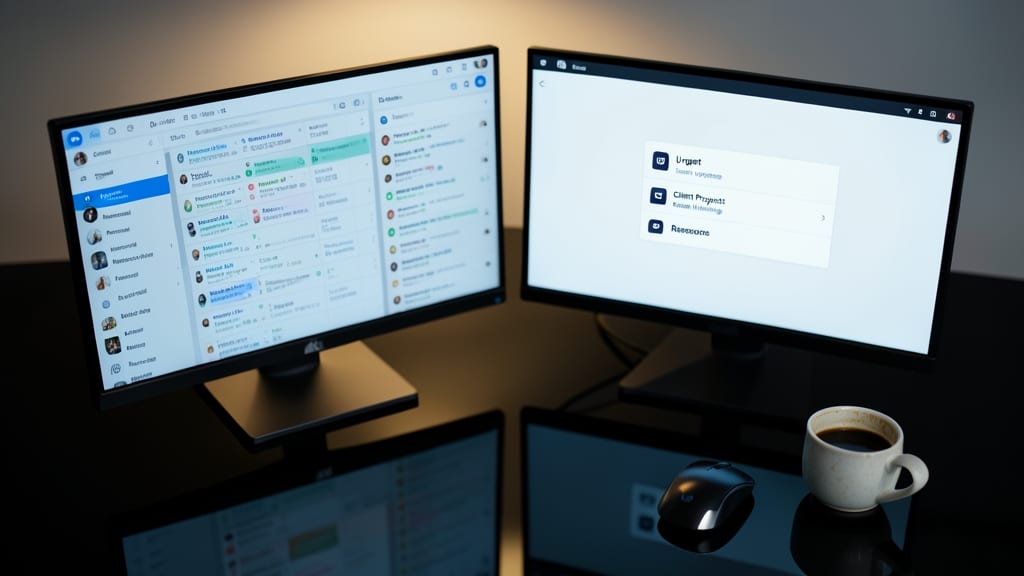
Feeling overwhelmed by a Microsoft Teams sidebar packed with channels you rarely use? The solution is simpler than you think: limit active channels to only what’s essential. Too many channels lead to decision fatigue, missed updates, and a workspace that feels more chaotic than productive. By focusing on core teams and projects, you’ll cut through the noise and keep your team’s attention where it matters most.
Start by archiving inactive channels—this removes them from your active view but preserves all files, posts, and tabs for future reference. For example, if the #2023-holiday-planning channel is no longer relevant, archive it instead of deleting it. Next, consolidate related discussions—if multiple channels cover similar topics (like #marketing-strategy and #brand-guidelines), merge them into one. Microsoft Teams even lets you restore archived channels if needed, so nothing is truly lost. Schedule a quick monthly audit to keep your workspace lean.
This approach works best for growing teams or departments juggling multiple projects. Remote workers and managers will appreciate the reduced clutter and improved focus—no more scrolling through irrelevant channels to find what you need. A streamlined workspace means faster decisions and happier teams. ⚡
Use Channel Descriptions to Define Purpose
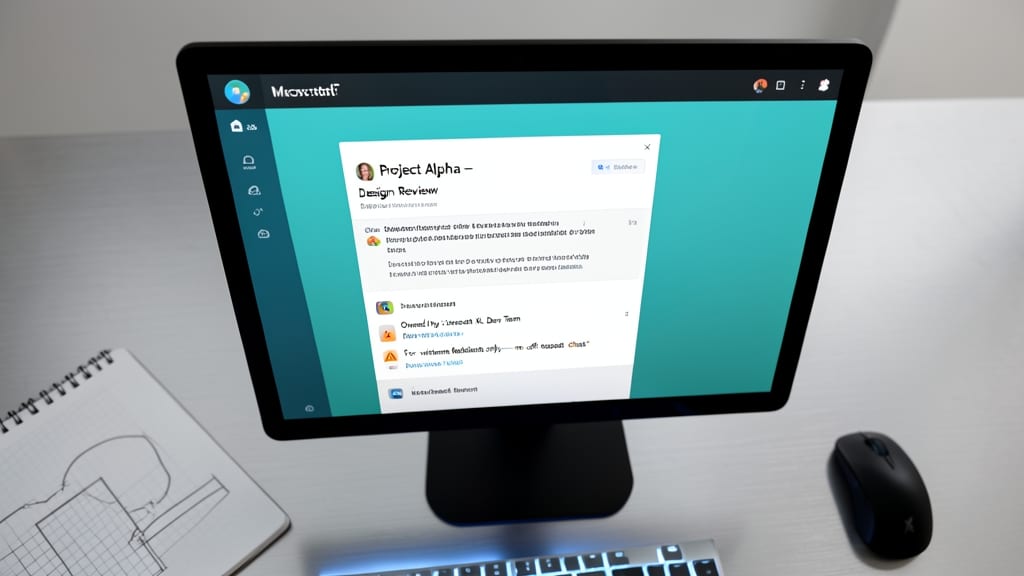
A well-crafted channel description acts as your team’s first line of communication—it tells everyone why the channel exists, who’s responsible, and what kind of discussions belong there. Without it, team members might join by accident, post off-topic messages, or miss critical updates entirely.
Start with a clear purpose (e.g., "#marketing-campaigns: Track Q3 ad spend and approvals—owned by Sarah and Jake"), then add guidelines like "For project updates only; no personal chats." Microsoft Teams even lets you format descriptions with bold or bullet points for readability. This small step cuts down on confusion and keeps conversations focused.
Teams with cross-functional projects or remote workers benefit most—new hires or contractors can instantly see where to contribute without asking. A well-defined description saves time and frustration for everyone. ✨
Organize with Tabs for Key Resources and Tools
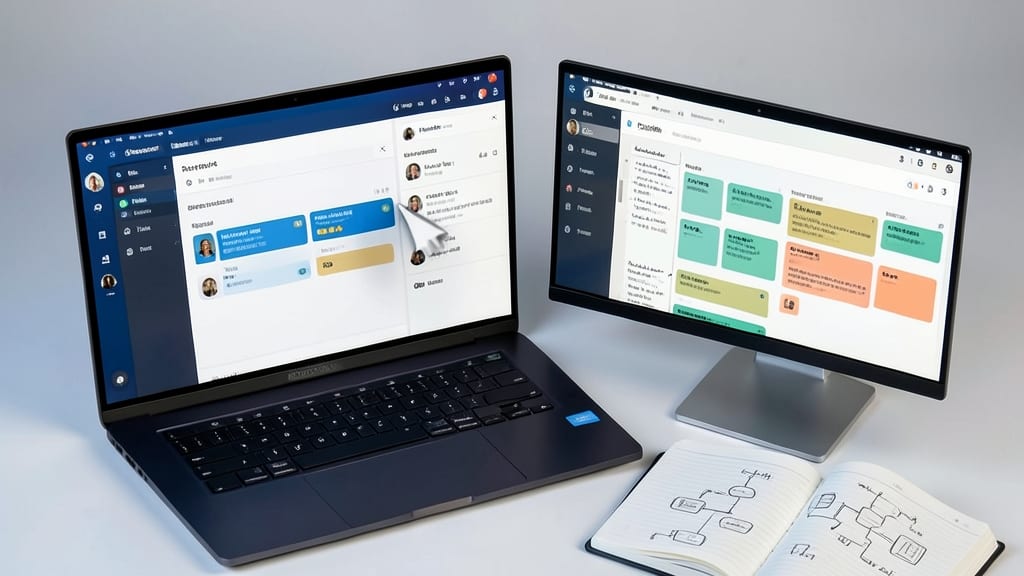
Tired of wasting time digging through files or tabs to find that one critical document? Microsoft Teams tabs turn every channel into a centralized hub for your team’s most-used resources—no more scattered bookmarks or lost links.
Add Files, Wiki, Planner, or OneNote tabs directly to channels so everyone accesses the same tools in one click. For example, pin your project timeline in Planner or a shared OneNote for meeting notes—everything stays visible and searchable without leaving Teams. The best part? You can even embed external apps like Trello or Google Drive with just a few clicks.
This works best for teams managing projects, documentation, or workflows—like marketing teams tracking campaigns or dev squads sharing code snippets. Keep your tools where the conversation happens! ✨
Set Up Channel Owners and Moderators
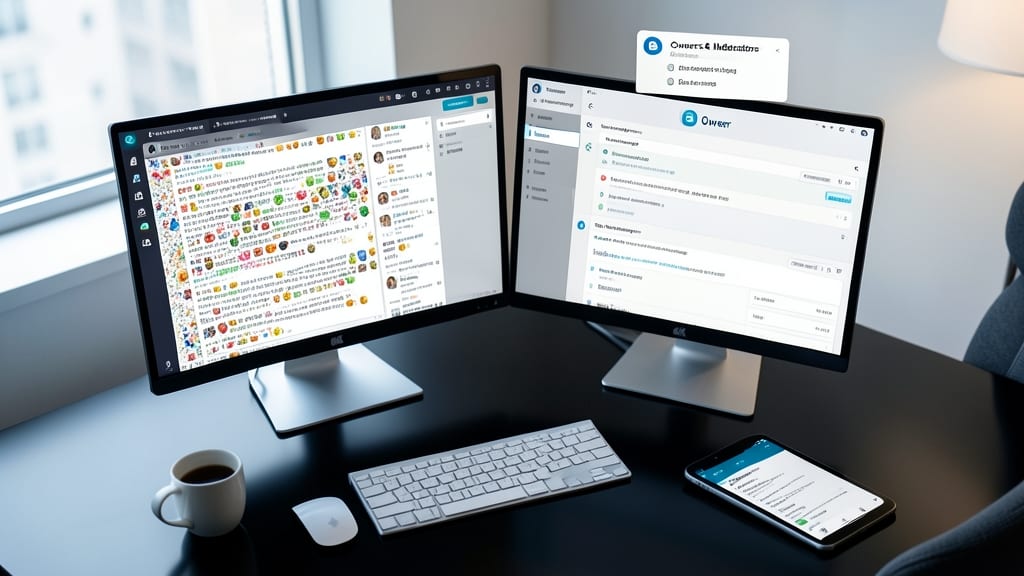
Ever feel like your Teams channels are spiraling into chaos, with random posts and off-topic debates? Assigning channel owners and moderators is your secret weapon to keep discussions focused and productive.
Owners control channel settings—like adding tabs, managing members, and adjusting permissions—while moderators can approve posts before they appear, blocking spam or irrelevant content. This two-tier system ensures accountability without overwhelming one person. For example, a marketing team might have the manager as owner (to update tools) and a senior team member as moderator (to filter brainstorming ideas).
This setup works best for high-traffic channels like company-wide announcements or collaborative projects where input needs curation. It’s especially useful for remote teams where clear governance prevents miscommunication. ✨
Enforce a 'One Conversation per Post' Rule
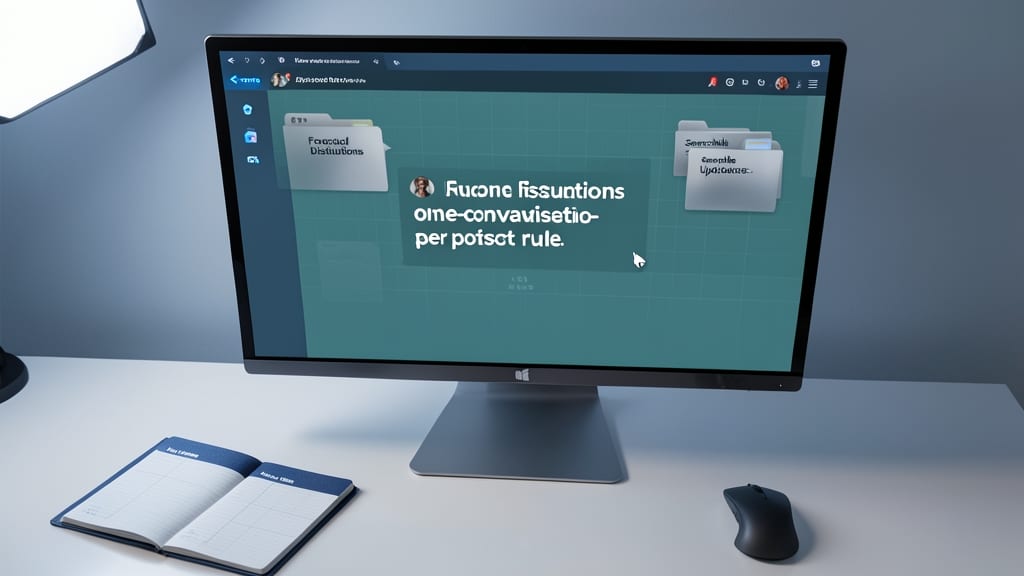
Tired of scrolling through endless, tangled conversations that make critical updates disappear? Enforcing a one-conversation-per-post rule in Microsoft Teams keeps discussions focused and searchable—just like organizing files in a digital filing cabinet.
Start by replying to specific posts instead of creating new ones for every comment. Teams automatically threads replies, keeping the main post clean and easy to reference. This also boosts searchability—future team members can quickly find answers without wading through unrelated chatter. For extra clarity, pin important posts to the top of the thread to highlight key decisions or action items.
This rule works best for project teams or customer support channels, where multiple people contribute to the same topic. It’s especially useful for remote teams spread across time zones, ensuring everyone stays aligned without missing updates. ✨
Archive Inactive Channels Regularly

Ever felt overwhelmed scrolling through a Microsoft Teams sidebar packed with channels you never use? A cluttered workspace slows down productivity—archiving inactive channels keeps your focus sharp while preserving critical history.
To archive a channel, simply click the three dots next to its name, select Archive, and confirm. This removes it from active view but keeps all files, posts, and tabs intact—perfect for reference later. Teams even lets you restore archived channels if needed, so nothing is truly lost. Schedule a monthly cleanup to maintain a streamlined workspace.
This practice is ideal for growing teams or projects with shifting priorities. Remote workers and managers will appreciate the reduced noise and improved focus. ✨
Use Channel Notifications Wisely
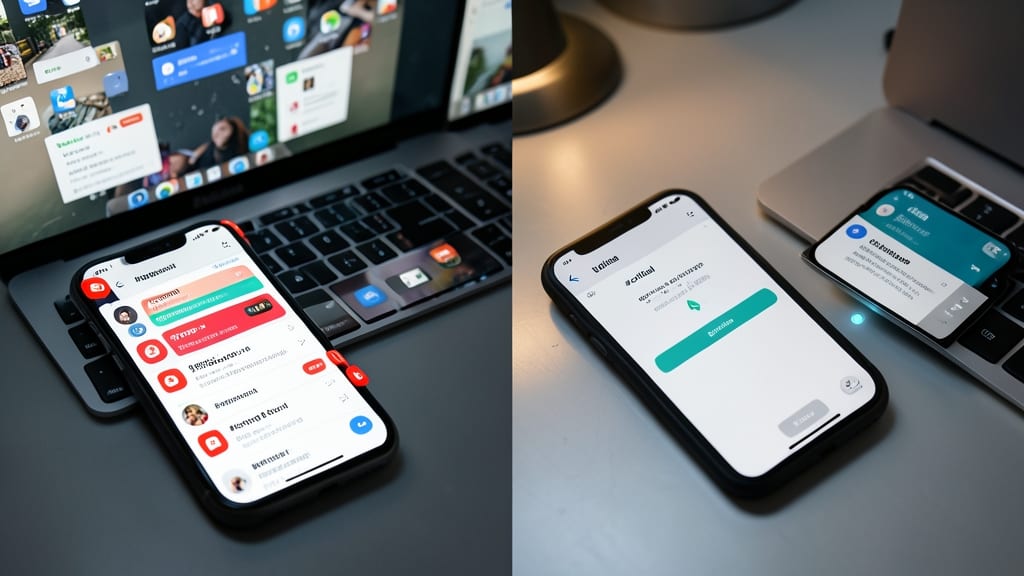
Drowning in Teams notifications? The fix is simpler than you think—customize alerts per channel to cut through the noise. Instead of letting every post ping your phone or desktop, adjust settings to match the channel’s importance, so you stay informed without the chaos.
For critical channels like #marketing-launch or #support-tickets, enable All New Content to catch every update. For less urgent channels (e.g., #random or #brainstorming), switch to Mentions Only—this way, you’ll only get alerts when someone tags you directly. Pro tip: Use the Teams mobile app to tweak notifications on the go, ensuring you’re never overwhelmed by irrelevant alerts.
This strategy works best for remote teams or departments juggling multiple projects, where context-switching is already a challenge. By tailoring notifications, you’ll focus on what matters most—without missing a beat. ✨
Create a 'General' Channel for Broad Announcements
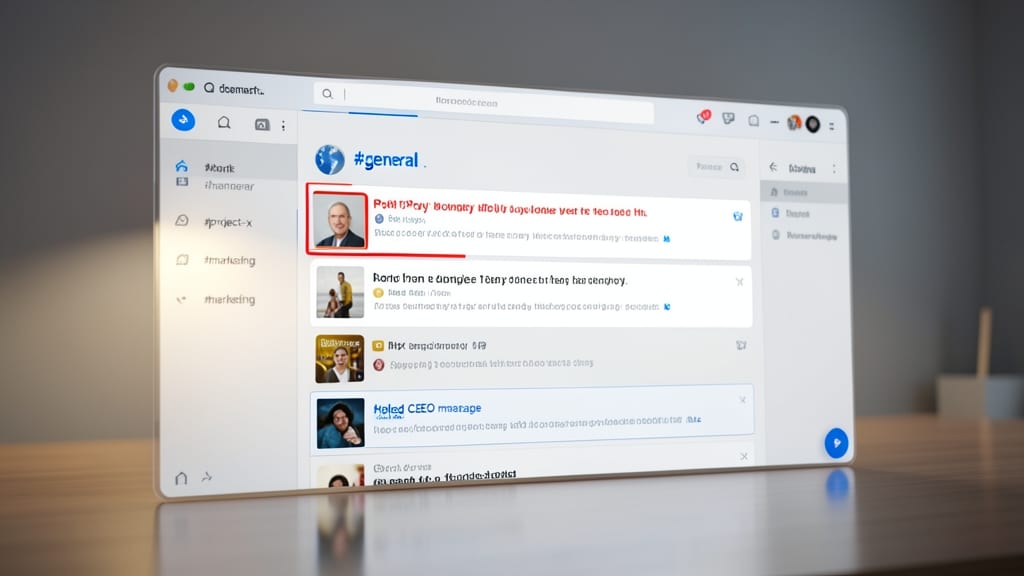
Ever missed a critical company-wide announcement buried in a project channel? A dedicated 'General' channel solves this by centralizing all broad updates—from policy changes to company-wide celebrations—in one easily accessible spot.
Start by creating a channel named '#general' (or '#company-announcements' for clarity) in your main team workspace. Pin the most important posts at the top to ensure visibility, and use @team mentions for urgent updates. This keeps everyone aligned without cluttering specialized channels.
Perfect for remote teams or large organizations where cross-department communication is key. It’s the digital equivalent of a company-wide bulletin board—essential for transparency. ✨
Train Team Members on Channel Etiquette
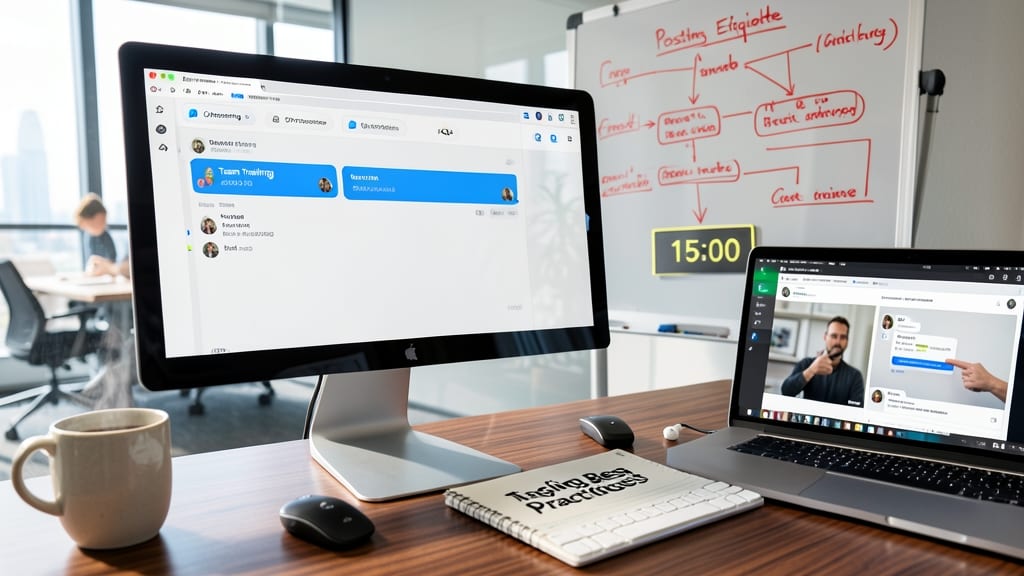
Even with the best-organized channels, adoption stalls when team members don’t understand how to use them effectively. A 15-minute training session covering core etiquette—like when to post in threads vs. new messages—can transform engagement overnight.
Start by demonstrating how to tag relevant team members (@team) instead of posting broad announcements, and explain the 3-second rule: if your message doesn’t fit in a short paragraph, it’s likely better as a thread. Use real examples from your channels to show what works (and what doesn’t). For remote teams, record a short Loom video with these tips—it’s reusable and reduces repetitive questions.
This approach works best for new hires or teams transitioning to Teams from other tools. Even experienced users often miss subtle nuances like pinned posts for FAQs or how to mute notifications—small details that save hours weekly. ✨