
Software

Microsoft Edge is faster, more secure, and packed with hidden features that can transform your browsing experience. These seven pro tips will help you customize your browser, boost performance, and work smarter—without wasting time on unnecessary settings.
Enable Immersive Reader for Focused Reading
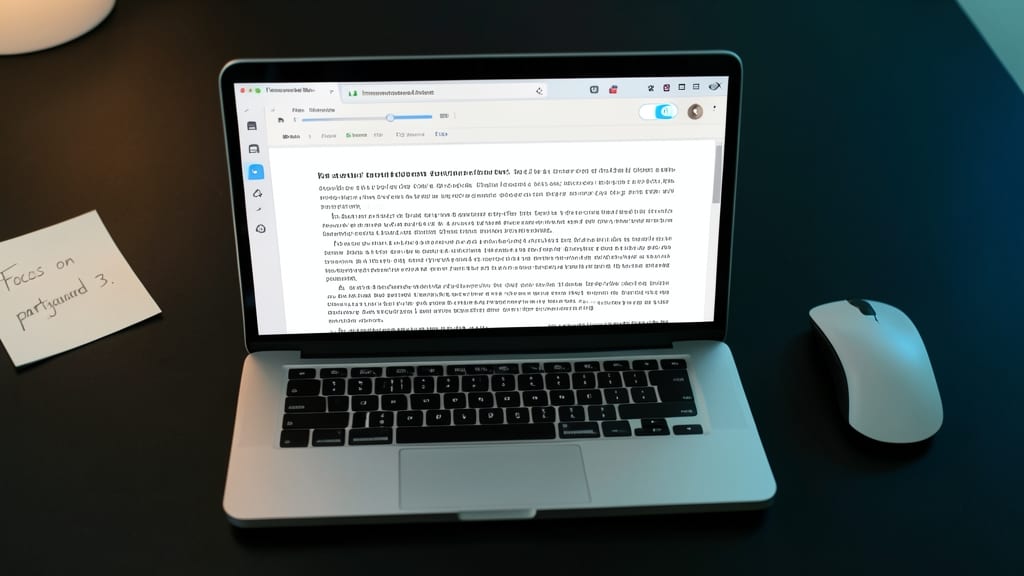
Struggling to focus while reading dense research papers or lengthy articles? Microsoft Edge’s Immersive Reader transforms your screen into a distraction-free zone with AI-powered readability tools. This built-in feature strips away clutter, offering customizable fonts, spacing, and even text-to-speech for hands-free learning.
Simply open a webpage, click the three-dot menu (⋮), and select "Immersive Reader" to instantly switch to a clean, high-contrast layout. Adjust font size, line spacing, and color themes (like sepia or high contrast) to match your needs. The text-to-speech feature reads aloud with adjustable speed, perfect for absorbing complex material while multitasking. Best of all, it works offline and syncs across devices.
This tool is a game-changer for students, writers, or professionals analyzing dense documents. Whether you're reviewing legal contracts or studying technical manuals, Immersive Reader helps you retain information faster—without eye strain. ✨
Use Collections to Organize Web Content
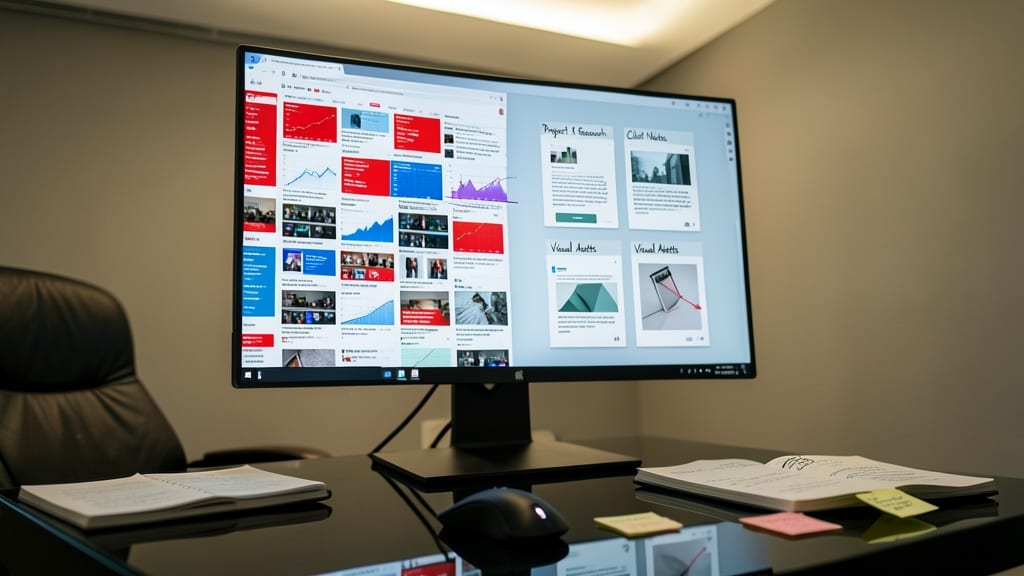
Drowning in open tabs while researching or managing a project? Microsoft Edge’s Collections feature turns chaos into a structured workspace—no more tab-hopping madness. Clip text, images, and notes directly from web pages, then organize them into customizable boards with drag-and-drop ease. The best part? Your work stays synced across devices and exports seamlessly to Word or PDF for polished reports.
To get started, open a webpage, highlight text or images, and click the three-dot menu > "Save to Collections." Add sticky notes for context, rearrange items with a simple drag, and even tag collections by project. The cross-device sync ensures your research stays accessible whether you’re on your laptop, tablet, or phone. For added flexibility, toggle between light/dark mode to match your workflow.
This tool is a lifesaver for researchers, writers, or project managers juggling multiple sources. Say goodbye to scattered tabs and hello to a streamlined, export-ready workspace. ⚡
Customize Start Page with News and Weather
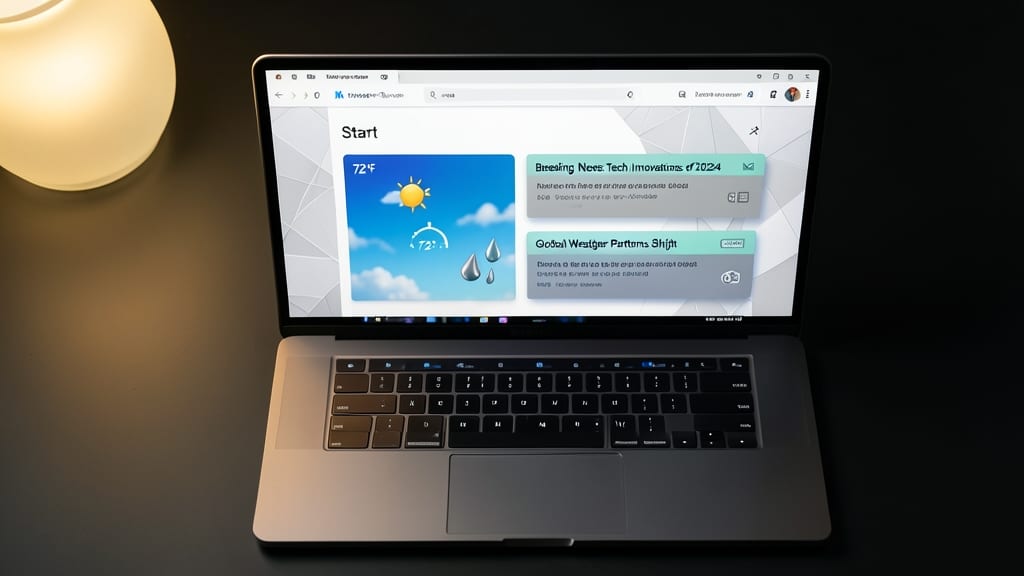
Tired of a chaotic bookmarks bar that slows you down? Microsoft Edge’s customizable Start Page turns your homepage into a sleek, functional hub—no clutter required. Swap outdated bookmarks for a dynamic layout featuring real-time news, weather updates, and your most-used sites, all in one glance.
Start by pinning your favorite sites to the Start Page (right-click any tab > "Pin to Start Page"). Then, enable the news and weather widgets via the three-dot menu (⋮) > "Customize Start Page." Choose from sources like CNN, BBC, or AccuWeather for live updates—no extra tabs needed. The dark/light mode toggle ensures it matches your workflow, while the search bar stays handy for quick queries.
This setup is perfect for busy professionals who want a clean, efficient launchpad or casual users who prefer a modern alternative to traditional bookmarks. Try it today and reclaim your screen space! ✨
Enable Dark Mode for Eye Comfort

Late-night coding sessions or late-night browsing can take a toll on your eyes—but Microsoft Edge’s Dark Mode makes it easier on your vision. This feature reduces blue light emissions and shifts the interface to a sleek, dark color scheme, cutting glare and eye strain during low-light conditions.
Enable it in Settings > Appearance with a single toggle, and Edge will automatically sync with your Windows system settings for consistency. The blue-tinted dark theme is perfect for developers, writers, or anyone working in dim lighting, while still keeping readability high. Plus, it’s battery-friendly on laptops.
Night owls and developers will love how Dark Mode preserves focus while protecting their eyes—no more squinting at bright screens at 2 AM. ✨
Speed Up Tabs with Vertical Tabs
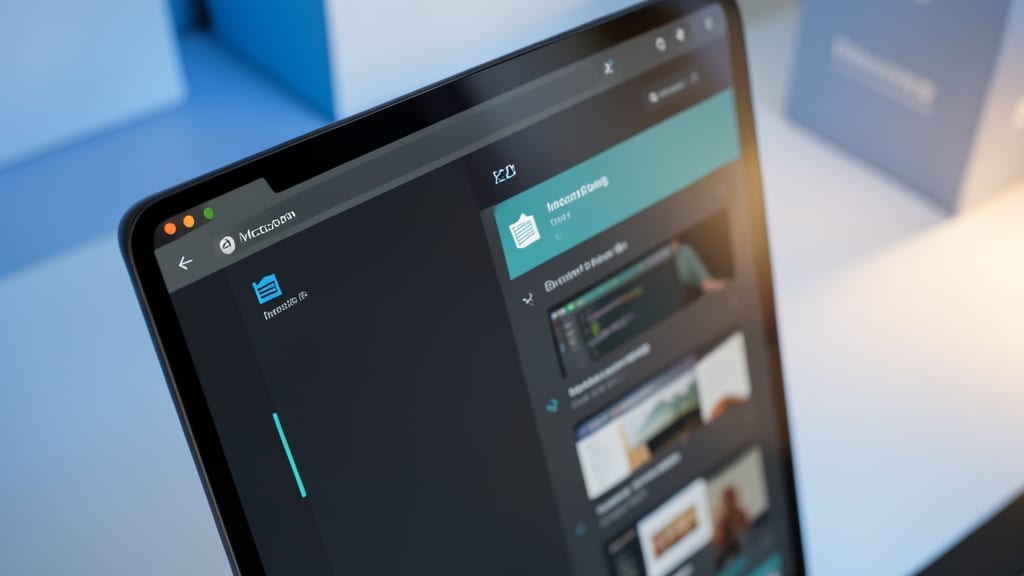
Tired of scrolling through a horizontal tab graveyard every time you need to switch between projects? Vertical Tabs in Microsoft Edge transforms your workflow by stacking tabs neatly in a sidebar—freeing up precious screen space for actual work.
With just a click, you can toggle between vertical and horizontal modes, and the feature even supports drag-and-drop reordering for quick organization. This is a game-changer for developers comparing code snippets, researchers cross-referencing sources, or anyone juggling multiple reference windows. The best part? It’s built right into Edge—no extensions required.
Ideal for power users who thrive on multitasking, Vertical Tabs keeps your workspace tidy while making tab-switching faster than ever. Give it a try and reclaim your screen real estate! ✨
Block Trackers with Privacy Dashboard
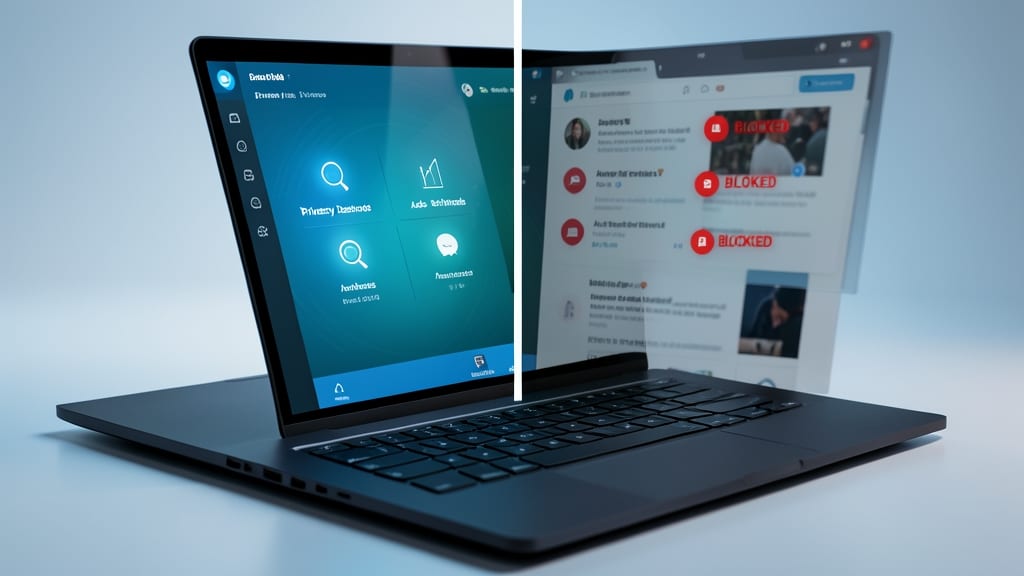
Worried about websites silently tracking your every move? Microsoft Edge’s Privacy Dashboard puts you in control by automatically detecting and blocking third-party trackers—like ads, analytics, and social media widgets—that follow you across sites.
With just a few clicks, you can view a real-time breakdown of blocked trackers, adjust blocking levels (strict, balanced, or basic), and even whitelist trusted sites. The dashboard also provides insights into how much data is being blocked, helping you make informed decisions about your digital footprint.
This feature is a must for privacy-conscious users, remote workers handling sensitive data, or anyone tired of feeling like a product in a data marketplace. 💻
Sync Settings Across Devices Automatically
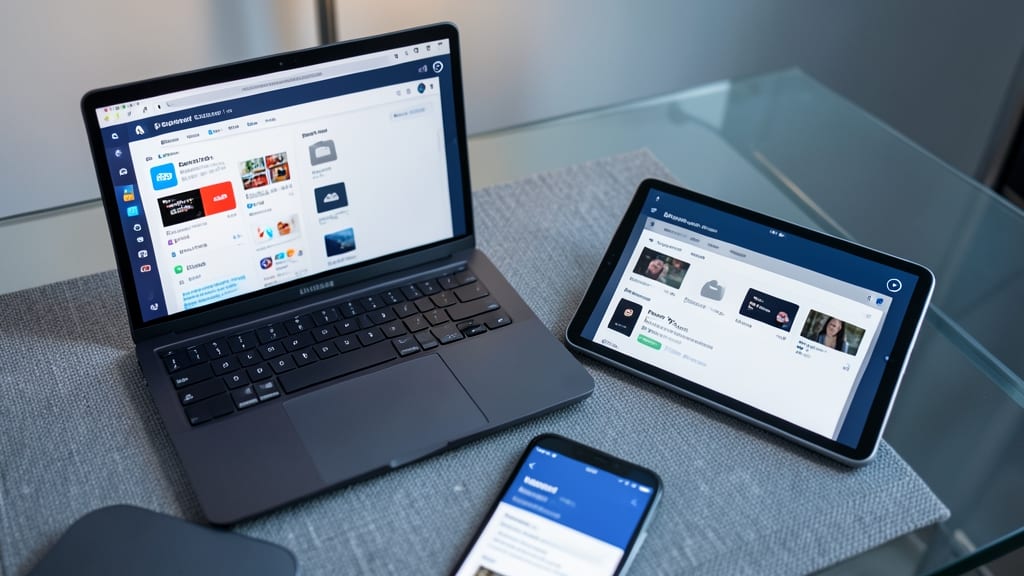
Tired of losing bookmarks or extensions when switching from your laptop to tablet? Microsoft Edge’s cross-device sync keeps everything in sync—bookmarks, extensions, and even open tabs—across your PC, phone, and tablet with just a Microsoft account.
Enable it in Settings > Profiles > Sync, and your browsing experience stays consistent no matter which device you’re using. This feature is a lifesaver for professionals juggling work and personal tasks or students researching across multiple devices. No more frustration over lost tabs or misplaced bookmarks!
Perfect for anyone who values seamless workflows and hates reconfiguring their browser every time they switch devices. ✨