
PowerPoint

Want to make your PowerPoint presentations more dynamic and engaging? These 10 transition effects will help you create smooth, professional slideshows that keep your audience captivated without distracting from your content.
Fade Slide Transition for Elegant Presentations
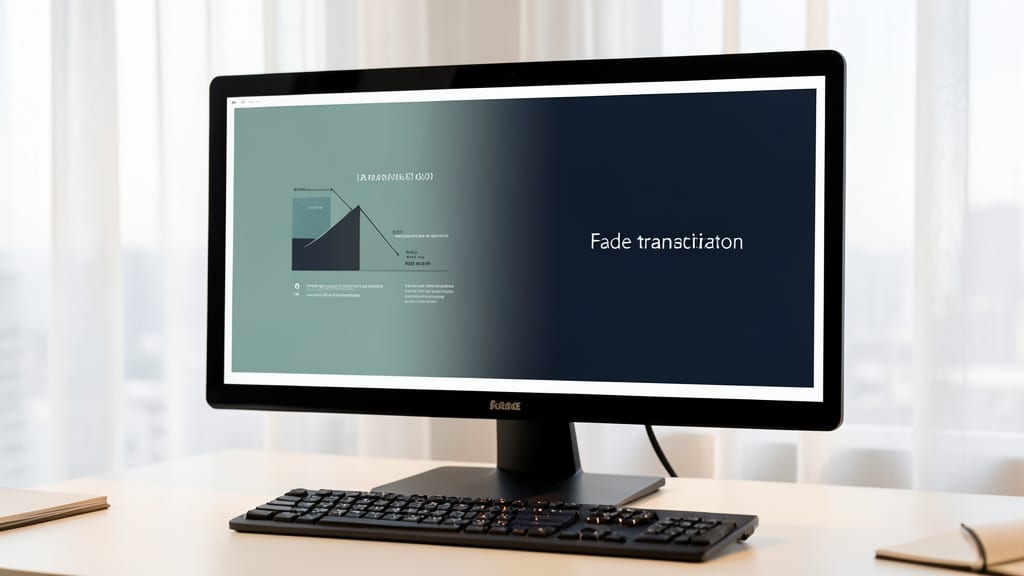
Need a transition that feels polished and professional without stealing focus? The Fade effect is the go-to choice for presenters who prioritize elegance over flash. Unlike flashy animations, it smoothly dissolves one slide into the next, creating a clean, distraction-free experience that keeps your audience engaged with your content—not the visuals.
This timeless transition works universally across all PowerPoint versions, from 2016 to Microsoft 365, and pairs perfectly with subtle sound effects (like a soft chime) to elevate sophistication. The zero-configuration setup means you can apply it in seconds via the Transitions tab, and it’s ideal for slides with text-heavy layouts or minimalist designs. Adjust the duration (0.5s to 5s) to match your pacing—faster for dynamic flows, slower for emphasis.
Perfect for corporate pitches, academic lectures, or client meetings, the Fade effect ensures your message shines without visual noise. It’s the default choice for presenters who value subtlety and professionalism. ✨
Push Slide Transition for Modern Slideshows
Ditch the static slides—Push Slide Transition brings a 3D-like push effect, making your presentation feel like it’s physically moving forward. This isn’t just another wipe or fade; it’s a directional motion that mimics a slide deck being manually advanced, perfect for tech demos where momentum matters.
Available in PowerPoint 2016 and later, this transition lets you choose left-to-right or right-to-left movement, with customizable speed and sound effects. Pair it with a data-heavy slide (like a dashboard or flowchart) to guide your audience’s eye through key insights naturally. The subtle depth illusion keeps it professional while adding energy.
Ideal for product launches, engineering walkthroughs, or investor pitches, this transition subtly signals progression—no distractions, just polished motion. ⚡
Wipe Slide Transition for Clean Transitions
Need a transition that feels professional yet engaging without overwhelming your audience? The Wipe Slide Transition delivers a clean, curtain-like reveal that keeps focus squarely on your content—perfect for tutorials, training sessions, or any presentation where clarity matters most.
Available in horizontal, vertical, or diagonal directions, this transition mimics a shutter closing, creating a polished effect that feels intentional. Unlike flashy animations, it subtly guides attention while maintaining readability—ideal for slides packed with data, diagrams, or step-by-step instructions. Pair it with a moderate timing (2-3 seconds) to avoid disrupting flow, and your educational content will feel more structured and intentional.
Trainers, educators, and corporate presenters will appreciate how this transition reduces visual noise while adding a touch of sophistication. It’s the go-to choice when you want to emphasize progression without sacrificing professionalism. ✨
Zoom Slide Transition for High-Impact Reveals
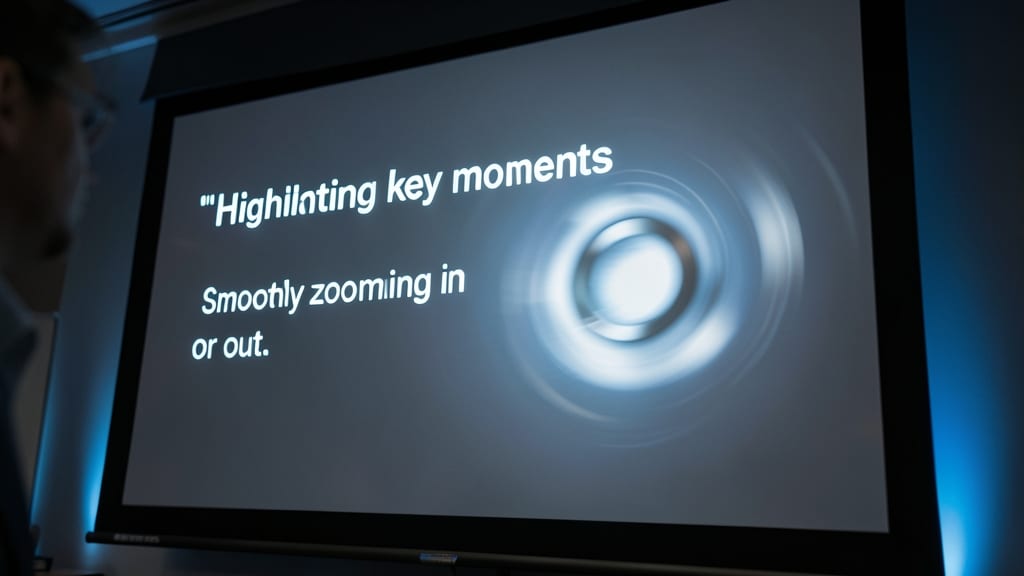
Need to make a specific slide pop in your presentation? The Zoom Slide Transition does exactly that by smoothly zooming in or out to highlight key moments—ideal for keynote speeches, sales pitches, or any presentation where you want to emphasize a single idea dramatically.
This effect lets you control the zoom direction (in or out) and speed for dramatic reveals, ensuring your audience stays locked in on your most important content. Pair it with a sound effect (like a subtle "whoosh") to add extra impact. It’s perfect for unveiling data visualizations, product launches, or even a closing call-to-action.
Best for presenters who want to command attention without overwhelming the audience. Just don’t overuse it—save it for moments that truly matter! ✨
Morph Slide Transition for Seamless Design Shifts
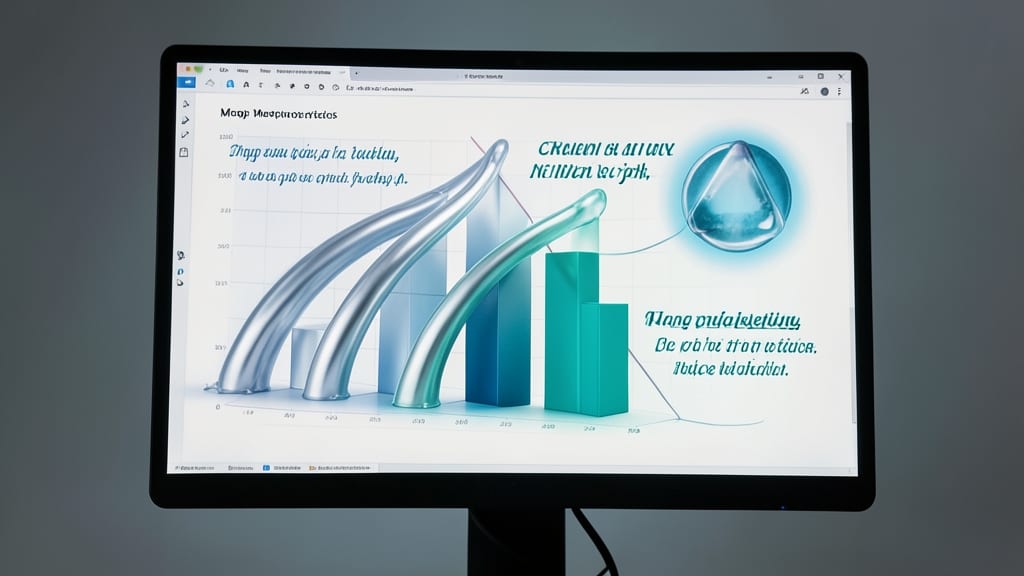
Looking to turn your PowerPoint into a visual masterpiece? The Morph transition isn’t just another slide shift—it’s a liquid transformation where shapes, charts, and text fluidly evolve from one slide to the next. Unlike static transitions, Morph lets you animate elements like resizing bars in a chart or smoothly transitioning between icons, making your data feel dynamic without losing clarity.
Available in PowerPoint 2016 and later, this effect works best with vector-based objects (like shapes, charts, and SmartArt) and supports timing adjustments for precise control. For example, you can morph a bar chart into a pie chart or animate a logo into a full design—perfect for creative pitches or data-driven storytelling. The key? Start with consistent layouts between slides for the smoothest results.
Designers, marketers, and educators will love Morph for its storytelling potential. It’s the go-to for presentations where you want to guide the audience’s eye through subtle yet impactful changes—no distracting cuts or abrupt shifts. ✨
Box Out Slide Transition for Structured Flow
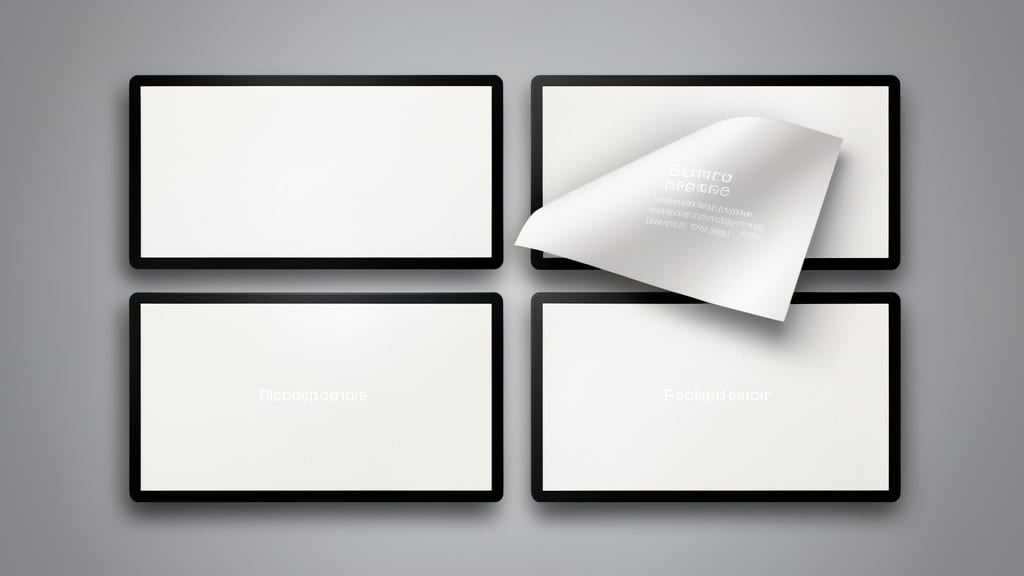
Need to guide your audience through a step-by-step process without losing focus? The Box Out transition is your secret weapon. Unlike other transitions that blend or move slides, this one divides your slide into panels that close sequentially, creating a structured, almost "peeling back" effect that feels intentional and organized.
You can customize the direction (top-to-bottom, left-to-right, or even diagonally) and adjust the timing to control how quickly each panel reveals its content. This makes it perfect for legal contracts, workflow diagrams, or training manuals where clarity and progression matter. The built-in sound effects (like a subtle "whoosh") can further emphasize the transition without overwhelming your message.
Lawyers, trainers, and project managers will love this transition for its professional yet dynamic feel. It’s the ideal choice when you want to keep your audience engaged while maintaining a logical flow—no distractions, just smooth progression. ✨
Split Slide Transition for Dramatic Reveals
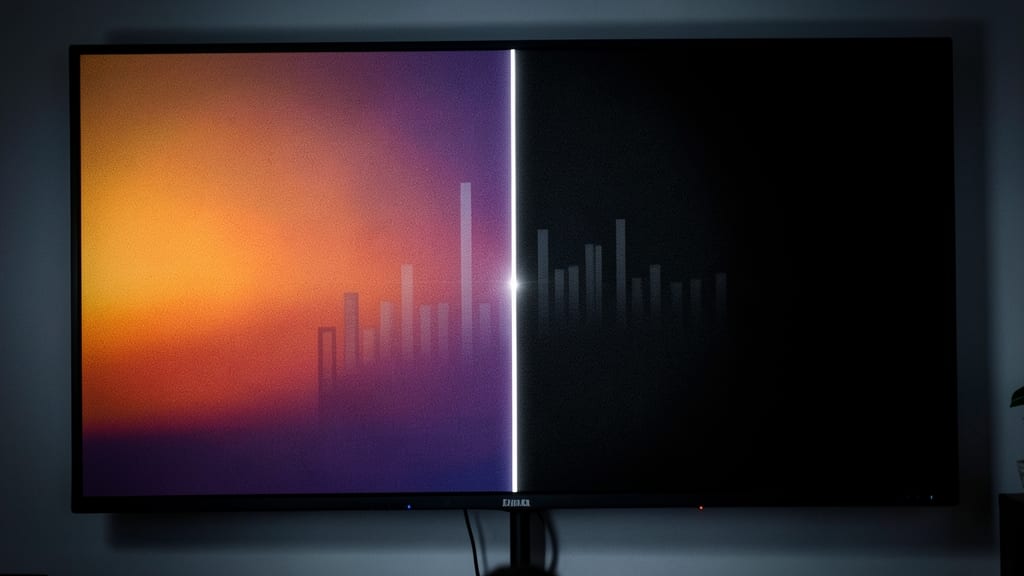
Need to create tension or showcase contrasts in your slideshow? The Split Slide Transition delivers a cinematic effect by dividing your screen horizontally or vertically—perfect for before-and-after comparisons, dramatic storytelling, or highlighting key differences.
This transition works by revealing content in two distinct halves, either from top to bottom or left to right. You can customize the split direction, speed, and even add a subtle shadow for depth. It’s especially effective in case studies, financial reports, or creative pitches where visual contrast drives the narrative.
Ideal for presenters who want to guide attention without overwhelming the audience, this effect pairs well with minimalist designs. Try it for your next big reveal—your audience will feel the impact. ✨
Checkerboard Slide Transition for Creative Energy
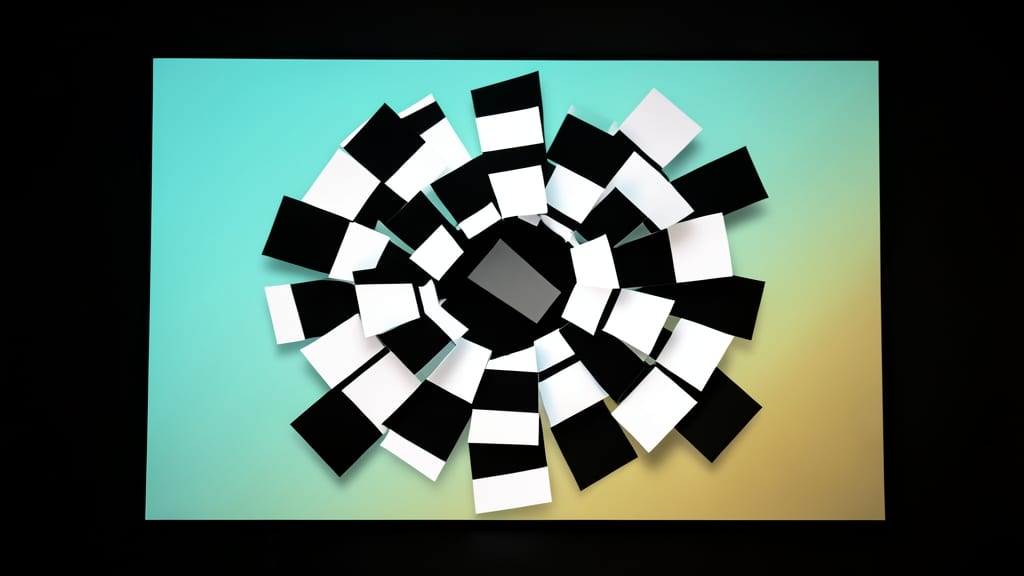
Need a transition that feels fresh, fun, and full of personality? The Checkerboard Slide Transition brings a playful checkerboard animation that adds visual energy without overwhelming your content. Unlike sleek fades or structured wipes, this effect introduces a dynamic grid overlay that shifts between slides, making it perfect for breaking up monotony.
Available in PowerPoint 2016 and later, this transition works best with bright backgrounds to highlight the checkerboard pattern. Pair it with custom timing (try 1.5–2 seconds) to control the pace, or add a subtle sound effect for extra flair. The effect is subtle enough to avoid distraction but bold enough to spark curiosity.
Ideal for creative teams, educators, or casual presenters, this transition shines in brainstorming sessions or informal pitches where you want to keep energy high. It’s the perfect way to signal a shift in topics while keeping your audience engaged. ✨
Random Bars Slide Transition for Abstract Appeal
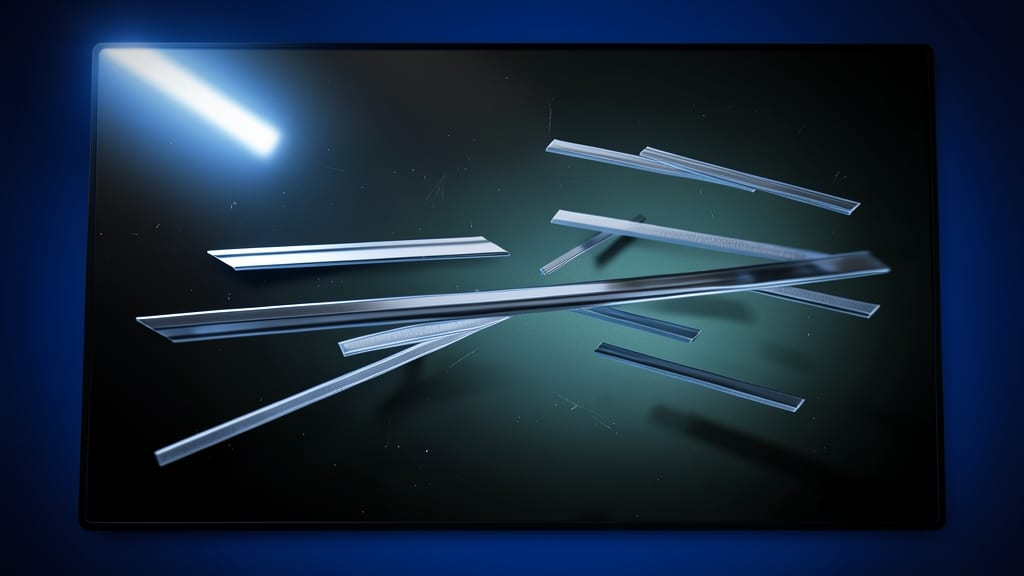
Tired of predictable slide transitions? The Random Bars effect injects unpredictability with its abstract, horizontal bars sliding in from random directions, creating a visually striking break from tradition.
This transition works by generating unique bar patterns for each slide, ensuring no two transitions look alike. It’s perfect for artists, designers, or anyone presenting creative concepts where you want to stand out without overwhelming your audience. The effect pairs well with minimalist layouts and bold typography.
Ideal for portfolio reviews, creative pitches, or unconventional talks, this transition adds flair without sacrificing professionalism. Just avoid overusing it—subtlety keeps the focus on your content. ✨
Media Fade Slide Transition for Multimedia Presentations
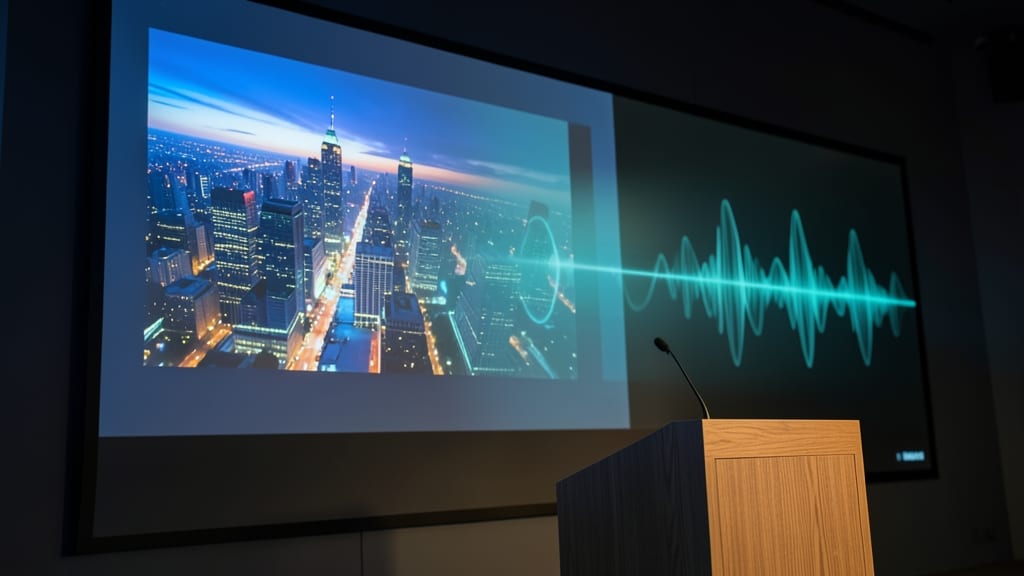
Struggling to keep your audience engaged when switching between slides packed with videos, audio clips, or embedded media? The Media Fade transition is your secret weapon—designed specifically to handle multimedia content without glitches or distractions.
Unlike standard fades, this transition ensures smooth playback of embedded media by pausing videos or audio during the transition, then resuming seamlessly. You can adjust the transition speed (from 0.1s to 5s) and pair it with sound effects for added polish. Works flawlessly in PowerPoint 2016 and later, including the desktop and online versions.
Perfect for trainers, marketers, or educators who rely on video tutorials, product demos, or interactive content—this transition keeps your multimedia elements intact while adding a professional touch. ✨