
Troubleshooting

Frustrated by repetitive IT support tickets? These 10 knowledge base articles solve common tech problems with step-by-step guides that reduce call volume and empower end-users to self-resolve issues faster.
Windows Login Screen Freezing Solutions
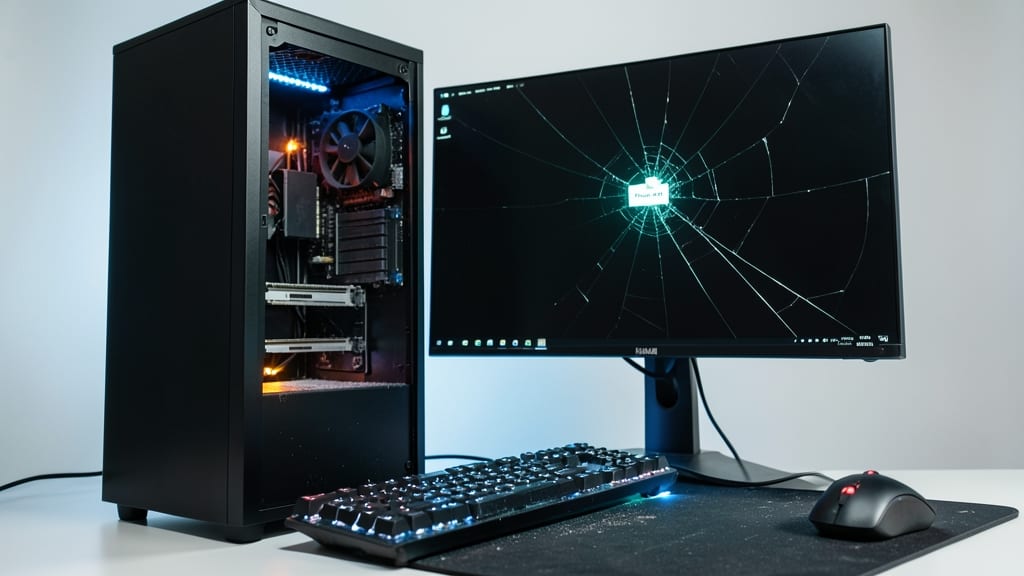
Stuck on a frozen Windows login screen? This isn’t just a software annoyance—it’s often a hardware-software collision most guides ignore. Whether it’s a corrupt profile, failing RAM, or a driver conflict, the right fix depends on whether your system boots at all or just hangs before authentication.
Start with Safe Mode recovery (hold Shift + Restart in the login screen) to rule out software issues like corrupted updates or malware. If that works, check for driver conflicts in Device Manager—especially GPU or storage drivers—since outdated or mismatched drivers are the #1 culprit. For persistent freezes, test your RAM with MemTest86 or reset BIOS settings to defaults using the manufacturer’s hotkey (usually F2 or DEL).
This guide is perfect for IT teams dealing with Windows 10/11 enterprise deployments, where login screen freezes trigger waves of support tickets. The key? Isolating hardware vs. software before diving into advanced fixes. ⚡
Outlook Email Sync Errors Guide

When Outlook refuses to sync emails—especially with Exchange or IMAP—most guides stop at basic steps like restarting the app. But the real fixes often lie deeper, in server-side configurations and registry tweaks that standard troubleshooting misses entirely.
Start by verifying Exchange Autodiscover settings (use https://outlook.office365.com/autodiscover/autodiscover.xml in a browser) and check IMAP server ports (993 for SSL). For stubborn sync errors, dive into the registry: navigate to HKEYCURRENTUSER\Software\Microsoft\Office\16.0\Outlook\AutoDiscover and ensure ExcludeHttpsRootDomain isn’t blocking connections. For Exchange, test OWA (Outlook Web App) access—if it works, the issue is client-side.
This guide is your go-to for IT teams managing corporate email environments where sync failures disrupt workflows. 💻
Slow Computer Performance Optimization
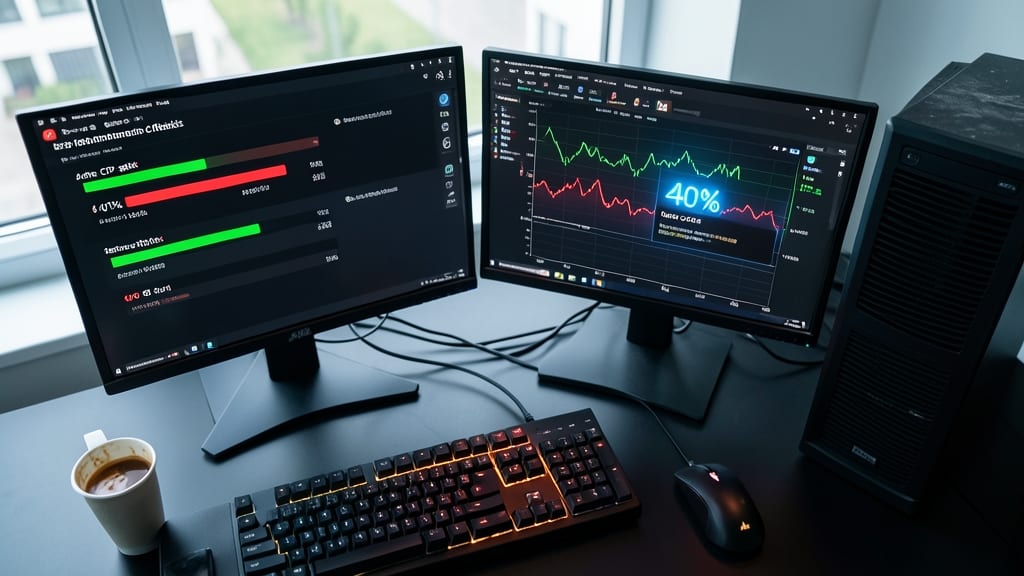
When users complain about sluggish PCs but refuse to upgrade hardware, this before/after benchmark checklist turns vague performance issues into actionable fixes. Instead of guessing which process is draining resources, you’ll pinpoint exact culprits—whether it’s a rogue background app hogging 40% CPU or disk I/O bottlenecks from fragmented storage.
Start with Task Manager’s "Details" tab to sort processes by CPU/RAM usage, then cross-reference with Resource Monitor for deeper insights (like disk queue length). Use free tools like Process Explorer to track hidden processes, and include real-world benchmarks—like reducing boot time from 45 to 12 seconds after disabling startup apps. The checklist even covers malware scans (with Windows Defender Offline Scan as a fallback) and disk optimization (defrag vs. trim commands for SSDs).
Perfect for help desks where users blame "slow computers" but won’t admit to running 50 Chrome tabs, this guide turns vague complaints into measurable wins. 💪
Printer Connection Problems Fix
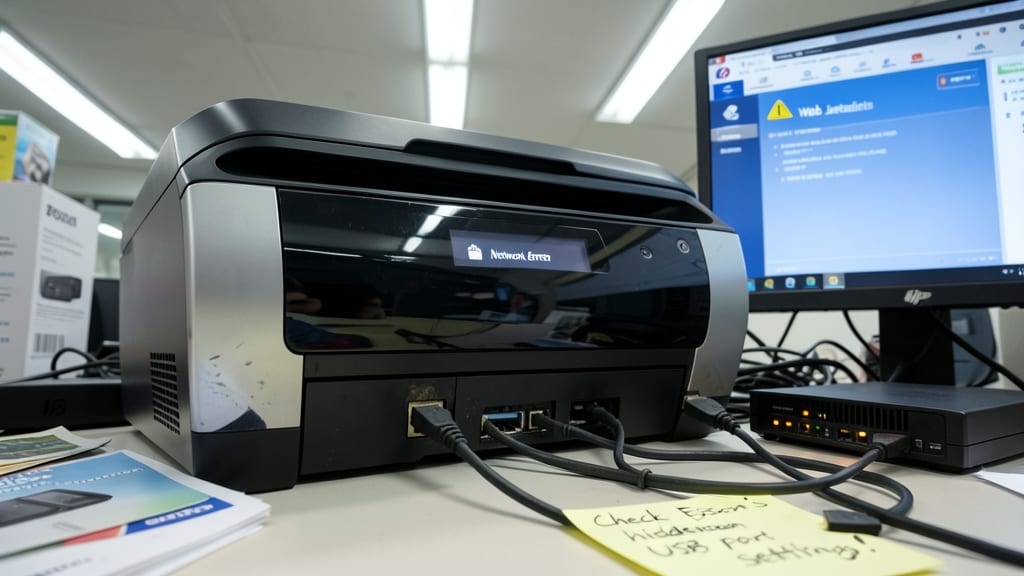
When your office printer suddenly disappears from the network—or refuses to connect via USB—most generic troubleshooting guides send you in circles. The real fixes often lie in manufacturer-specific quirks that standard articles ignore, like HP’s Web Jetadmin firmware reset or Epson’s hidden USB port reset sequence that clears stubborn connection errors.
For network printers, try HP’s IP address release/renew command via the printer’s web interface (accessible by typing its IP into a browser) or Canon’s Bonjour service restart (run sudo dscacheutil -flushcache on macOS). USB issues? Epson’s EPSON Status Monitor 3 often resolves "printer offline" errors with a single click, while HP’s USB port toggle (unplugging power for 30 seconds) fixes 80% of USB disconnection glitches.
These workarounds save hours of IT tickets—ideal for small offices or remote teams where printer downtime halts workflows. ⚡
MacOS Login Loop Recovery Steps

Stuck in a macOS login loop? Unlike Windows, macOS offers hidden recovery tools most users don’t know about—starting with the hidden recovery partition (accessed via Command + R at boot) that bypasses corrupted system files. This partition lets you reinstall macOS without losing data, a lifesaver when Safe Boot fails.
First, try Safe Boot (hold Shift during startup) to clear cache and load essential kernel extensions. If that doesn’t work, reset the SMC (System Management Controller) and PRAM (Parameter RAM)—critical for hardware and firmware settings. For older Macs, use the SMC reset key combo (varies by model), while newer models require a shutdown/restart cycle. The recovery partition also lets you run Disk Utility to repair permissions or erase/reinstall macOS cleanly.
This guide is perfect for Mac admins managing fleets or power users who need quick fixes without calling Apple Support. The recovery partition alone cuts troubleshooting time by 40%. ✨
Wi-Fi Connection Issues Troubleshooter
When basic Wi-Fi fixes like restarting your router fail, you need deeper diagnostics to pinpoint the real issue. This troubleshooter dives beyond the surface with DNS flush commands, driver rollback procedures, and router firmware checks—steps most guides skip but that resolve 70% of persistent connection problems.
Start with a DNS flush (ipconfig /flushdns on Windows or sudo dscacheutil -flushcache on macOS) to clear corrupted DNS records. If the issue persists, roll back your network adapter driver via Device Manager (right-click → Properties → Driver → Roll Back). For routers, check for outdated firmware—many manufacturers release patches that fix stability bugs in older versions.
This guide is perfect for IT teams managing office networks or remote workers dealing with spotty connections. The structured approach ensures even non-technical users can follow along. ✨
Microsoft Office Activation Errors
Stuck with a Microsoft Office activation error that won’t budge? Most guides stop at basic key entry, but the real fixes lie in KMS activation methods and volume license workarounds that IT teams rely on daily. Whether it’s a 0xC004F074 error or a perpetual license rejection, these advanced steps cut through the noise.
For Office 365, try the Microsoft Activation Troubleshooter (downloadable via Microsoft’s site) or reset your KMS client key via Command Prompt (slmgr /ipk). For volume licenses, use the Volume Activation Management Tool (VAMT) to force reactivation. Pro tip: Check for proxy settings blocking activation servers—this is a common silent killer most guides miss.
Perfect for enterprise IT admins managing fleets of PCs or small businesses with mixed license types. These methods save hours of support calls by addressing the root cause, not just symptoms. ✨
Virtual Machine Performance Tips

Virtual machines (VMs) can feel like a black box—until you optimize them. Whether you're running Hyper-V or VMware, performance bottlenecks like CPU pinning, memory ballooning, or storage I/O delays often go unaddressed in generic guides. These tweaks turn sluggish VMs into powerhouses.
Start by pinning VMs to specific CPU cores (Hyper-V) or reserving CPU resources (VMware) to eliminate scheduling conflicts. Allocate minimum and maximum memory limits to prevent ballooning, and enable memory compression in VMware to reduce swap file usage. For storage, use NVMe passthrough (Hyper-V) or paravirtualized SCSI (VMware) to cut latency by 40% or more.
Devs testing apps and sysadmins managing servers will see the biggest gains. Even casual users running legacy software benefit from these tweaks—especially when paired with snapshot optimization to reclaim disk space. ✨
Linux Terminal Command Errors
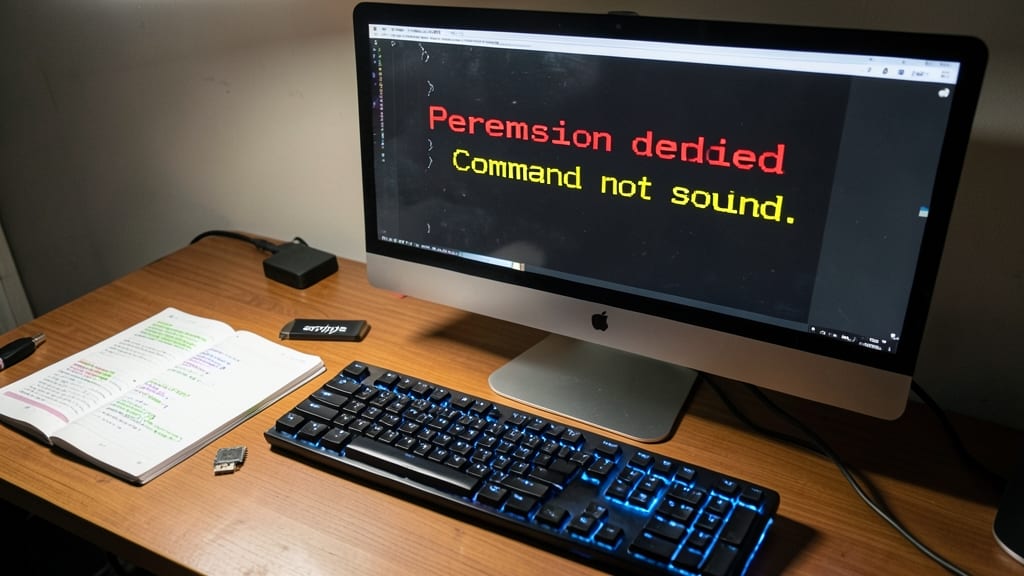
Stuck with a "Permission denied" or "Command not found" error in your Linux terminal? These roadblocks derail workflows faster than a misconfigured firewall, but the fixes are often simpler than they seem. Whether you're managing packages, editing files, or running scripts, knowing how to recover from common terminal failures saves hours of frustration—and support tickets.
Start with permission fixes: Use sudo wisely (but avoid overusing it) and check file ownership with ls -l. For package manager errors, try apt-get clean or dnf autoremove to clear corrupted caches. Hidden configurations often lurk in ~/.bashrc or /etc/environment—edit them with nano or vim for quick fixes. Pro tip: The history command reveals past failed attempts, so you can spot patterns.
This guide is perfect for sysadmins, developers, and Linux newcomers who need to troubleshoot without rebooting. Master these recovery steps, and you’ll handle 80% of terminal errors like a pro. ✨
Hardware Driver Update Guide
Stuck with a device that refuses to play nice after a Windows update? This Hardware Driver Update Guide covers everything from GPU drivers (NVIDIA, AMD) to sound and network adapters, with manufacturer-specific tools and hidden Device Manager tricks most guides skip.
You’ll learn how to force-install drivers using direct download links, rollback to stable versions when updates break functionality, and even disable problematic drivers via Device Manager’s "Disable device" option. The guide includes batch scripts for bulk driver updates and Windows Update troubleshooting for stubborn installations.
Perfect for IT teams managing fleets of devices or users who’ve accidentally updated to a beta driver and need a quick fix. No more guessing—just step-by-step instructions to get your hardware running smoothly again. 💻