
Tip & Trick

Struggling to keep your files organized in Microsoft’s ecosystem? Consistent file naming conventions save time, reduce errors, and make collaboration seamless. These seven Microsoft-approved best practices will transform your file management from chaotic to professional.
Date-Based Prefix Format for Version Control
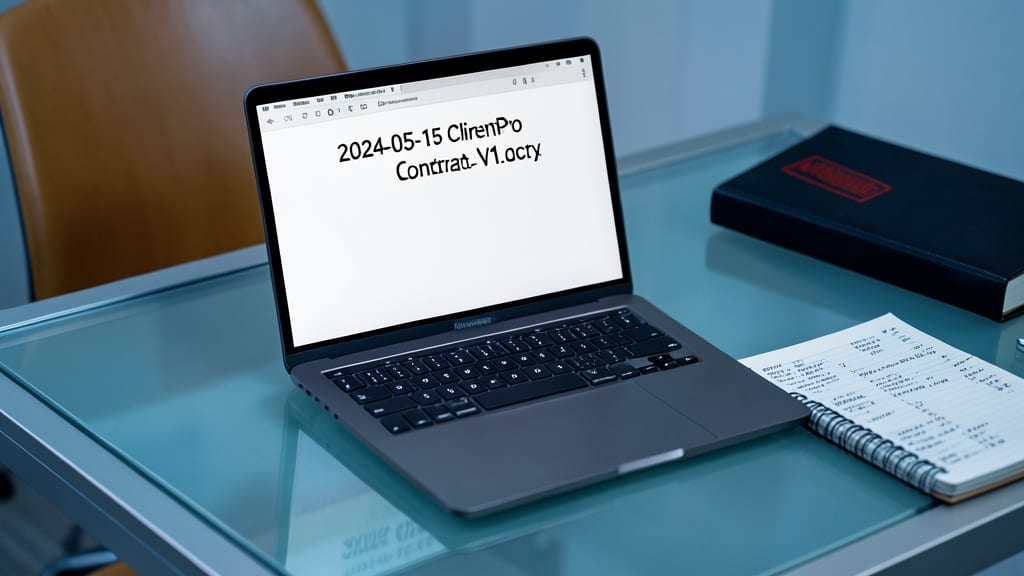
Struggling to track document revisions in legal or financial projects? A date-based prefix (e.g., 2024-05-15ContractV1.docx) creates an instant audit trail—critical for compliance and version control.
Use the YYYY-MM-DD format followed by an underscore and project name (e.g., 2024-05-15ClientProposalV2.pdf). This ensures chronological sorting in Windows Explorer and seamless integration with SharePoint libraries, where date filters help recover lost revisions. The underscore separator also prevents errors in automated workflows.
Perfect for legal teams, accountants, or project managers—this method eliminates "Which version is final?" chaos while keeping files searchable across Microsoft’s ecosystem. ⚡
Department-Specific Code for Team Collaboration

Frustrated when files get lost between departments—like marketing’s Q2Report.docx ending up in finance’s folder? A department-specific code (e.g., MKT2024Q2Report.xlsx) instantly clarifies ownership, reducing miscommunication and speeding up approvals.
Use 2-3 letter abbreviations (e.g., FIN, HR, MKT_) followed by underscores to separate components. This works seamlessly with Microsoft’s search tools—filtering by MKT pulls all marketing files instantly. The underscore format also avoids issues in Power Automate or batch scripts, where spaces or special characters could cause errors.
Ideal for enterprise teams where files move between departments, this system cuts down on version confusion and keeps workflows on track. 💻
Underscore Separators for Readability in Long Names

Tired of files that look messy and break when you automate tasks? Underscores are Microsoft’s secret weapon for clean, script-friendly names that stay readable—no more Q3 Sales Analysis 2024final.pptx headaches.
Unlike spaces (which cause errors in PowerShell, batch scripts, or SharePoint automation), underscores work seamlessly across all Microsoft tools. They’re also ISO 9000-compliant, making them ideal for regulated industries. For example, Q3SalesAnalysis2024_final.pptx sorts alphabetically and passes validation checks that spaces fail.
Perfect for developers, sysadmins, or teams running automated workflows—this is the one separator that keeps files both human- and machine-friendly. ✨
File Type Extensions for Instant Identification

Ever opened a file in OneDrive or SharePoint, only to realize it’s the wrong version because the extension was missing? That’s a costly mistake—especially when dealing with .docx, .xlsx, or .pdf files that sync silently in the background.
Always include the file type extension (e.g., ProjectPlan_2024.xlsx instead of just ProjectPlan). This prevents hidden corruption during cloud syncs and ensures your files open correctly across devices. Microsoft’s cloud services rely on these extensions to maintain file integrity, so omitting them can lead to unexpected errors or lost work.
This rule is non-negotiable for teams sharing files in OneDrive or SharePoint—it’s the simplest way to avoid frustration down the road. ✨
Lowercase Letters to Prevent Sync Errors
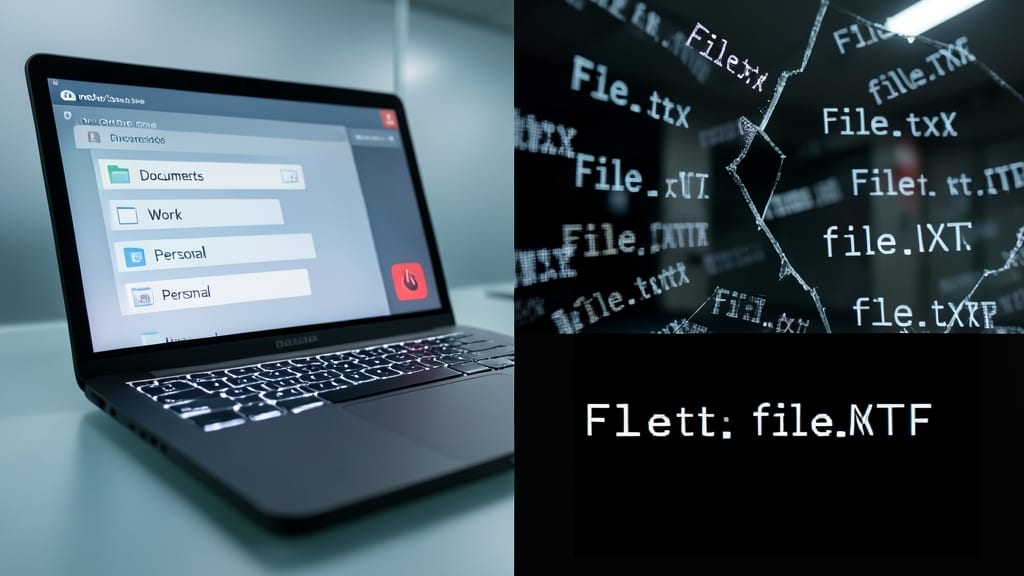
Ever hit "sync" in OneDrive or SharePoint, only to see half your files vanish because of a capital letter? Microsoft’s cloud services treat File.txt and file.TXT as completely different files—leading to frustrating sync errors and lost work.
To avoid this, stick to all lowercase for filenames. This ensures consistent syncing across devices and platforms, whether you’re using Windows, macOS, or mobile. The rule applies to everything: documents, spreadsheets, and even folders. For example, monthlyreport2024.pdf syncs flawlessly, while MonthlyReport2024.PDF might cause conflicts.
This is especially critical for teams sharing files in SharePoint libraries or OneDrive for Business, where case sensitivity can derail workflows. A small habit now saves hours of troubleshooting later. ✨
Project Phase Naming for Dynamic Workflows

Tired of digging through folders to find the latest version of a document? Project Phase Naming turns your file system into a built-in workflow tracker—no extra tools needed. By embedding statuses like Draft, Review, or Final directly into filenames (e.g., MarketingPlanFinalClientA.docx), you instantly see where each file stands in the process.
This system works seamlessly with Microsoft’s ecosystem: SharePoint libraries automatically sort files by phase, and Power Automate can trigger approval workflows based on filename patterns. For example, ProposalReview files could auto-route to stakeholders, while Final versions trigger archiving. The underscore format also keeps names script-friendly for batch operations.
Agile teams, freelancers managing multiple clients, and project managers will love this—it replaces folder chaos with a single, searchable timeline of progress. ⚡
Avoid Special Characters for Script Compatibility

Automating file tasks with PowerShell or batch scripts? Special characters like #, %, or ? can derail your workflow faster than you’d expect. These symbols trigger syntax errors, break loops, and corrupt commands—turning a simple script into a debugging nightmare.
Stick to alphanumeric characters (A-Z, 0-9) and underscores () for bulletproof compatibility. For example, use Invoice2024Q1.pdf instead of Invoice#2024Q1.pdf. This rule applies to everything from OneDrive automation to SharePoint workflows, ensuring your scripts run flawlessly across Microsoft’s ecosystem.
Developers and IT admins managing large file systems will appreciate this rule the most—it’s the difference between a zero-config script and one that crashes mid-execution. ⚡