
Software

Microsoft Teams isn’t just another classroom tool—it’s a game-changer for teachers seeking to streamline communication, enhance collaboration, and create interactive learning experiences. From virtual classrooms to seamless parent-teacher interactions, these 10 benefits show how Teams can transform your teaching workflow and student engagement.
Seamless Classroom Communication Platform

Drowning in a sea of emails, missed announcements, and scattered messages? Microsoft Teams acts as your centralized classroom command center, replacing the chaos with a single, organized hub for all communication needs. No more digging through inboxes—every chat, video call, and announcement lives in one place, ensuring students and parents stay informed without the clutter.
Create dedicated class channels for announcements, discussions, and resources, where you can pin important updates at the top for instant visibility. The integrated chat lets you send quick messages, while video calls with screen-sharing turn impromptu check-ins into productive meetings—all without leaving the platform. Plus, @mentions ensure critical messages stand out, and file attachments keep resources handy for students who might miss an email.
This is the ideal solution for teachers juggling multiple classes or those who want to eliminate the guesswork of communication. Whether you're sharing last-minute reminders or hosting a virtual office hour, Teams keeps everyone connected—without the email overload. 💡
Interactive Virtual Classrooms for Hybrid Learning

For teachers balancing in-person and online students, Microsoft Teams transforms your classroom into a dynamic hybrid space—no matter where learning happens. The platform’s virtual classroom tools let you host live lessons, split students into breakout rooms for group work, and share your screen instantly, all while keeping hybrid learners engaged side by side.
With 4K video support, whiteboard collaboration, and real-time captions, lessons feel interactive whether students join from a classroom desk or a living room. The attendance tracker ensures no one slips through the cracks, and screen-sharing controls let you highlight key points without technical glitches. Even shy students can participate via chat or reactions, making every voice heard.
This is your secret weapon for flexible teaching—whether you’re managing a mix of in-class and remote students or running a fully virtual school. No more juggling separate platforms or losing students in the shuffle. 💻
Real-Time Collaboration on Class Assignments

Group projects just got easier with Microsoft Teams’ real-time co-authoring—no more emailing drafts or losing track of updates. Whether your students are working on a shared Word document, a group Excel spreadsheet, or a PowerPoint presentation, every change appears instantly, so everyone stays on the same page (literally).
This feature integrates seamlessly with Office 365 apps, so no extra tools are needed. Teachers can assign tasks, track progress, and even leave comments directly in the file, while students see edits in real time—just like a digital whiteboard session. The version history also means you never lose work, and the commenting tool lets you give feedback without cluttering the main document. ⚡
Built-In Classroom Management Tools
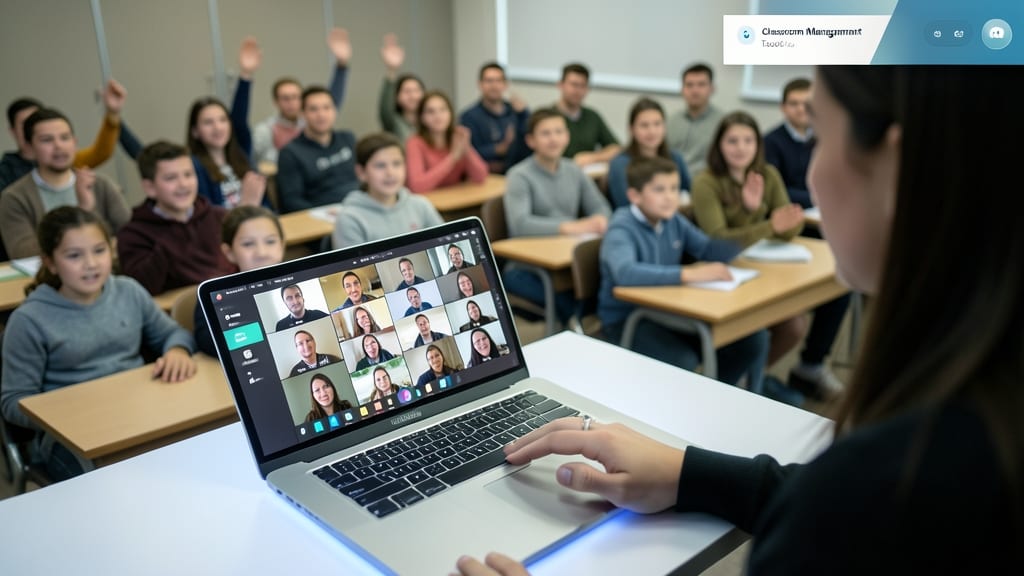
Keeping a large or energetic class focused during live sessions just got easier with Microsoft Teams’ built-in classroom management tools. These features act like a digital teacher’s assistant, giving you instant control over participation without disrupting the flow of learning.
With just a click, you can mute/unmute students individually or all at once, spotlight participants to draw attention to specific students, and track real-time attendance—all from the same dashboard. The participant list even lets you see who’s active, raising their hand (via reactions), or struggling to stay engaged, so you can intervene before disruptions escalate.
Perfect for middle/high school teachers or anyone managing hybrid classes, these tools turn chaos into order—so you can focus on teaching instead of crowd control. 💪
Secure File Sharing and Storage
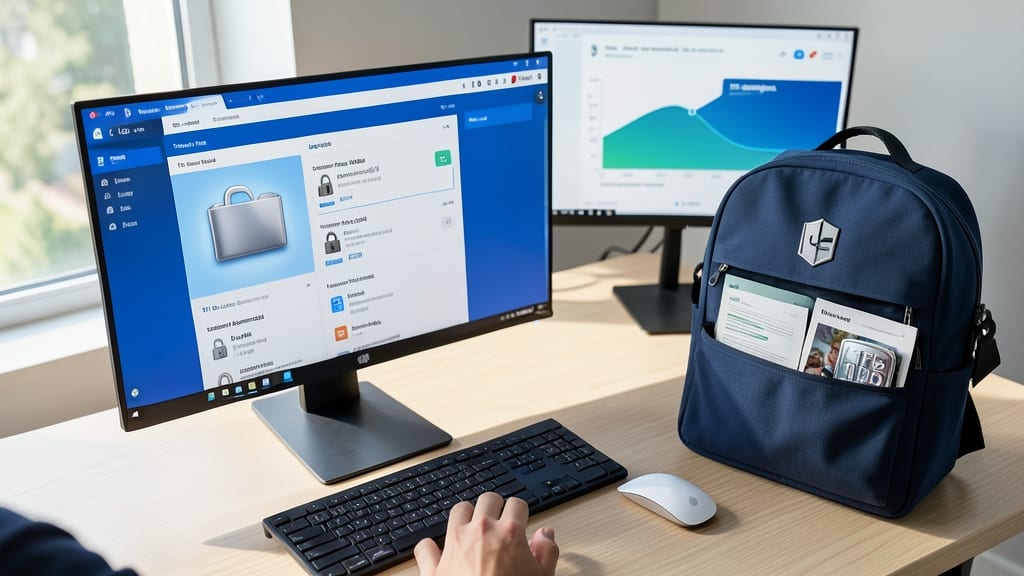
Tired of losing lesson plans or struggling to share large files with students? Microsoft Teams solves this with 1TB of cloud storage per user, giving you a digital backpack for all your teaching materials—securely and effortlessly.
Every teacher gets encrypted file storage where you can organize assignments, rubrics, and resources in dedicated folders. Need to share a 5GB project file with your class? No problem—Teams handles it with zero config and works seamlessly across devices. The Microsoft 365 integration means your files sync automatically with Word, Excel, and PowerPoint, so grading and lesson prep stay streamlined.
This is especially useful for teachers juggling multiple classes or hybrid schedules. Whether you're grading papers at home or prepping lessons on the go, your files are always accessible—and protected with enterprise-grade security. 💻
Parent-Teacher Communication Hub

Tired of parent emails getting lost in your inbox or missed phone calls during busy days? Microsoft Teams’ dedicated parent communication channels create a structured, organized hub where updates, meeting requests, and feedback live—without cluttering your personal messages.
Set up a private class channel where parents can join, receive automated updates on assignments or events, and schedule conferences directly through the platform. The integrated calendar syncs with Outlook, so no more back-and-forth to reschedule. Plus, @mentions ensure urgent messages stand out, and file-sharing lets you send progress reports or handouts instantly.
Perfect for teachers juggling multiple classes or those who want to reduce email overload while keeping parents engaged. Say goodbye to voicemail chaos! ✨
Integration with Office 365 Tools
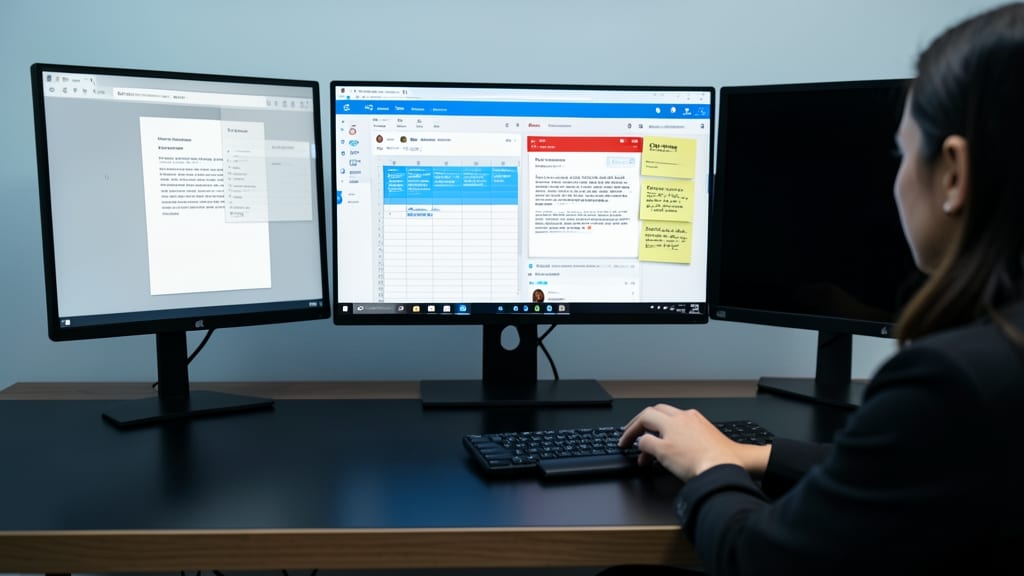
Tired of bouncing between apps to grade papers, create lessons, and track progress? Microsoft Teams’ native Office 365 integration merges your entire workflow into one seamless platform—no tab-switching required.
With Word, Excel, PowerPoint, and OneNote embedded directly in Teams, you can draft lesson plans in OneNote, grade submissions in Excel with built-in formulas, and deliver presentations in PowerPoint—all while chatting with students in real time. The Assignments tab even lets you push files straight to students’ OneDrive folders, ensuring everyone has the latest version without confusion. Plus, version history tracks edits so you never lose progress.
This is a game-changer for teachers juggling lesson prep, grading, and communication—especially those who rely on Microsoft 365’s familiar tools. Say goodbye to app fatigue and hello to a zero-config, all-in-one classroom hub. ✨
Student Engagement Through Polls and Quizzes

Turn passive listening into active participation with Microsoft Teams’ built-in polling and quiz tools. These features let you instantly check for understanding, spark discussions, and adapt lessons on the fly—all without switching apps or disrupting the flow of your class.
Create real-time polls (multiple-choice, word clouds, or quick reactions) to gauge opinions, or assign graded quizzes with automatic feedback. The platform even tracks response rates and displays results visually, so you can see who’s grasping concepts—and who might need extra help. For shy students, anonymous responses ensure everyone’s voice is heard.
This is perfect for lecture-heavy subjects like history or science, where quick checks for comprehension keep students engaged. Even in hybrid classes, the same tools work seamlessly. ✨
Automated Assignment Tracking and Grading

Say goodbye to stacks of ungraded papers and last-minute reminders—Microsoft Teams’ automated assignment tracking turns grading chaos into a streamlined process. Set due dates, submission requirements, and automated reminders all in one place, so students stay on track while you focus on teaching.
The built-in gradebook syncs with OneNote and Excel, letting you input grades once and track progress across all assignments. Real-time submission statuses show who’s completed work, who’s late, and who needs a nudge—no more digging through emails or lost files. Plus, customizable rubrics ensure fairness and consistency.
This feature is a lifesaver for teachers juggling multiple classes or grading heavy workloads. Whether you’re assigning research papers or math problems, Teams keeps everything organized—so you can spend less time on paperwork and more time inspiring students. ✨
Free and Easy-to-Learn for Educators
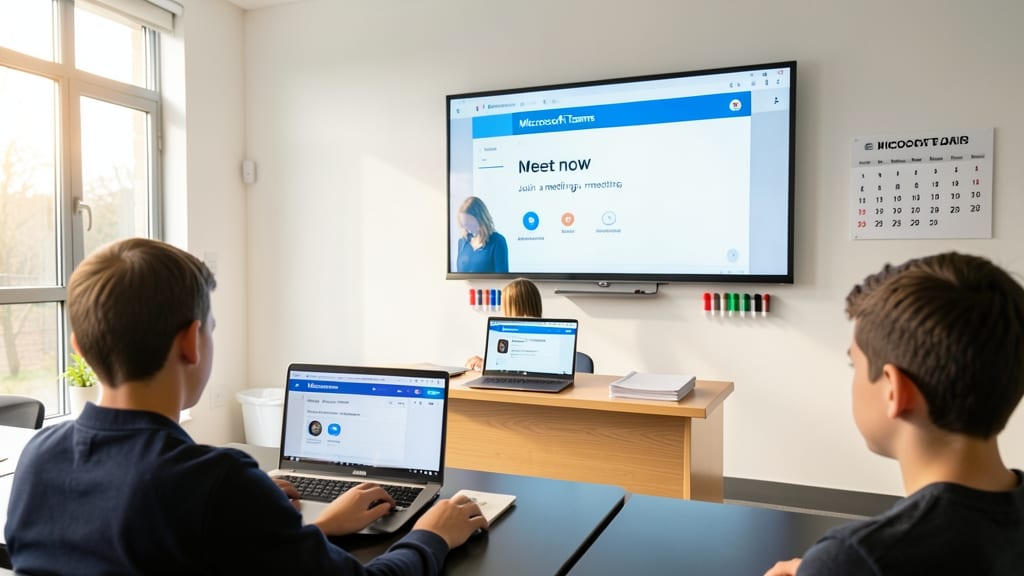
No more budget concerns or complex onboarding—Microsoft Teams for Education is completely free, with zero-cost licenses for schools and teachers. This removes a major barrier for districts or individual educators looking to upgrade their digital tools without additional costs.
The platform’s drag-and-drop interface and pre-built education templates (like class schedules and assignment boards) mean you won’t waste hours figuring out how to set it up. Even teachers who’ve avoided tech tools in the past can master the basics in under an hour—thanks to Microsoft’s step-by-step tutorials and in-app guidance.
Perfect for educators juggling lesson plans and limited tech support, Teams lets you focus on teaching—not troubleshooting. 💻